WhatsApp Business for shops: links, QR codes, catalogue and quick replies
Set up the WhatsApp Business app for a shop: profile, click-to-chat link and QR code, catalogue, quick replies, greeting and away messages, labels and opt-in.
On this page (9 sections)
If your shop's customers already ask about prices and place orders on WhatsApp, the free WhatsApp Business app gives you the tools to handle those chats properly: a business profile, a link and QR code that open a chat with you, a catalogue, saved replies and automatic messages. These are the basics of WhatsApp Business for shops.
This post walks through each one in the order to set them up, with the limits WhatsApp publishes, a worked example for a made-up bakery, and the rules on messaging customers who have not asked to hear from you.
Start with a complete business profile
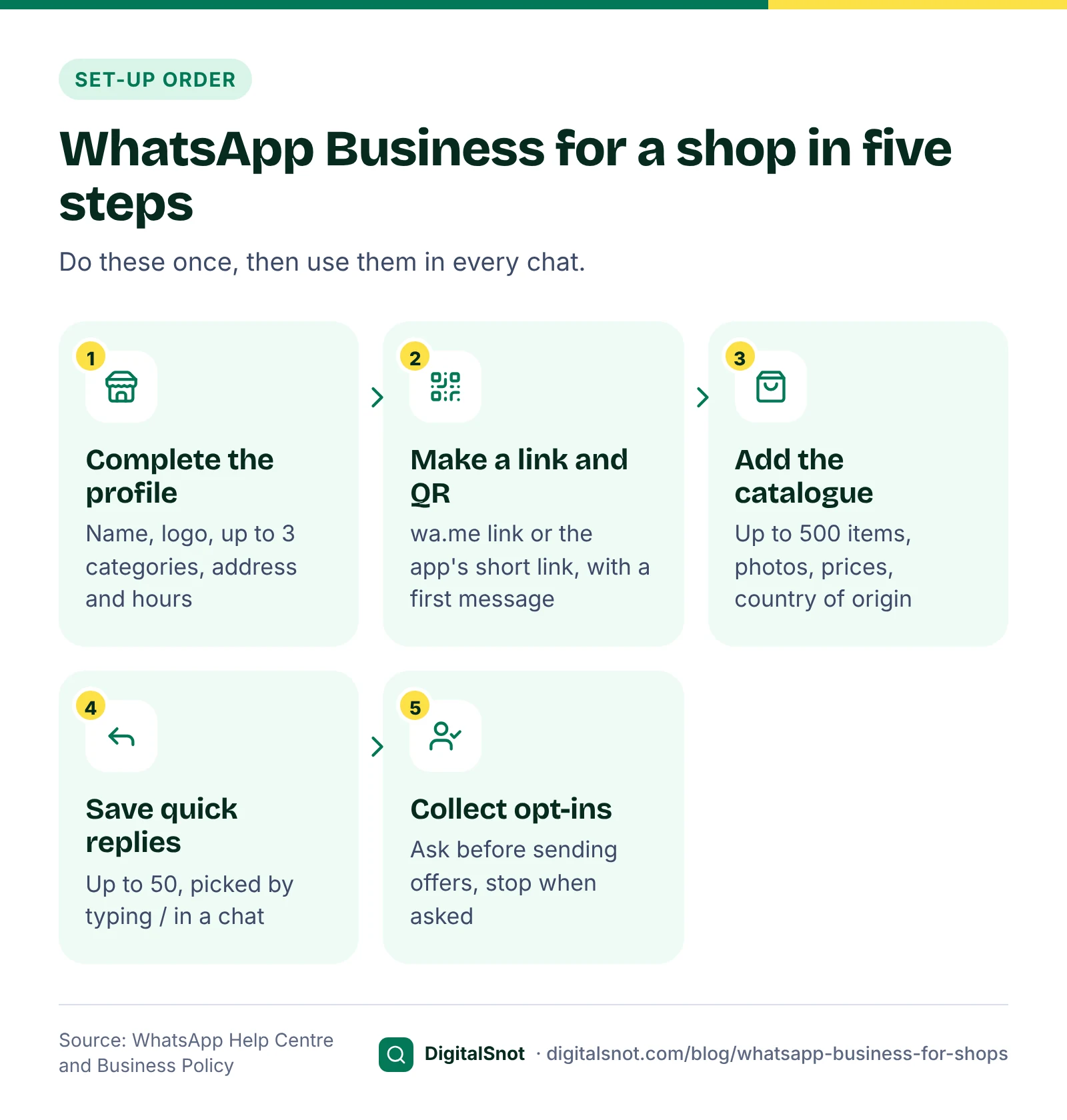
Your profile is what a customer sees when they open your chat, so fill in every part. WhatsApp's page on editing your business profile covers each field:
- Business name and photo. Use the name on your shop board and your logo. The name, phone number, services and linked accounts can only be edited in the WhatsApp Business app on a phone.
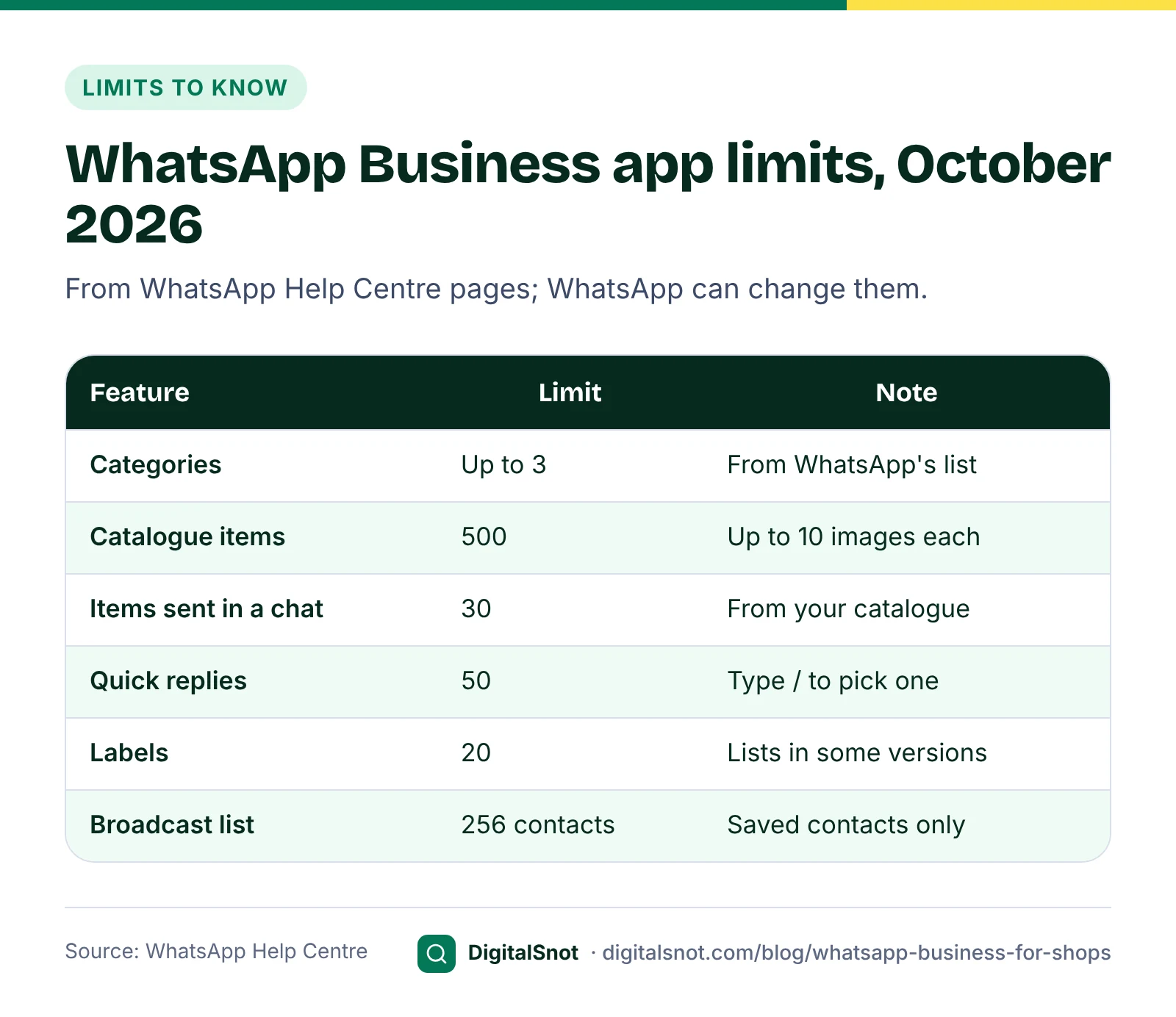
- Categories. Pick up to three from WhatsApp's list. Custom categories are not allowed; if yours is missing, choose a more general one or "Other business".
- Address. Type it, pick the suggestion and confirm the pin on the map.
- Business hours. Choose selected hours, always open or by appointment.
- Description, email and website. Say what you sell and where you deliver in plain words.
The profile also feeds the app's default quick replies, so when a customer asks "Where are you?", your address and hours are ready to send.
Make a click-to-chat link and a QR code
A click-to-chat link opens a chat with your number without the customer saving it first. WhatsApp's help page on how to use click to chat gives the format: https://wa.me/ followed by your full number in international format. Leave out the plus sign, leading zeros, brackets and dashes. For an Indian mobile, that is 91 and the 10-digit number, for example https://wa.me/91XXXXXXXXXX.
Add ?text= and a URL-encoded message to fill in the customer's first message. They can edit it before they send it. A link with no number lets the customer choose which chat to send the message to.
The Business app also makes a link for you. Under Tools, open Short link: you get a wa.me link and can set a default message of up to 140 characters, as WhatsApp's page on creating short links explains. From the same screen you can share your QR code. If you print it for the counter, WhatsApp's page on printing your QR code offers a sticker template, with the code printed at 8 cm by 8 cm.
When you want different first messages for different places, build the links in our WhatsApp Link & QR Generator. Enter your number, pick a ready-made first message in English or Hinglish (an enquiry, a booking, prices, an order or directions), then copy the link, download the QR code as PNG for screens or SVG for print, and copy a "Chat on WhatsApp" button for your website. It cannot check whether a number has WhatsApp or count clicks, so test each link on your own phone.
Our suggestion: use a different first message for each place, such as "Hi, I saw your counter poster" and "Hi, I came from Instagram". When chats arrive, you can see which place brought them.
Set up your catalogue
The catalogue is a shop window inside WhatsApp. WhatsApp's page on creating and maintaining a catalogue sets these rules:
- Up to 500 products or services.
- Up to 10 images for each item.
- A name and a country of origin for every item; price, description, link and product code are optional.
- Every image goes through a review, and customers see an item only after WhatsApp approves it.
You can send a selection of up to 30 items in a chat, which helps when a customer asks "What do you have under ₹500?". Keep prices and photos current, and take items that are out of stock off the catalogue, so customers do not order what you cannot supply.
Save time with quick replies, automatic messages and labels
Quick replies
Most shops answer the same five questions all day: price, delivery area, timings, location and how to pay. WhatsApp's page on quick replies says you can save up to 50, each with a keyboard shortcut. Type / in a chat to see them, pick one and edit it before sending.
For the wording, our Comment and DM Reply Templates give three replies for each common situation, such as a price question, a complaint or a refund request, in English, Hinglish or Hindi, with your shop name and number filled in. For order messages, the Order Update and COD Confirmation Templates write order confirmed, cash on delivery confirmation, shipped, out for delivery and refund messages as plain WhatsApp Business app text you can save as quick replies.
Greeting and away messages
A greeting message goes out automatically to a customer who messages you for the first time, or after 14 days without messages, according to WhatsApp's page on greeting messages. Use it to say hello, share your timings and point to the catalogue.
An away message answers when you cannot. WhatsApp's page on away messages offers three schedules: always, a custom schedule, or outside business hours, which needs your hours in the profile. Say when you will reply, and give a phone number for urgent orders.
Labels
Labels sort chats so nothing is missed. WhatsApp's page on labels allows up to 20, such as "New order", "Payment pending" and "Delivered". WhatsApp also says labels are being replaced by lists in some versions of the app, so you may see lists instead.
Ask before you send offers
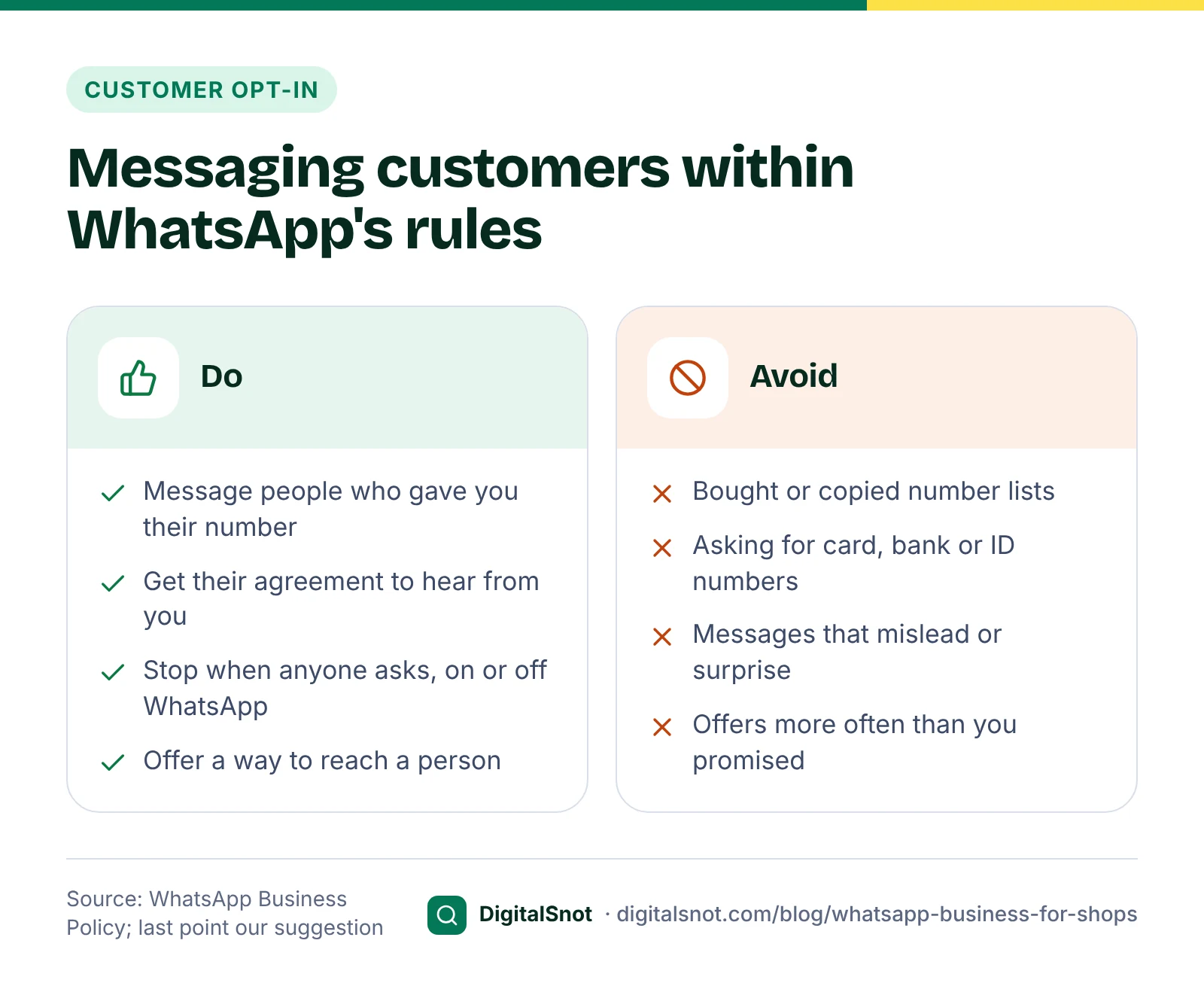
WhatsApp is personal, and its Business Policy is strict about who you may message. You may contact people only if they have given you their number and agreed to receive messages from you. You must respect every request to stop, whether it is made on WhatsApp or elsewhere, and remove that person from your list. The policy also says not to ask people to share full card numbers, bank account numbers or ID numbers.
The Business app has two ways to send one message to many people:
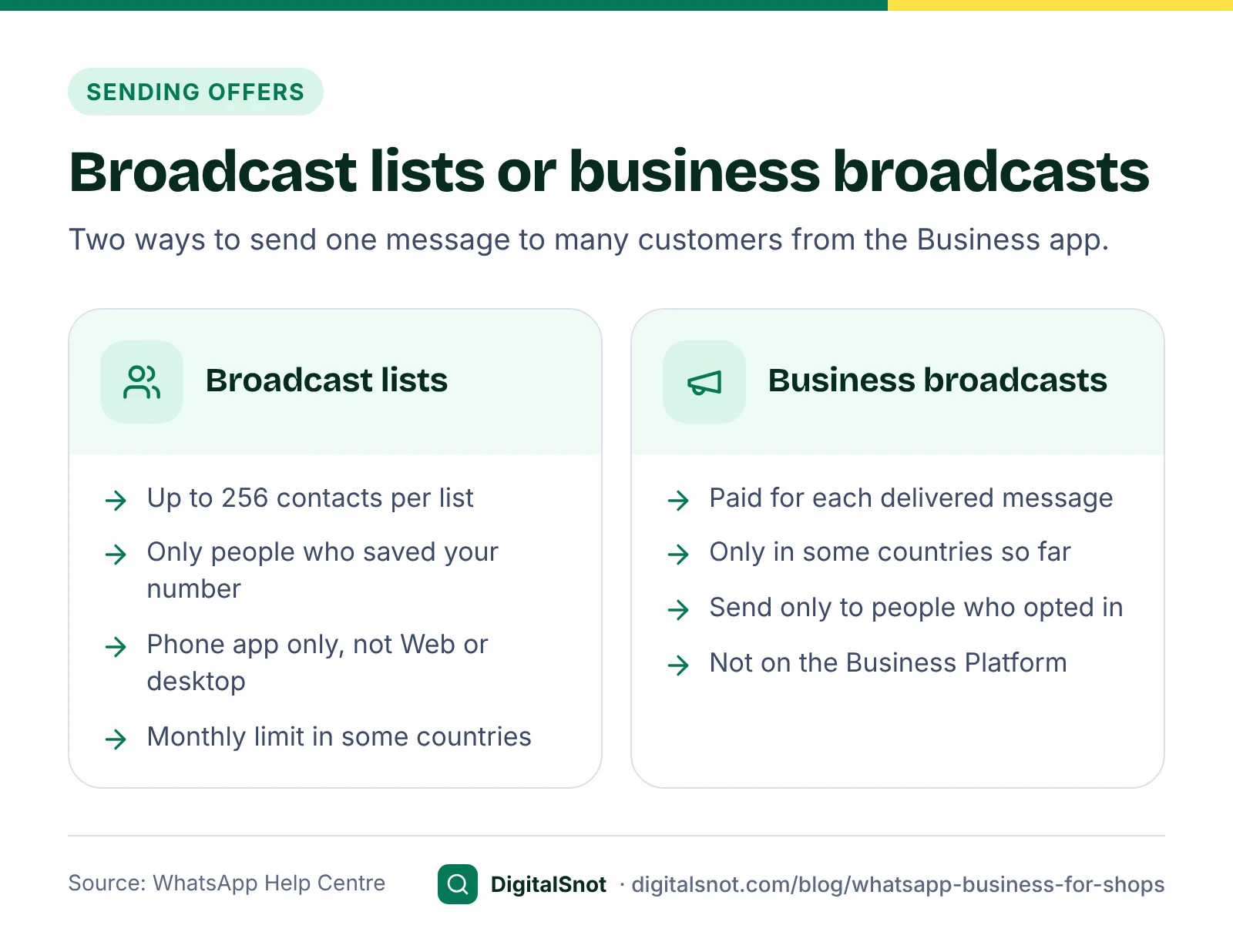
- Broadcast lists. WhatsApp's page on broadcast lists says each list holds up to 256 contacts, and only contacts who have saved your number receive the message. Lists work only in the phone app, not on WhatsApp Web, Windows or Mac, and people in some countries may see a monthly broadcast limit.
- Business broadcasts. In some countries the app offers paid business broadcasts, charged for each delivered message. WhatsApp says to send them only to people who opted in.
Our WhatsApp Business Marketing Suite helps you plan this. Enter how many contacts you have and how often you want to send, and it splits them into lists of 256 or fewer and builds a send schedule with the festivals that matter for your business and city. Each draft ends with an opt-out line. It also has an opt-in checklist and a Business app setup checklist you can tick through.
Worked example: Meher Bakes, Aundh, Pune
Meher Bakes is a made-up home bakery that takes cake orders on WhatsApp. Here is how its owner sets things up in one afternoon.
- Profile: the shop name and logo, three categories from WhatsApp's list, the Aundh address with the pin checked, hours of 10 am to 9 pm, and a description: "Eggless cakes and cookies, delivery across Aundh and Baner".
- Links: one link with the message "Hi Meher Bakes, I saw your counter QR" for the counter sticker and cake boxes, and another with "Hi, I came from Instagram" for the Instagram bio.
- Catalogue: 24 items, each with three photos, the price by weight and "India" as the country of origin.
- Quick replies: /price, /delivery, /custom (custom cake details needed) and /pay, which shares the shop's UPI QR code.
- Labels: "Custom cake", "Advance paid", "Out for delivery" and "Delivered".
- Opt-in: a card at the counter asks, "Want our festival offers on WhatsApp? Tell us and save our number". By the end of the month, 600 customers have said yes. That needs three broadcast lists: 256, 256 and 88 contacts. Every offer ends with "Reply STOP to stop these messages".
After a delivery, the owner sends a thank-you message with the bakery's Google review link. Our post on getting more Google reviews explains how to ask within Google's rules.
Mistakes to avoid
- A badly typed number in the link. WhatsApp's help page marks a plus sign, leading zeros, brackets and dashes as wrong in a wa.me link. Test every link and QR code before printing.
- Messaging numbers you bought or copied. The policy requires each person to have given you their number and agreed to hear from you.
- Sending offers more often than you promised. If the counter card said "festival offers", do not send daily deals (our suggestion).
- Out-of-date catalogue prices. A customer who orders at the old price will not trust the next message.
- Asking for card numbers or bank details in a chat. The policy bars it. Our suggestion: never ask for an OTP or UPI PIN either, and say so on your profile.
- No one watching the chats. An away message helps, but reply within your business hours.
Next step
Set up your profile and one link today, then add the catalogue and quick replies over the week. All the WhatsApp, Instagram and Facebook tools mentioned here are free on our social media tools page, and none of them sign in to your WhatsApp. If you would like help planning WhatsApp alongside your Google Business Profile and website, talk to us.
Free tools in this article
- WhatsApp Link & QR Generator A wa.me chat link with a ready message, a printable QR code and a website chat button.
- Comment and DM Reply Templates Three replies for each common comment or message, in English, Hinglish or Hindi, with your details filled in.
- Order Update and COD Confirmation Templates Messages for every order step, from COD confirmation to refund, for WhatsApp, SMS or email.
- WhatsApp Business Marketing Suite Plan broadcasts around festivals, check message templates, track opt-in rules and make links and QR codes.
By the numbers
- products or services a WhatsApp Business catalogue can hold, with up to 10 images each
- 500
- Source: WhatsApp Help Centre
- contacts per broadcast list in the WhatsApp Business app; only contacts who saved your number receive it
- 256
- Source: WhatsApp Help Centre
Frequently asked questions
How do I make a WhatsApp link for my shop?
Write https://wa.me/ followed by your full number in international format, without a plus sign, leading zero, brackets or dashes; for India that is 91 and the 10-digit mobile number. Add ?text= and a URL-encoded message to fill in the customer's first message. The Business app also makes a short link under Tools.
Why does my wa.me link not open a chat?
Usually the number is written wrongly: it must include the country code and leave out the plus sign, leading zeros, spaces, brackets and dashes. The number also needs an active WhatsApp account. Test the link on your own phone before you print it.
How many products can I add to a WhatsApp Business catalogue?
Up to 500 products or services, with up to 10 images for each item, according to WhatsApp Help. Each item needs a name and a country of origin, and customers see it only after WhatsApp approves it.
Can I send offers to all my customers on WhatsApp?
Only to customers who gave you their number and agreed to receive messages from you, under WhatsApp's Business Policy. You must stop messaging anyone who asks you to, on or off WhatsApp. In the Business app, a broadcast list holds up to 256 contacts.
What is the difference between a greeting message and an away message?
A greeting message goes to a customer who messages you for the first time, or after 14 days without messages. An away message replies when you are not available: always, on a custom schedule, or outside the business hours in your profile.
Why are some customers not receiving my broadcast?
Only contacts who have saved your number in their phone receive a broadcast from the WhatsApp Business app. Ask customers to save your number at the counter and in your first reply. Broadcast lists also work only in the phone app, and some countries may see a monthly broadcast limit.
Sources
Every figure and claim in this article comes from the sources below. We checked each one when writing and link to the original so you can read it yourself. Credit belongs to the authors and publishers listed. How we write and check our articles.
-
1
How to use click to chat
WhatsApp Help Centre · The wa.me format: full international number without plus sign, zeros, brackets or dashes, and ?text= for a first message.
-
2
How to create short links
WhatsApp Help Centre · The Business app's short link under Tools, with an editable default message.
-
3
How to print your QR code for WhatsApp Business
WhatsApp Help Centre · Sticker template, with the code printed at 8 cm by 8 cm.
-
4
How to edit your business profile
WhatsApp Help Centre · Profile fields, up to three categories, hours options, and fields editable only in the phone app.
-
5
How to create and maintain a catalog
WhatsApp Help Centre · Up to 500 items, up to 10 images each, country of origin, and review before items show.
-
6
Sharing catalogue items in a chat
WhatsApp Help Centre · Up to 30 catalogue items can be shared in one chat.
-
7
How to use quick replies
WhatsApp Help Centre · Up to 50 quick replies, picked by typing / in a chat.
-
8
How to use greeting messages
WhatsApp Help Centre · Sent to first-time customers or after 14 days without messages.
-
9
How to use away messages
WhatsApp Help Centre · Always, custom schedule or outside business hours.
-
10
How to use labels
WhatsApp Help Centre · Up to 20 labels; labels are being replaced by lists in some versions.
-
11
How to use broadcast lists
WhatsApp Help Centre · Up to 256 contacts per list, saved contacts only, phone app only, monthly limit in some countries.
-
12
How to create and send a business broadcast
WhatsApp Help Centre · Paid per delivered message, limited countries, send only to people who opted in.
-
13
WhatsApp Business Policy
WhatsApp · Opt-in, opt-out on or off WhatsApp, and no requests for card, bank or ID numbers.


