LinkedIn profile for business owners: headline, About section and banner
Write a headline people search for, an About section that leads to an enquiry and a banner that says what you do, then link your Company Page and fill Featured.
On this page (10 sections)
- 1What a client needs to see in five seconds
- 2The headline: what you do, for whom
- 3The About section: from hook to enquiry
- 4The banner: one line about your business
- 5Link your Company Page and fill Featured
- 6Worked example: Tiffin Tales Catering, Andheri East, Mumbai
- 7Connection notes that people accept
- 8Mistakes to avoid
- 9Next step
- 10Sources
A LinkedIn profile for business owners is often one set up years ago for a job and never touched again. Then a purchase manager or a possible partner looks you up before a meeting, and finds an old job title, an empty About section and a grey banner.
This post shows you how to fix the parts people see first: the headline, the About section and the banner, plus your Company Page link, the Featured section and the notes you send with connection requests. It uses LinkedIn's own published limits, and a made-up caterer as the worked example.
What a client needs to see in five seconds
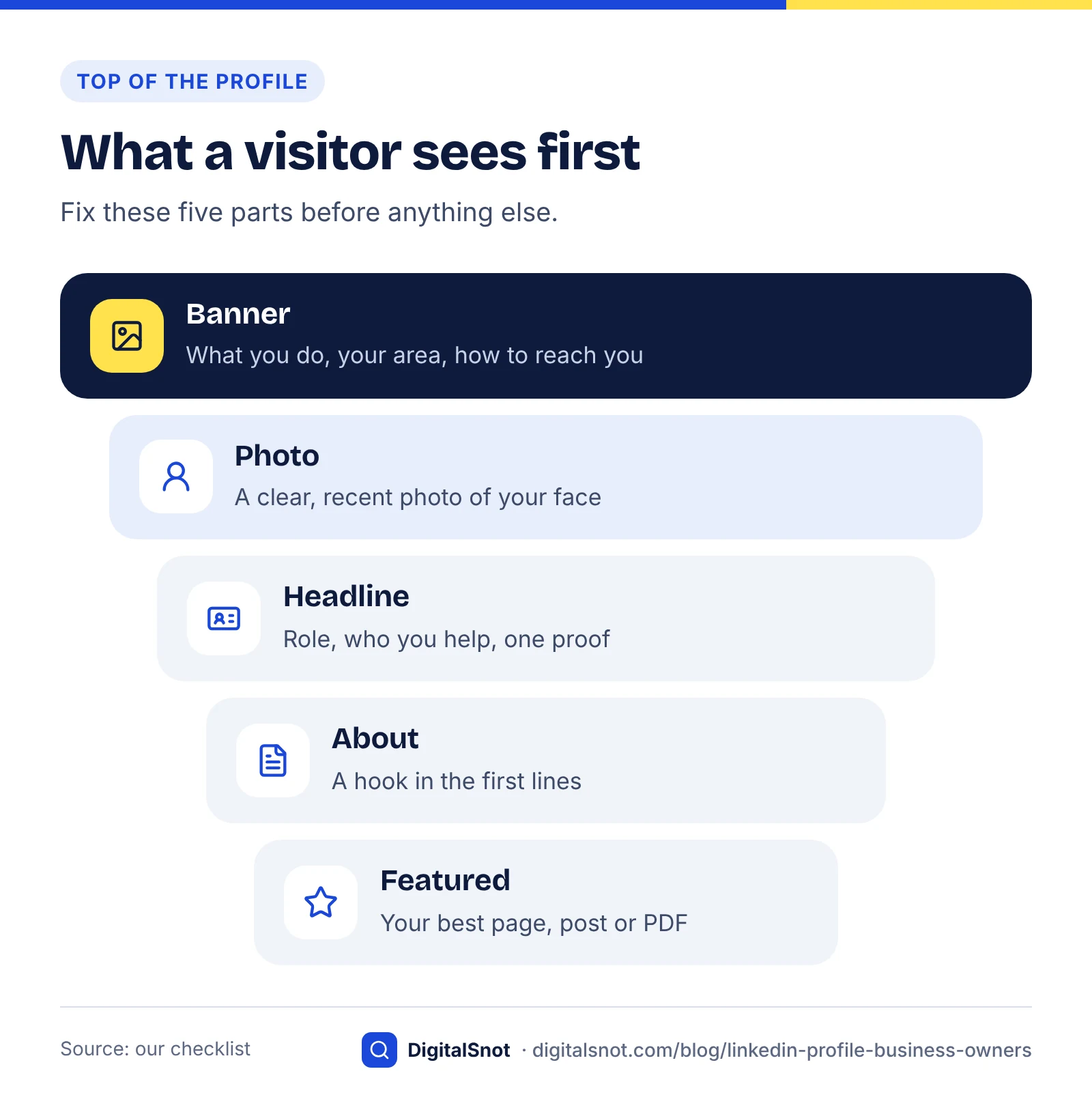
A profile does its job when a visitor can answer three questions without scrolling: what do you do, for whom, and how do they reach you. The banner, your photo, the headline and the first lines of the About section carry most of that, so start there.
LinkedIn also uses your profile in its own search. Its help page on people search relevance says standard job titles are what members search for, that skills are among the most common searches by recruiters and hiring managers, and that a complete profile helps you match more searches. The same page warns that an extended list of keywords may get a profile filtered out by spam detection. So write for a person first, with the words they would type.
The headline: what you do, for whom
LinkedIn Help on editing your headline says it is the text below your name, that it shows in search results, and that it can be different from the title of your current position. Changing it does not change the Current, Previous and Education lines on your profile.
That gives a business owner room to say more than "Founder" or "Proprietor". A simple pattern that works (our suggestion):
- Your role and business: "Founder, Tiffin Tales Catering".
- Who you help and where: "Office lunch catering for teams in Andheri and Powai".
- One piece of proof, if it is true: a number you can show, an award with its year, or a well-known client who agreed to be named.
Avoid titles such as "guru" or "ninja", rows of emoji and lists of ten keywords. LinkedIn's Professional Community Policies also ask for accurate information about your experience and achievements, so keep proof you can back up.
LinkedIn Help does not publish a headline length. Our LinkedIn Headline Builder counts against 220 characters, which is our working figure, and LinkedIn's own editor is final if it shows something different. Type your role, who you help, your keywords and any proof, and it gives you 8 to 10 options with a count, a preview of how much may show in search results and beside a comment (our estimate), and checks for capitals, emoji and stuffed keywords. Put the most important words first, because only the start shows in many places.
The About section: from hook to enquiry
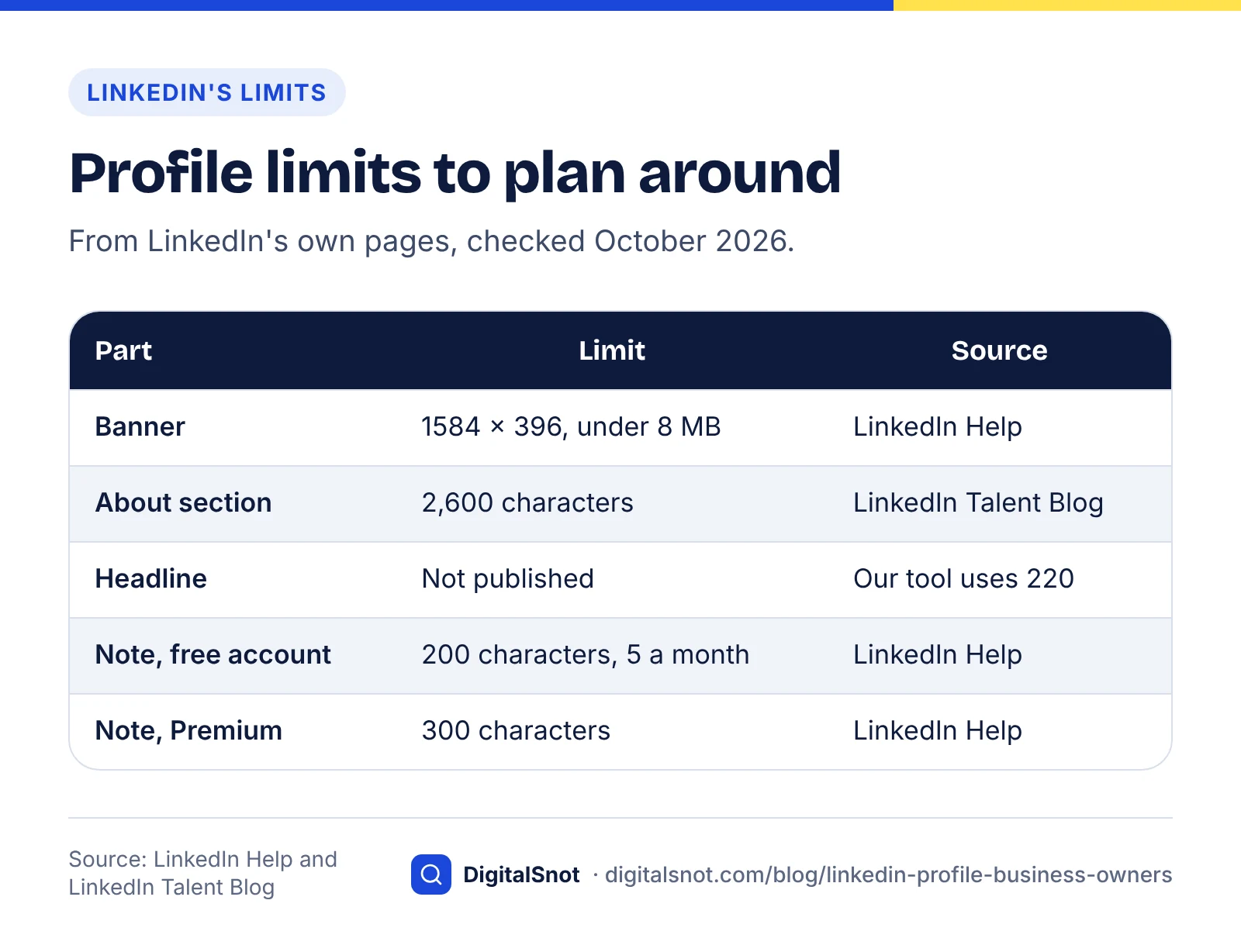
LinkedIn's Talent Blog gives the About section 2,600 characters. Most readers see only the first few lines before "see more", so the opening has to earn the click. A structure that suits most owners (our checklist):
- Hook: one or two short sentences about the problem you solve.
- Who you help: the type of client, their size and your area.
- How: what you do differently, in plain words.
- Proof: numbers, years in business or results you can show.
- Services: a short list, using the words clients search for.
- Next step: how to reach you, with an email address or phone number.
Write in the first person if you speak for yourself; use your name in the third person if the text doubles as a team bio. Either works, as long as you stick to one.
Our LinkedIn About Section Builder puts these parts together in one of three structures, with connecting lines in English or Hinglish, counts the text against 2,600 characters, shows the lines likely to appear before "see more" (our estimate) and checks how often each keyword appears. It also writes a shorter overview for your Company Page from the same facts, so the two match.
The banner: one line about your business
LinkedIn Help on the profile background photo recommends 1584 × 396 pixels, as a JPG or PNG under 8 MB. Left blank, it wastes the widest space at the top of your profile.
Use it for one line about what you do, your area and your website or phone. Your profile photo sits over the lower left of the banner, so keep text on the right half, and check it on a phone, where everything is smaller.
Our LinkedIn Banner Maker draws the banner at exactly 1584 × 396 in your browser, with your name, a tagline, up to four services and your logo. It keeps the text clear of where the photo sat when we built it (our measure), checks text contrast and size on a phone, and shows the file size before you download a PNG or JPEG. Nothing is uploaded.
Link your Company Page and fill Featured
Company Page. If your business has a LinkedIn Page, add your current role in the Experience section and choose the Page from the list that appears as you type the business name. Your role then links to the Page, and you show among the Page's people. Ask your team to do the same, because Page admins cannot add people for them. If you do not have a Page yet, our LinkedIn Company Page Checklist takes you through setting one up, and the banner maker also makes Page covers at 4200 × 700.
Featured. LinkedIn Help on the Featured section says you can feature posts you wrote or reshared, articles you published on LinkedIn, and media such as images, documents and links. New items show first, and you can reorder them. Good choices for an owner: your service or price page, a short case study, a menu or brochure as a PDF, and one post that explains how you work.
Worked example: Tiffin Tales Catering, Andheri East, Mumbai
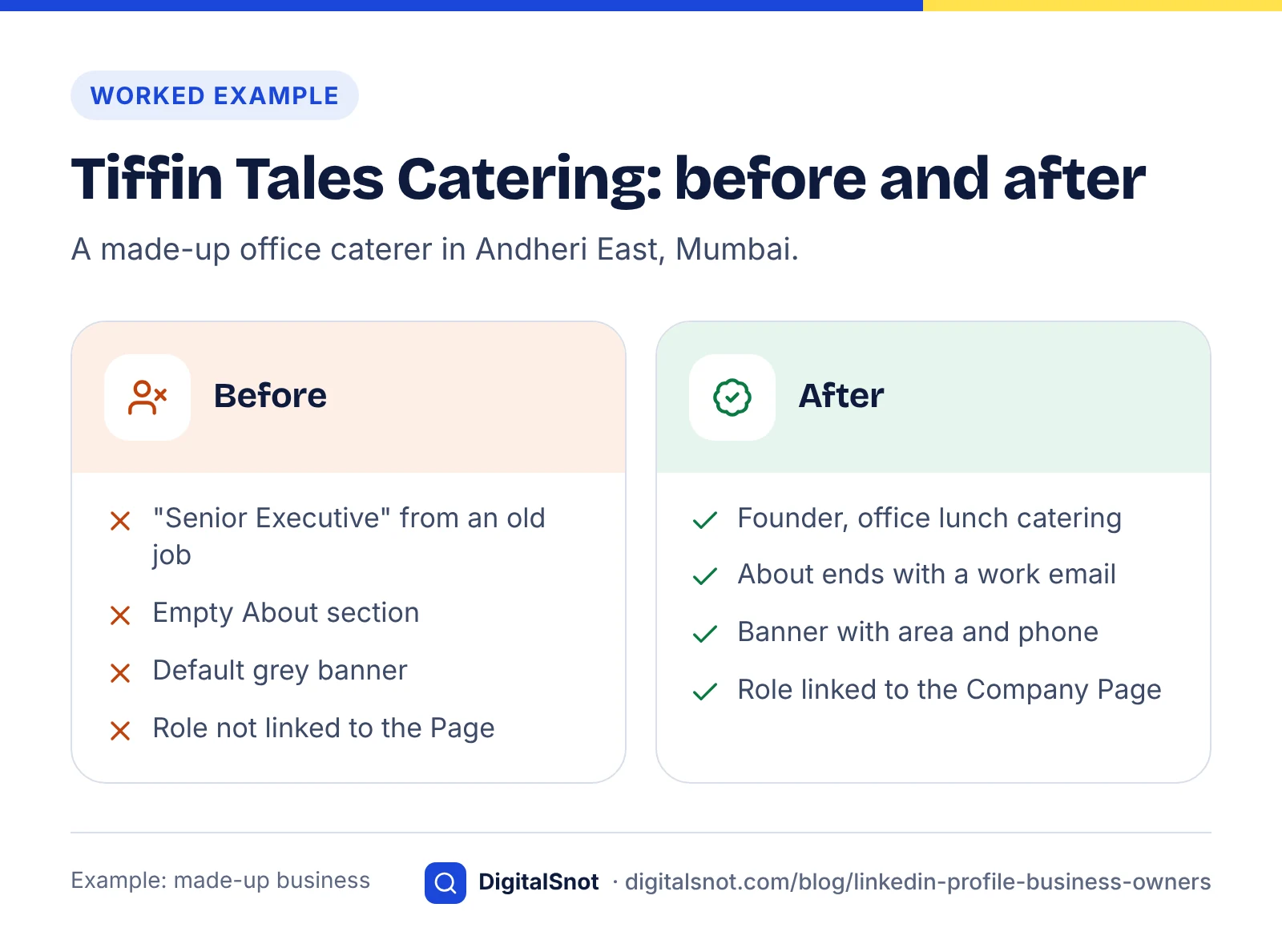
Neha Joshi runs Tiffin Tales, a made-up caterer that delivers lunches to offices. Her profile still said "Senior Executive" from an old job.
- Headline: "Founder, Tiffin Tales Catering | Office lunch catering for teams in Andheri, Powai and BKC" (90 characters).
- About, first lines: "Your team's lunch should not depend on who remembered to order. We deliver fresh, home-style lunches to offices across Andheri, Powai and BKC, on a fixed menu that changes every week." Then who she serves, a daily lunch count she can show, the services, and her work email.
- Banner: "Office lunch catering, Andheri, Powai and BKC" with the website and phone, on the right, at 1584 × 396.
- Company Page: her current role now links to the Tiffin Tales Page, and her two supervisors added it too.
- Featured: the weekly menu as a PDF, the corporate enquiry page and a post about how meals are packed.
Every number here is made up for the example. The same name, address and phone number now match her Google Business Profile and website, which our post on keeping your business address the same everywhere explains.
Connection notes that people accept
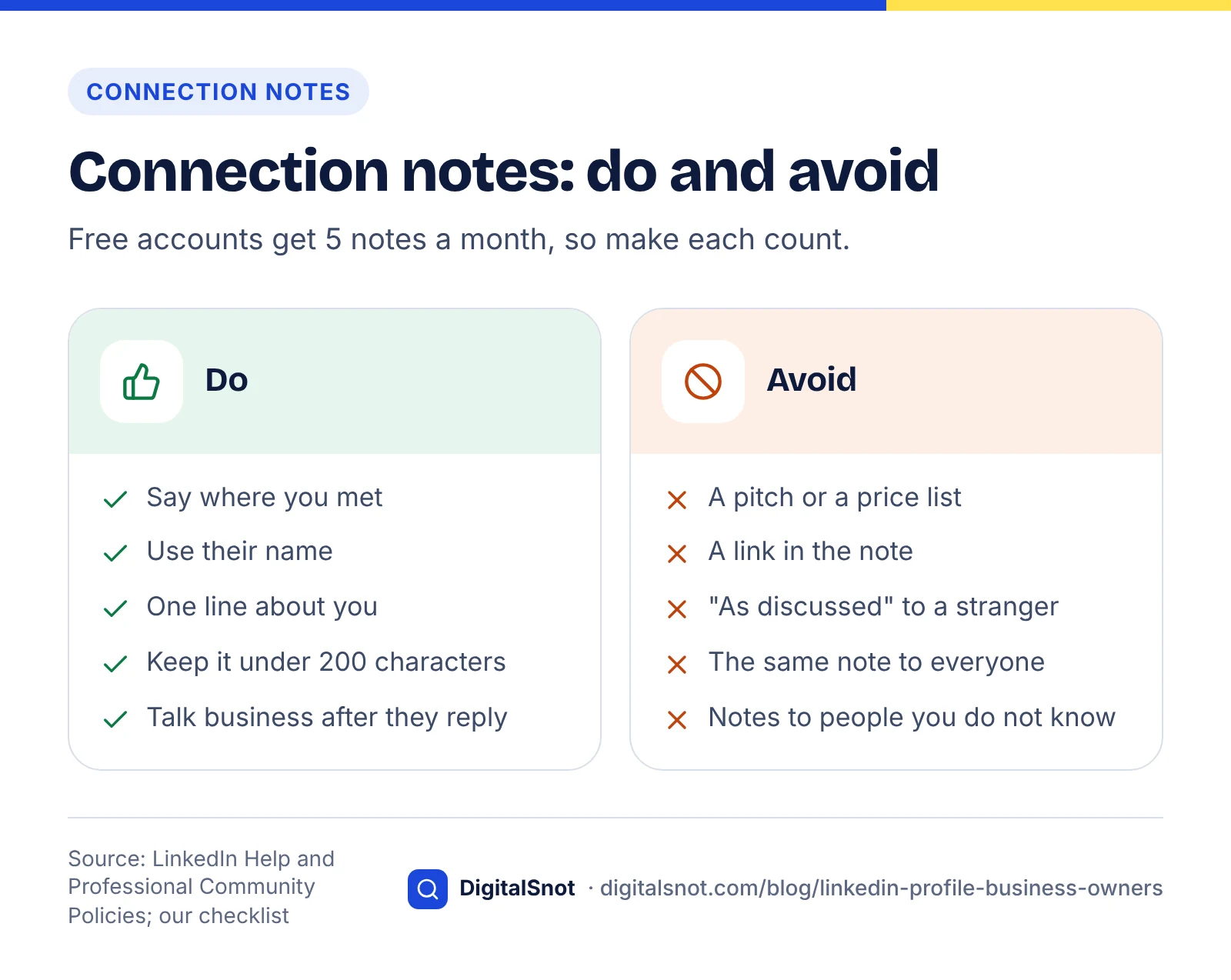
LinkedIn Help on personalising invitations says free members can add a personal note to up to 5 connection requests a month, each up to 200 characters, while Premium members can add notes to as many as they like, up to 300 characters each. With so few notes, keep them for people you have met or have a real reason to contact.
A note should say how you know them and nothing more. "Hi Rohan, we met at the Powai business meet on Saturday. I run Tiffin Tales, an office lunch caterer. Happy to stay in touch." That is 125 characters. Leave the pitch for later: LinkedIn's Professional Community Policies do not allow using invitations to send promotional messages to people you do not know. Our LinkedIn Connection and Message Templates fills in notes like this in English, Hinglish or Hindi and checks each one against the limit for your account.
Mistakes to avoid
- A headline that is only "Owner" or "Founder". Those words alone do not say what you do.
- Keyword lists. LinkedIn Help warns they may be filtered out by spam detection.
- Text under your photo on the banner. Keep it on the right.
- An About section with no way to contact you. End with an email or phone number.
- Claims you cannot show. Keep proof for every number and award.
- Pitching in connection notes. Connect first, then talk business when they reply.
Next step
Block an hour this week: headline first, then the banner, then the About section and Featured. Then go through your business's LinkedIn Page and other accounts with our Social Media Profile Audit, a checklist for Instagram, Facebook, LinkedIn Pages and X with each platform's published limits. If you also plan to advertise on Facebook and Instagram, our post on why Meta rejects ads will save you a few rounds of edits. All our social media tools are free, and none of them sign in to LinkedIn. Want help with your business's online presence? Talk to us.
Free tools in this article
- LinkedIn Headline Builder Turn your role, keywords and proof into 8 to 10 LinkedIn headlines, with a count and checks.
- LinkedIn About Section Builder Build your LinkedIn About section from guided parts, with a count, a "see more" preview and keyword checks.
- LinkedIn Banner Maker Make a LinkedIn profile banner or Page cover with your name, services and logo, kept clear of the photo.
- LinkedIn Company Page Checklist Go through every part of a LinkedIn Page, from logo and tagline to admins and followers, with a to-do list.
- LinkedIn Connection and Message Templates Fill in connection notes, follow-ups and requests in English, Hinglish or Hindi, checked for spammy habits.
- Social Media Profile Audit Tick through your Instagram, Facebook, LinkedIn and X profiles, with each platform's limits and a to-do list.
By the numbers
- characters LinkedIn's Talent Blog gives for the About section of a profile
- 2,600
- Source: LinkedIn Talent Blog
- pixels, the recommended size of a profile background photo (JPG or PNG, under 8 MB)
- 1584 × 396
- Source: LinkedIn Help
Frequently asked questions
What should a business owner put in their LinkedIn headline?
Your role and business, who you help and where, and one piece of proof you can back up. LinkedIn Help says the headline shows in search results and does not have to match your current job title, and that members search for standard job titles, so use the plain name of your work.
How many characters can a LinkedIn headline have?
LinkedIn Help does not publish a number. Our LinkedIn Headline Builder counts against 220 characters, our working figure, and LinkedIn's editor is final if it shows a different limit. Put the most important words first, because only the start shows in many places.
How long can the LinkedIn About section be?
LinkedIn's Talent Blog gives 2,600 characters. Only the first few lines show before "see more", so open with a short hook and end with a way to contact you.
What size is a LinkedIn banner?
LinkedIn Help recommends 1584 × 396 pixels for the background photo of a personal profile, as a JPG or PNG under 8 MB. Keep text on the right, because your profile photo covers part of the lower left.
How do I link my profile to my Company Page?
Add your current role in the Experience section and choose your business's Page from the list that appears as you type its name. Typing the name by hand without choosing the Page leaves the role unlinked, so edit the role and pick the Page.
How many characters can a LinkedIn connection note have?
LinkedIn Help gives 200 characters for a note on a free account, with notes on up to 5 requests a month, and 300 characters for Premium members, with no monthly limit on notes.
Sources
Every figure and claim in this article comes from the sources below. We checked each one when writing and link to the original so you can read it yourself. Credit belongs to the authors and publishers listed. How we write and check our articles.
-
1
Edit your headline
LinkedIn Help · The headline is the text below your name, shows in search results and can differ from your current position.
-
2
LinkedIn search relevance for people search
LinkedIn Help · Standard job titles and skills are common searches; an extended keyword list may be filtered out by spam detection.
-
3
LinkedIn profile summaries that we love, and how to boost your own
LinkedIn Talent Blog · The About section can hold 2,600 characters.
-
4
Add or change the background photo on your profile
LinkedIn Help · Recommended 1584 × 396 pixels, JPG or PNG, under 8 MB.
-
5
Featured section on your profile: FAQs
LinkedIn Help · Posts, articles and media such as images, documents and links can be featured; newest first, reorderable.
-
6
Personalize invitations to connect
LinkedIn Help · Free accounts: notes on 5 requests a month, 200 characters; Premium: unlimited notes, 300 characters.
-
7
Professional Community Policies
LinkedIn · Accurate information about experience and achievements; no promotional invitations to people you do not know.