Google Business Profile for restaurants: menus, photos and reviews
A restaurant-specific guide to Google Business Profile: the menu editor, ordering and reservation links, attributes, photos, reviews, posts and Restaurant schema.
On this page (11 sections)
- 1Start with the basics: name, category and hours
- 2Build your menu in the menu editor
- 3Ordering and reservation links
- 4Attributes: tell diners what to expect
- 5Photos that make people visit
- 6Reviews: ask, reply and stay within the rules
- 7Use posts for specials and events
- 8Add Restaurant schema to your website
- 9Keep Google, your website and delivery apps consistent
- 10Your restaurant profile checklist
- 11Sources
When someone searches "biryani near me" or your restaurant's name, your Google Business Profile is often the first thing they see. They check the menu, look at photos, read a few reviews and then call, book or order. For many diners the decision is made before they ever reach your website, so a Google Business Profile for restaurants is worth setting up with care.
Restaurants get several profile features that other businesses do not, including a menu editor, food ordering links and reservation options. This post covers each one, with the rules taken from Google Business Profile Help. For the general setup that applies to every business, such as verification, categories and the name rules, see our Google Business Profile optimisation guide.
Start with the basics: name, category and hours
Get the core details exactly right before adding anything else: your real business name, the most specific restaurant category and accurate hours. Every other feature depends on these.
Google's guidelines for representing your business say your name should match your real-world name as used on your signage, website and stationery. Adding taglines, dishes or locations such as "Best Pizza Koramangala" is not allowed and can lead to suspension.
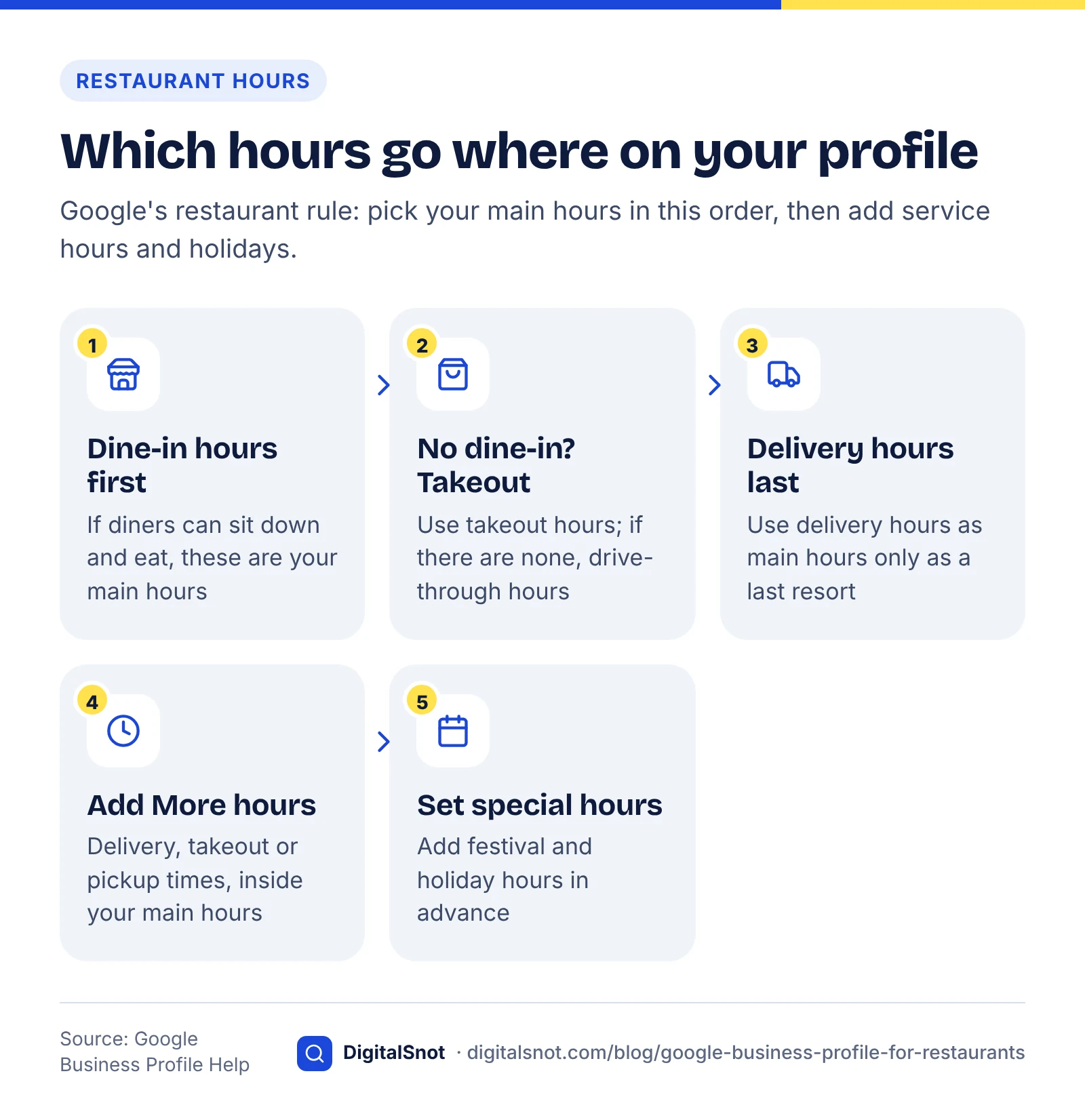
Hours have a restaurant-specific rule. Google's restaurant setup guide says to use the hours when diners can sit down and eat. If you do not offer dine-in, use takeout hours, then drive-through hours, and delivery hours only as a last resort. Add separate times for delivery, takeout or pickup as More hours, which must fall within your main hours. Set special hours for festivals and holidays in advance.
Build your menu in the menu editor
Food and drink businesses can list their menu directly on the profile using the menu editor. A complete menu helps diners decide and gives Google more detail about what you serve.
According to Google Business Profile Help, the menu editor lets you add sections (such as starters or desserts), dish names, descriptions and prices. Changes can take 24 to 48 hours to appear on Maps and Search.
- Open your profile and select Edit menu.
- Create sections that match your printed menu.
- Add each dish with a clear name, a short description and the current price.
- Upload a photo or PDF of your menu as well. Google asks that the full menu fits on one page and is captured in one photo.
- Add a menu link to your own website's menu page under the contact details.
Google also shows popular dishes. On the popular dishes help page, Google says dish names you add take precedence over names added by customers, so check that your best-sellers are named correctly.
Local map results
Ordering and reservation links
Restaurants can add links for food orders, reservations and menus so diners can act without leaving Google. Which options you see depends on your country and category.
Food ordering
Google's local business links page covers links for booking, reservations, food orders and menus. Delivery platforms with an authorised relationship with Google can appear on your profile automatically. On the online ordering options page, Google explains how to set a preferred provider for pickup or delivery, add your own ordering link, or remove a provider; once you ask, providers must remove their links within five business days.
If you have your own ordering system, set it as preferred so you are not paying commission on orders that could have come direct. Note that Google ended the in-profile "Order with Google" checkout in mid-2024, and the order button now sends diners to third-party platforms or your own ordering page (Search Engine Roundtable).
Reservations and waitlists
Bookings on Google run through Reserve with Google partners. If your booking system is a supported provider, diners can reserve a table from your profile. Google says the waitlist feature is available only for restaurants and also requires a Reserve with Google provider. If your provider is not integrated, you can still add a plain reservation link.
Attributes: tell diners what to expect
Attributes are short facts such as outdoor seating, wheelchair access or payment options. They help diners filter and set expectations before they arrive.
Google's attributes help page explains that you set factual attributes to yes or no from Edit profile. Some attributes are only available in certain countries or categories, and subjective ones, such as whether a place is cosy, come from customer input rather than the owner. Go through every attribute offered to you and answer the factual ones honestly. A diner who arrives expecting outdoor seating that does not exist is likely to leave a poor review.
Photos that make people visit
Photos are one of the main reasons diners choose a restaurant from the map. Upload real, recent photos of your food, interior and exterior, and keep adding them.
Google's tips for business-specific photos recommend:
- Exterior: at least three photos from the directions customers approach, at different times of day, so people recognise the entrance.
- Interior: photos that show what it truly feels like inside, including the atmosphere.
- Food and drink: your most popular dishes, evenly lit.
- Technical: JPG or PNG, between 10 KB and 5 MB, with 720 by 720 pixels recommended. Photos should be in focus, well lit and not heavily filtered or altered with AI.
Use your own photos, not stock images. Photos only appear once the business is verified.
Reviews: ask, reply and stay within the rules
Reviews shape which restaurant diners choose. Ask every guest, reply to every review and never pay for reviews in any form.
Diners read them closely. BrightLocal's Local Consumer Review Survey 2026, based on 1,002 US adults, found that 97% of consumers read reviews for local businesses and 80% are likely to use a business that responds to all its reviews (BrightLocal, 2026). The survey is US-only, but the pattern is a useful guide elsewhere. It also found 31% will only use a business rated 4.5 stars or higher, up from 17% the year before.
Getting more reviews
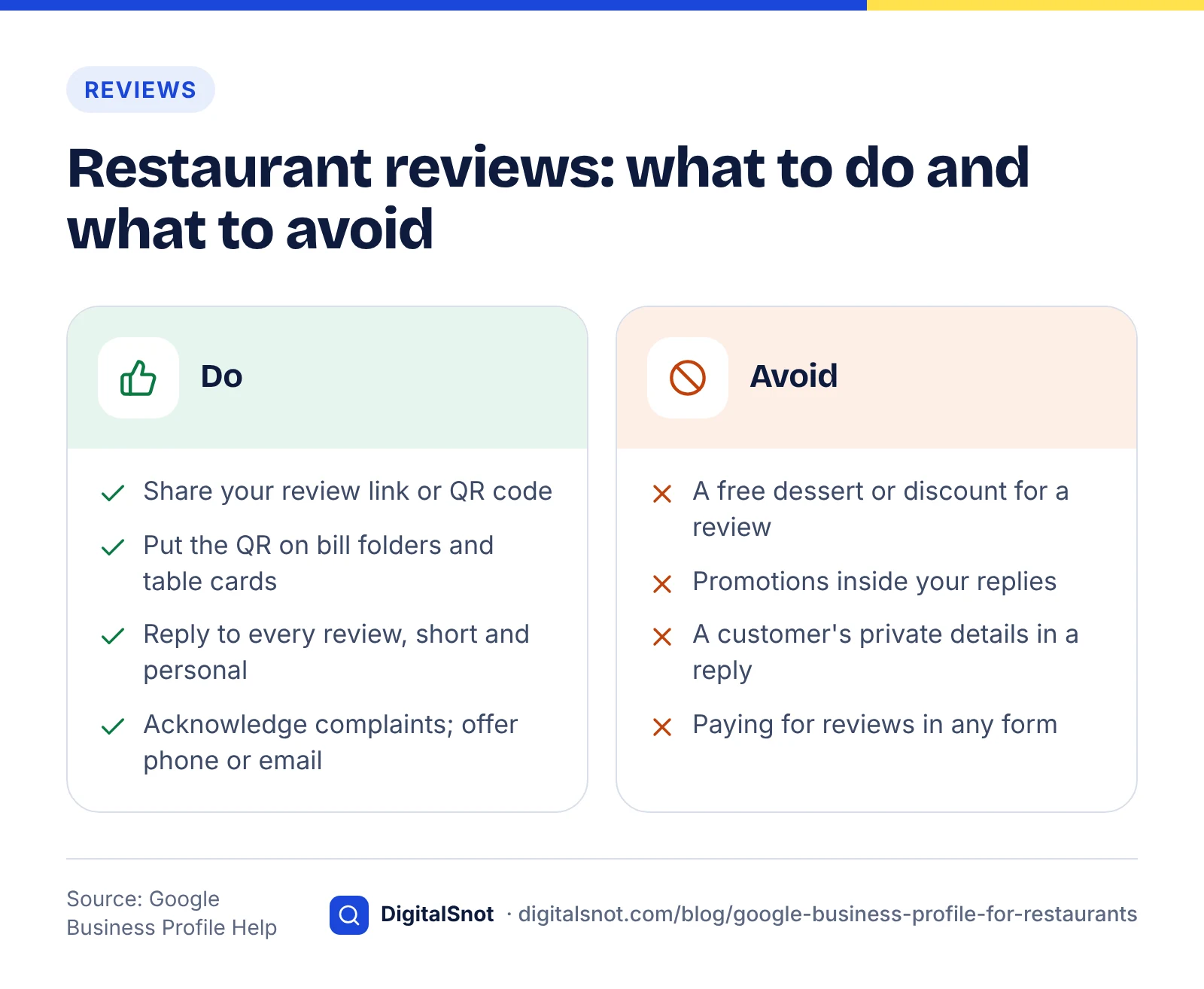
Google's tips to get more reviews suggest sharing your review link or QR code. For a restaurant, that could mean a QR code on the bill folder, table card or takeaway bag. The same page says offering incentives, such as a free dessert or a discount, in exchange for reviews is prohibited. Our free Google review link and QR code generator builds both from your Business Profile.
Replying to reviews
Google's guidance on managing reviews recommends replies that are short, polite and personal, without promotions or a customer's private details. For a complaint, acknowledge the problem, explain what you can do, and offer to continue by phone or email.
Use posts for specials and events
Posts let you share news, offers and events directly on your profile. They suit restaurants well because menus, specials and events change often.
Google's posts help page describes three types: Updates, Offers and Events. Offers and Events need a title and dates, and posts older than six months are archived unless they have a date range. Good restaurant posts include a festival menu, a new weekend brunch, live music nights or a limited-time thali.
Structured data (JSON-LD) code
Add Restaurant schema to your website
Structured data on your website helps search engines confirm the same details your profile shows. Use the Restaurant type rather than the generic LocalBusiness.
Google Search Central recommends using the most specific LocalBusiness subtype, such as Restaurant, and documents a menu property for the menu URL and servesCuisine for the type of cuisine. Schema.org's Restaurant type also offers hasMenu, which can be a URL or a structured menu, and acceptsReservations, which can be true, false or a booking URL. Include your name, address, phone, opening hours and price range exactly as they appear on your profile, and test the markup before publishing. Our on-page SEO checklist covers how schema fits with the rest of the page. To see which other structured data types still earn a Google feature in 2026, read our schema markup guide.
Keep Google, your website and delivery apps consistent
Your restaurant probably appears on Google, your own website and delivery apps such as Swiggy or Zomato. Diners, and the systems that summarise your restaurant, notice when those listings disagree.
We compared Google's restaurant help pages with schema.org's Restaurant properties to see which details appear in both, then added the matching fields a typical delivery app listing asks for. The table shows where each detail lives so you can audit them in one pass; repeat it whenever your menu or hours change.
| Detail | Google Business Profile | Website schema | Delivery app listing |
|---|---|---|---|
| Name | Business name (real-world name only) | name | Restaurant name |
| Hours | Main hours plus More hours | openingHoursSpecification | Delivery hours |
| Menu | Menu editor and menu link | hasMenu or menu | Item list and prices |
| Cuisine | Primary and secondary categories | servesCuisine | Cuisine tags |
| Bookings | Reservation link or Reserve with Google | acceptsReservations | Usually not applicable |
| Phone and address | Contact and location | telephone, address | Outlet contact details |
Prices are the most common mismatch. If delivery app prices differ from dine-in prices, say so in the menu description rather than leaving diners to discover it. Consistency also matters for AI assistants that recommend places to eat, as our post on how ChatGPT recommends businesses explains. For Google's own AI surfaces, our guide to local SEO for AI Mode, Ask Maps and AI Overviews covers what they rely on when they name local businesses.
Your restaurant profile checklist
Run through this checklist when you set up the profile, then revisit it every month. Most of it takes minutes once the groundwork is done.
Restaurant profile checklist
- Real name, specific category, dine-in hours and More hours set.
- Menu built in the menu editor, with a menu link to your website.
- Preferred ordering provider chosen and reservation link added.
- All factual attributes answered.
- Fresh photos of food, interior and exterior added each month.
- Every new review answered within a few days.
- At least one post a month for specials or events.
- Restaurant schema live and matching the profile and delivery apps.
If you would like help with this across one outlet or several, our local SEO service covers profile setup, reviews and schema. You can also contact us to talk it through.
Free tools in this article
By the numbers
- of consumers read online reviews for local businesses (BrightLocal Local Consumer Review Survey 2026, 1,002 US adults)
- 97%
- Source: BrightLocal
- of consumers say they are likely to use a business that responds to all of its reviews (US survey, 2026)
- 80%
- Source: BrightLocal
- of consumers will only use a business rated 4.5 stars or higher, up from 17% a year earlier (US survey, 2026)
- 31%
- Source: BrightLocal
Frequently asked questions
How do I add a menu to my restaurant's Google Business Profile?
Open your profile and select Edit menu. Add sections such as starters and mains, then add each dish with a name, description and price. You can also upload a photo or PDF of the menu, which should fit on one page, and add a menu link to your website under contact details. Changes can take 24 to 48 hours to appear.
Can customers order food directly from my Google profile?
Customers can start an order from your profile, but the order is completed on a third-party platform or your own ordering page. Google ended its in-profile Order with Google checkout in 2024. You can choose a preferred provider, add your own ordering link and remove providers you do not want; providers must remove links within five business days of a request.
How do I let diners book a table through Google?
Reservations on Google work through Reserve with Google partner providers. If your booking system is a supported provider, diners can book from your profile. Google's waitlist feature is only available for restaurants and also needs a Reserve with Google provider. If your system is not integrated, you can add a reservation link to your profile instead.
Which hours should a restaurant use on Google?
Google asks restaurants to use dine-in hours as the main hours. If you do not offer dine-in, use takeout hours, then drive-through, and delivery hours only as a last resort. Add separate delivery, takeout or pickup times as More hours, which must fall within your main hours, and set special hours for holidays.
Can I offer a discount for Google reviews?
No. Google prohibits offering incentives, such as free items or discounts, in exchange for posting, changing or removing reviews. You can ask every diner for a review and make it easy with Google's review link or QR code on bills, table cards or takeaway packaging, as long as nothing is offered in return.
What schema markup should a restaurant website use?
Use the Restaurant type from schema.org, which Google recommends over the generic LocalBusiness type. Include name, address, phone, opening hours and price range, plus servesCuisine and a menu or hasMenu property pointing to your menu page. You can also use acceptsReservations with a booking URL. Keep every value identical to your Google Business Profile.
Sources
Every figure and claim in this article comes from the sources below. We checked each one when writing and link to the original so you can read it yourself. Credit belongs to the authors and publishers listed. How we write and check our articles.
-
1
Guidelines for representing your business on Google
Google Business Profile Help · Business name must match the real-world name
-
2
Get started with a Business Profile for your restaurant
Google Business Profile Help · Restaurant hours rule and restaurant setup steps
-
3
How to set More hours
Google Business Profile Help · Service hours such as delivery and takeout must fall within main hours
-
4
About the menu editor
Google Business Profile Help · Menu sections, dishes, prices, menu photos and 24 to 48 hour delay
-
5
Find and edit popular dishes for restaurants
Google Business Profile Help · Owner dish names take precedence over customer names
-
6
Manage your local business links
Google Business Profile Help · Booking, reservation, food order and menu links
-
7
Manage online ordering options
Google Business Profile Help · Preferred provider, removing providers and the five business day rule
-
8
Google Discontinuing Order with Google For Food Delivery
Search Engine Roundtable · End of in-profile Order with Google checkout in June 2024
-
9
Set up bookings through a provider
Google Business Profile Help · Reserve with Google providers and the restaurant-only waitlist
-
10
Manage your business attributes
Google Business Profile Help · Factual vs subjective attributes and regional limits
-
11
Tips for business-specific photos on your Business Profile
Google Business Profile Help · Exterior, interior and food photo tips and file requirements
-
12
Local Consumer Review Survey 2026
BrightLocal · Review reading, responses and star rating thresholds (1,002 US adults)
-
13
Tips to get more reviews
Google Business Profile Help · Review links and QR codes; incentives are prohibited
-
14
Manage customer reviews
Google Business Profile Help · How to reply to reviews, including negative ones
-
15
Create & manage posts on your Business Profile
Google Business Profile Help · Update, Offer and Event posts; archiving after six months
-
16
Local Business (LocalBusiness) Structured Data
Google Search Central · Use the most specific subtype; menu and servesCuisine properties
-
17
Restaurant - Schema.org Type
Schema.org · Restaurant type and hasMenu property
-
18
acceptsReservations - Schema.org Property
Schema.org · Accepted values: Boolean, booking URL or Yes/No