A monthly Google Ads checkup for small accounts, in under an hour
A 30 to 60 minute monthly routine for a small Google Ads account: conversions, search terms, budgets, change history, policy issues, assets, locations and auction insights.
On this page (13 sections)
- 1Before you start: one date range and a notes file
- 2Step 1: conversions health (5 minutes)
- 3Step 2: search terms (10 to 15 minutes)
- 4Step 3: budgets and "Limited by budget" (5 minutes)
- 5Step 4: change history (5 minutes)
- 6Step 5: policy issues and weak assets (10 minutes)
- 7Step 6: where your clicks came from (5 minutes)
- 8Step 7: auction insights (5 minutes)
- 9A worked example: a car rental firm in Kochi
- 10Once a quarter: a wider audit
- 11Mistakes to avoid
- 12Your next step
- 13Sources
A small Google Ads account can lose money quietly: a search term nobody blocked, a form that stopped recording leads, a recommendation that was applied without anyone noticing. A short monthly Google Ads checkup catches these before they cost you a quarter's budget.
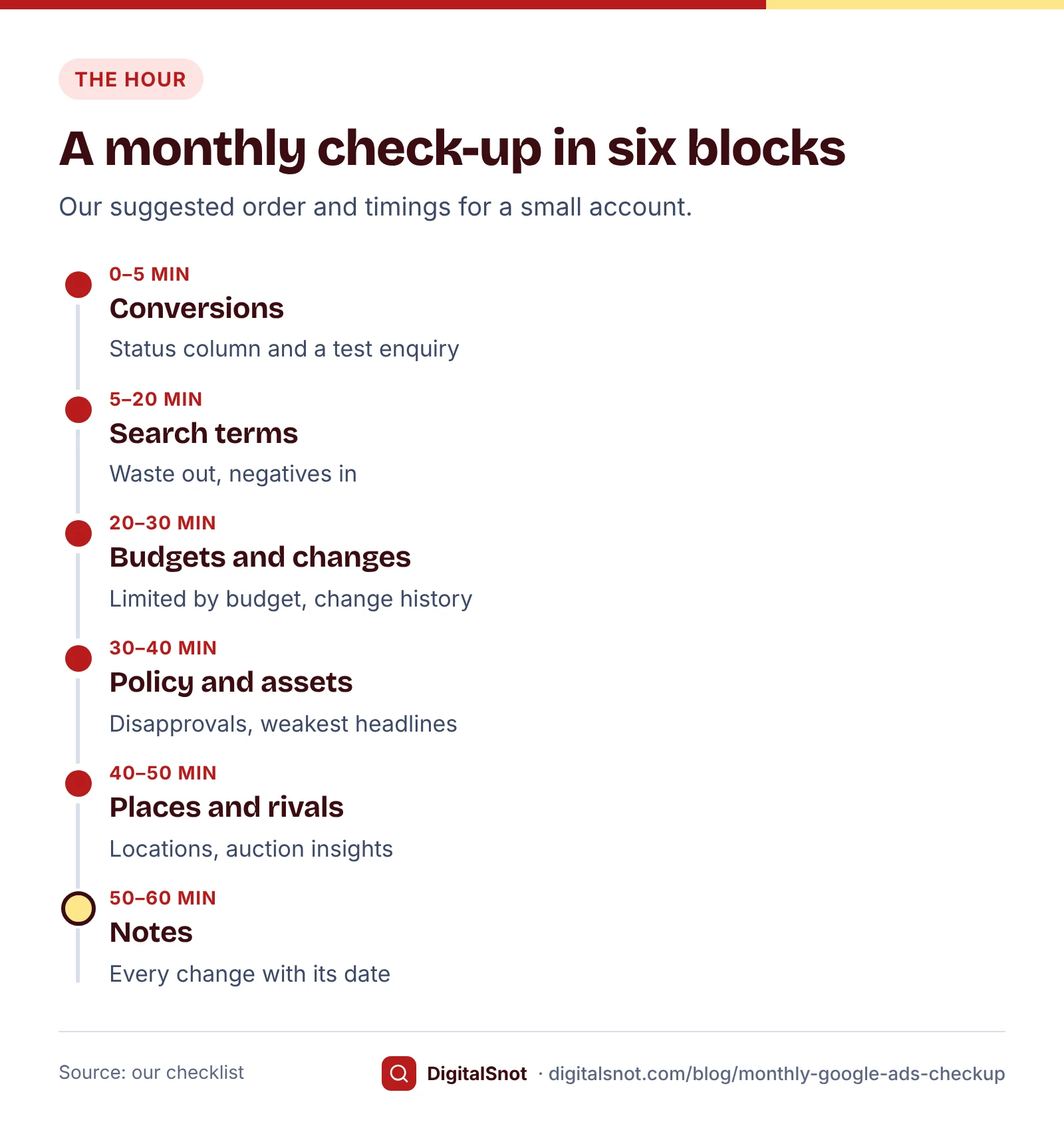
This post gives you a fixed routine of 30 to 60 minutes, in the order that matters, with the free tool that does each step. Google sets no schedule for most of these tasks, so the rhythm is our suggestion for an account run by one person.
Before you start: one date range and a notes file
Pick last month as the date range and compare it with the month before. Open a notes file or a sheet, and write down what you find and what you change, with the date. That note is what lets you judge a change next month.
If you want the routine laid out for you, open the Monthly Optimisation Checklist. Pick lead generation, e-commerce or both, and you get weekly, monthly and quarterly tasks, each with where to look in Google Ads, why it matters (in Google's words where Google has guidance) and which free tool does the work. Ticks are saved in your browser, and a calendar file adds reminders. It never signs in to Google Ads.
Step 1: conversions health (5 minutes)
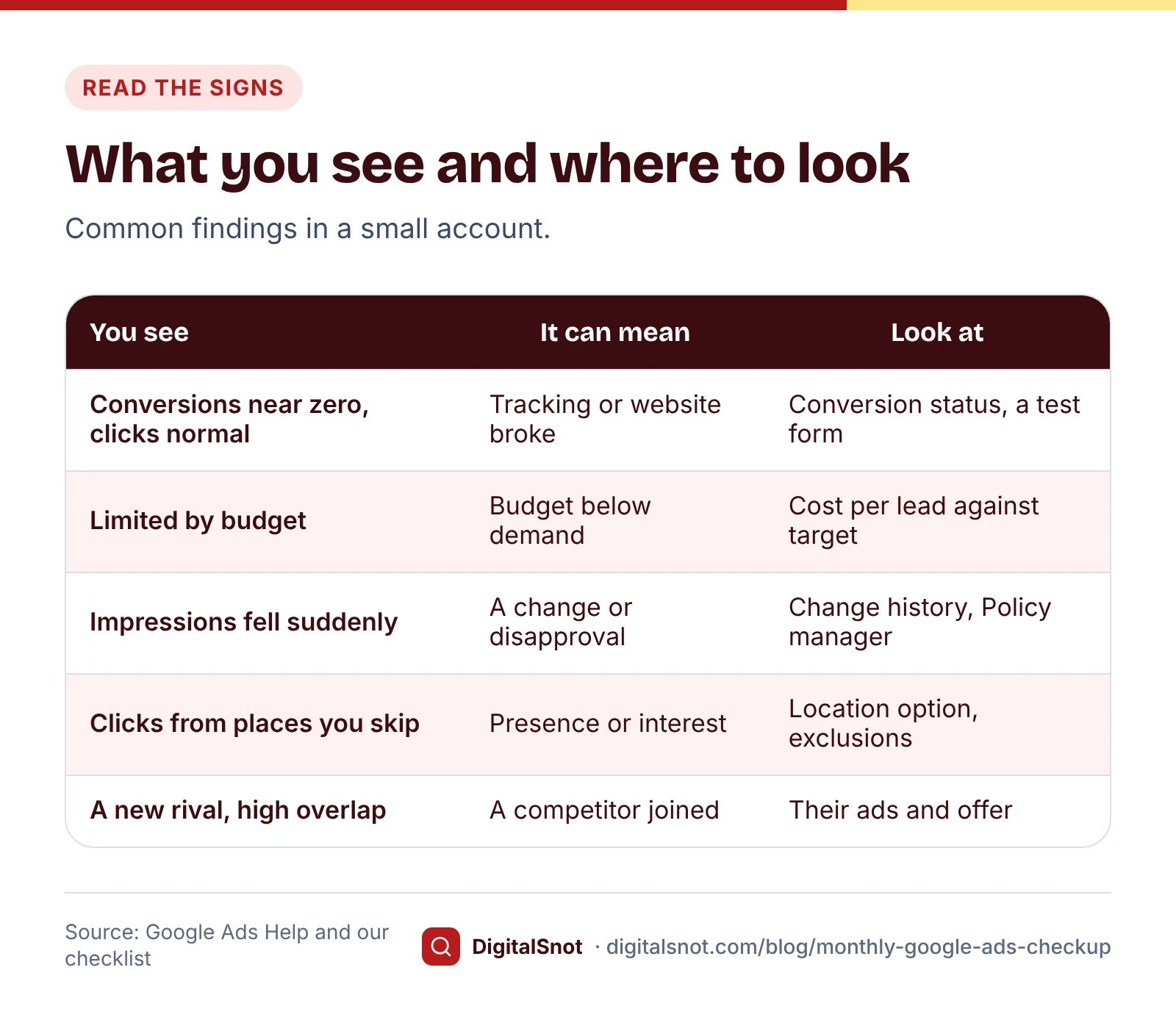
Every other number depends on this one, so start here. In Google Ads, open Goals, then Conversions, then Summary, and read the Status column. Google's conversion tracking status guide explains each status; "Awaiting conversions", for example, means nothing was recorded in the last 7 days. Hover a status for Google's details. Then send yourself a test enquiry and call the number in your ads.
For a wider view, build a daily report with Day in the rows and Impr., Clicks, Cost and Conversions as columns, for at least the last 8 weeks, and drop it into the Account Anomaly Checker. It compares each day with the same weekday in earlier weeks, as Google's own Account Anomaly Detector script does, and flags days that broke from normal, including conversions that stopped while clicks carried on. If tracking looks broken, our post on conversion tracking that does not work has the full checklist.
Step 2: search terms (10 to 15 minutes)
Open Campaigns, then Insights and reports, then Search terms, and download last month. Google's page on negative keyword ideas from the search terms report suggests adding searches that are not relevant to what you sell as negative keywords. Terms you add from the report become exact match negatives unless you add match type symbols.
The Google Ads Search Terms Analyzer shows what went on searches that never converted, breaks them into one, two and three-word patterns, and suggests negatives that never block a search that converted or one of your keywords. Our post on wasted spend in search terms covers the detail.
Step 3: budgets and "Limited by budget" (5 minutes)
Filter the Campaigns table by status and look for "Limited by budget". Google's page on fixing Limited by budget explains that the campaign shows ads less often than it could because of its budget. Hover the status for Google's recommended budget, when it has one. Google does not change your budget for you.
Limited by budget is not an order to spend more. If the campaign's cost per lead or sale is below your target, a higher budget there is a sensible step. If it is above target, fix searches, ads and the landing page first. Also check spend against plan: Google's page about spending limits says a campaign can spend up to twice its average daily budget on one day, but you are not charged more than 30.4 times it in a month.
Step 4: change history (5 minutes)
Open Campaigns, then Change history. Google's page about change history says it lists changes to your account, campaigns and ad groups for the past two years, with who made each one, including recommendations that were applied. Look for changes you did not make, especially auto-applied recommendations, and check the Auto-apply settings under Recommendations. Google's page on undoing changes says most changes from the last 30 days can be undone.
If results jumped or dropped, put the change history and a daily report into the Change History Analyzer. It lines up every change with the days before and after it, marks changes made by Google, and flags changes made too close together to judge. A change that came before a drop did not necessarily cause it, so check festivals and tracking too.
Step 5: policy issues and weak assets (10 minutes)
A disapproved ad or asset does not run. Open Policy manager (under Tools, then Troubleshooting) to see each issue and the policy behind it. Google's page on fixing a disapproved ad explains that editing and saving an ad sends it for review again; if the problem is your landing page, fix the page first, then appeal.
Then look at your ads. Google's best practice is at least two responsive search ads with Good or Excellent ad strength in each ad group. Download the asset report and replace the weakest headlines, as our post on responsive search ads explains, with the RSA Asset Performance Analyzer doing the ranking.
Step 6: where your clicks came from (5 minutes)
Open Insights and reports, then When and where ads showed, then Locations. The Matched locations view shows the places that matched your ads. If you see clicks from places you do not serve, check the location option. Google's page about advanced location options explains that the default, Presence or interest, reaches people in, regularly in, or interested in your locations; Presence reaches only people in or regularly in them, and most campaigns see fewer impressions after switching.
Drop the report into the Location Performance Analyzer. It ranks every city and area by cost per conversion or ROAS, lists places that spent with no conversions and spend from outside your targets, and suggests what to exclude or add. Exclude a place only if you do not serve it and it has had enough clicks to judge.
Step 7: auction insights (5 minutes)
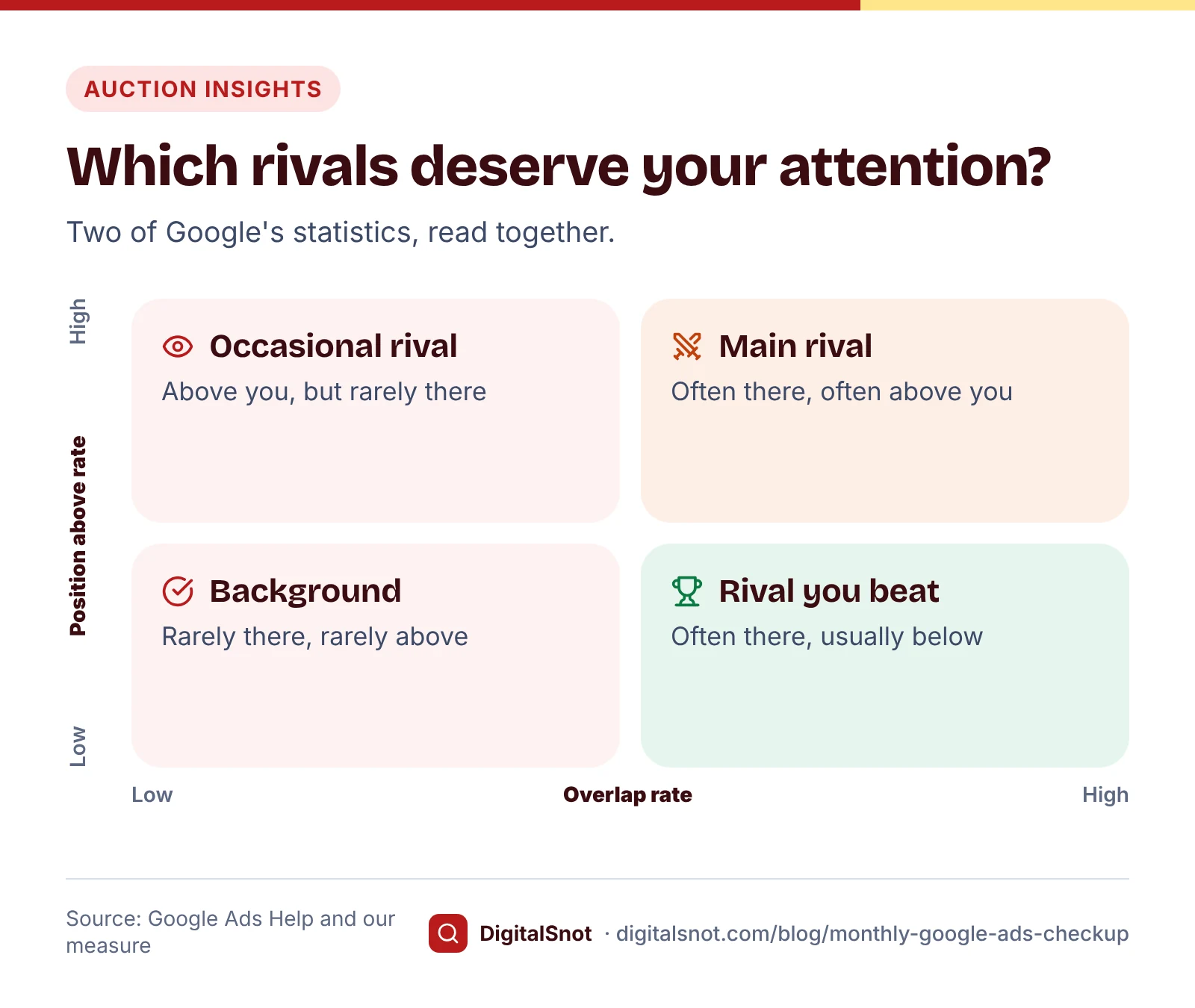
Tick your main campaigns and open Auction insights. Google's page on using auction insights explains the statistics, such as overlap rate (how often a rival's ad showed when yours did) and outranking share (how often your ad ranked above theirs, or showed when theirs did not). It does not show insights when your impression share is under 10%.
The Auction Insights Analyzer sorts rivals by overlap rate, plots how often they show with you against how often they rank above you, and, with two periods, marks new rivals and rivals gaining on you. A rival that appears for one month may be noise, so note it and look again next month before you react.
A worked example: a car rental firm in Kochi
Malabar Self-Drive Cars in Kakkanad, Kochi, is a made-up rental firm with two Search campaigns and about ₹45,000 a month of spend. Its owner ran the routine on the first Monday of the month:
- Conversions: the booking form action showed "Awaiting conversions". The website had a new thank-you page, and the tag had not been moved. Fixed the same day.
- Search terms: ₹3,100 had gone on "driver jobs kochi" and "used cars for sale". Both became negatives.
- Budget: the airport pickup campaign was limited by budget, with enquiries below the target cost. Its budget went up by a fifth.
- Change history: two keyword changes had been made by auto-applied recommendations. The owner reviewed them and turned that recommendation type off.
- Policy: one sitelink pointed to a removed page and was disapproved. The link was updated.
- Locations: clicks from Bengaluru and Chennai converted well, because travellers book before they arrive. Presence or interest stayed on.
- Auction insights: a new rival showed with a 35% overlap rate. Noted, to check next month.
Each change went into the notes file with its date, to be judged at next month's check-up. The business and its numbers are made up.
Once a quarter: a wider audit
The monthly routine looks for leaks. Once a quarter, step back. Download the Campaigns, Keywords, Search terms and Ads tables for the same dates and drop them into the Google Ads Account Audit. It finds spend with no conversions, campaigns held back by budget or Ad Rank, low Quality Score and weak ads, ranks them by the rupees at stake and gives a fix for each. Its score is our measure, not Google's. Also check who has access to the account, and which conversion actions are Primary. If you sell online, add a profit check, as in our post on true ROAS.
Mistakes to avoid
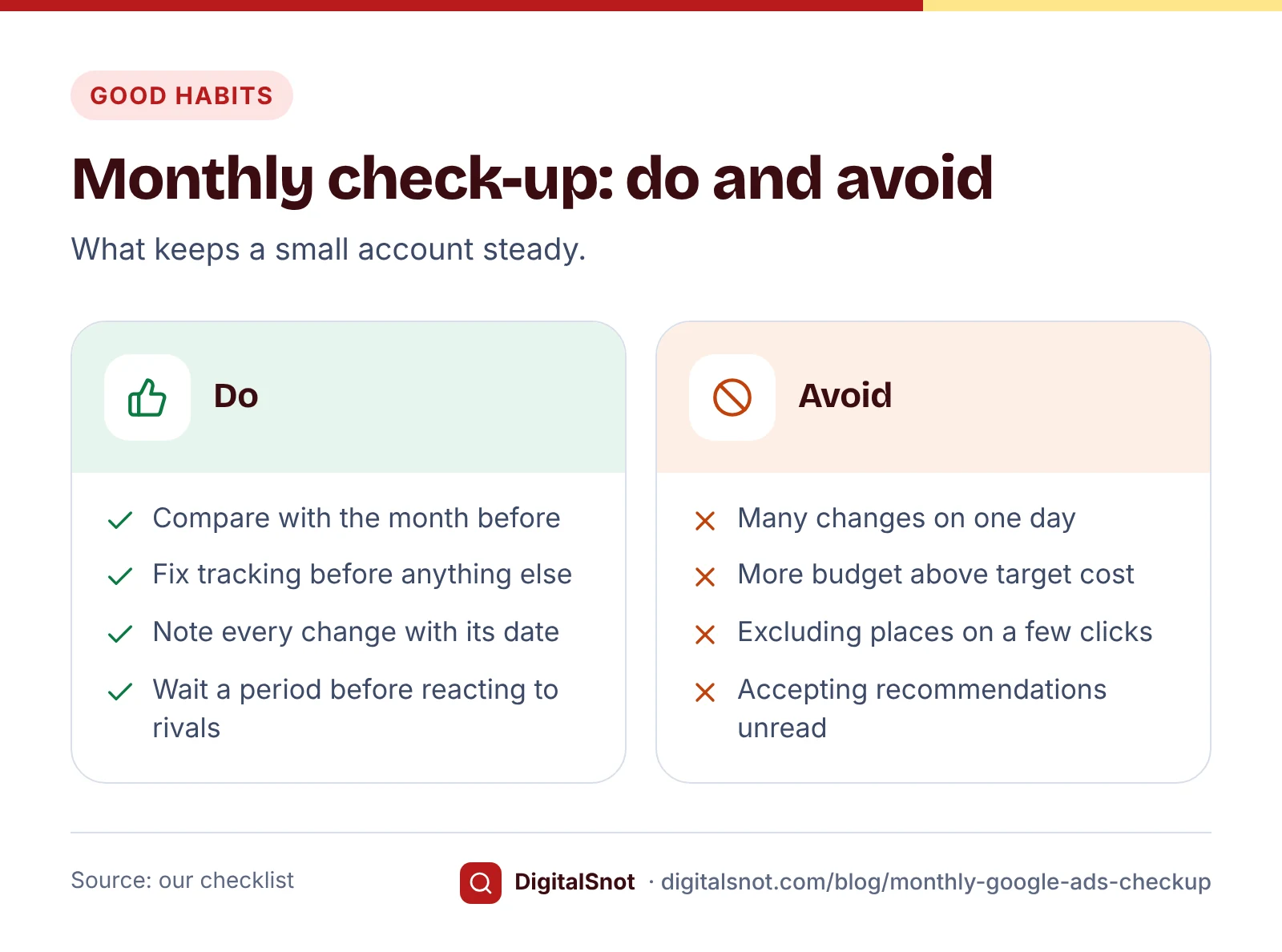
- Skipping the conversions check. A month of decisions on broken tracking is a month of wrong decisions.
- Changing many things on one day. You will not know which one helped.
- Raising budgets on campaigns above target cost. More budget buys more of the same.
- Excluding places on a handful of clicks. Wait until a place has spent enough to judge.
- Accepting recommendations without reading them. Read each one against your goals.
Your next step
Block an hour in your calendar for the first working day of next month, and open the Monthly Optimisation Checklist to follow along. If the account has not had a proper look in a while, start with the Google Ads Account Audit. More tools are on our Google Ads tools page, or talk to us if you would like a second pair of eyes.
Free tools in this article
- Monthly Optimisation Checklist A weekly, monthly and quarterly routine for a small account, each task linked to the tool that does it.
- Account Anomaly Checker Find days when spend, clicks or conversions moved far from normal, from a daily report.
- Google Ads Search Terms Analyzer Upload a search terms report to find wasted spend, n-gram patterns and safe negative keywords.
- Change History Analyzer Line up your change history with daily results and see which change came before a jump or drop.
- Location Performance Analyzer Rank the cities and areas in your Google Ads Locations report, and find the ones that waste money.
- Auction Insights Analyzer See your closest rivals in Google Ads, who is new and who is gaining on you, from auction insights.
By the numbers
- of changes to your account, campaigns and ad groups listed in change history
- 2 years
- Source: Google Ads Help
Frequently asked questions
How often should I check my Google Ads account?
Google sets no schedule for most tasks. Our suggestion for a small account is a quick look each week at search terms, budgets, policy issues and conversion status, a 30 to 60 minute check-up each month, and a wider audit each quarter.
What should I check first in Google Ads?
Conversion tracking. Open Goals, then Conversions, then Summary, and read the Status column; "Awaiting conversions" means nothing was recorded in the last 7 days. If tracking is broken, every other number in the account is wrong.
What does "Limited by budget" mean?
The campaign shows ads less often than it could because of its budget. Hover the status for Google's recommended budget, when it has one. Raise the budget only if the campaign's cost per lead or sale is already below your target.
How do I see who changed something in my Google Ads account?
Open Campaigns, then Change history. It lists changes to the account, campaigns and ad groups for the past two years, with the user who made each one, including recommendations that were applied. Most changes from the last 30 days can be undone there.
Why do I get clicks from cities I do not target?
Usually because of the location option. Google's default, Presence or interest, also reaches people who have shown interest in your locations. If you serve only people in your area, switch to Presence and exclude places you do not serve.
Why does auction insights show no data for my campaign?
Google does not show auction insights when your impression share is less than 10%. Select a campaign with more activity, or a longer date range.
Sources
Every figure and claim in this article comes from the sources below. We checked each one when writing and link to the original so you can read it yourself. Credit belongs to the authors and publishers listed. How we write and check our articles.
-
1
Conversion tracking: troubleshooting conversion tracking status
Google Ads Help · Conversion action statuses, including Awaiting conversions for nothing recorded in 7 days.
-
2
Account Anomaly Detector
Google Ads scripts · Google's script compares results with the same weekday in earlier weeks.
-
3
Get negative keyword ideas using the search terms report
Google Ads Help · Add irrelevant searches as negatives; added terms become exact match negatives.
-
4
Fix "Limited by budget" status
Google Ads Help · What the status means and the recommended budget.
-
5
About spending limits
Google Ads Help · Up to twice the average daily budget in a day, at most 30.4 times it in a month.
-
6
About change history
Google Ads Help · Two years of changes with the user who made each one.
-
7
Undo changes in change history
Google Ads Help · Most changes made in the last 30 days can be undone.
-
8
Fix a disapproved ad or appeal a policy decision
Advertising Policies Help · Policy manager, editing to resubmit, and fixing the landing page before an appeal.
-
9
About advanced location options
Google Ads Help · Presence or interest as the default, and fewer impressions after switching to Presence.
-
10
Use auction insights to compare performance
Google Ads Help · Overlap rate, outranking share, and no insights under 10% impression share.
-
11
About Ad Strength for responsive search ads
Google Ads Help · At least two responsive search ads with Good or Excellent ad strength per ad group.
Want a second pair of eyes?
Tell us about your site. We reply within one business day.
Talk to us Try our free tools