YouTube upload checklist: settings to check before you publish
Every setting to check before a business video goes live on YouTube, from title and thumbnail to made for kids, AI use, paid promotion, captions and scheduling.
On this page (11 sections)
- 1Before you upload: the file and your account
- 2Details: title, description, chapters and thumbnail
- 3The settings YouTube requires: audience and AI use
- 4Paid promotion
- 5Subtitles and captions
- 6End screens and cards
- 7Visibility and scheduling
- 8A worked example: Meera's Kitchen, Lucknow
- 9Mistakes to avoid
- 10Your next step
- 11Sources
Most upload mistakes are not about the video. They are a box left unticked: an audience setting chosen in a hurry, a brand's free product with no paid promotion label, captions full of strange characters, or a video that went public on a Tuesday afternoon when it was meant for Friday evening. This post goes through every setting to check before you publish, with YouTube's rule for each and a worked example from a made-up cooking class in Lucknow. Keep our free YouTube Upload Checklist open as you go: it lists the main steps of an upload with YouTube's rule for each, and keeps your ticks in your browser for the next video.
Before you upload: the file and your account
Two limits catch people out before the upload even starts. YouTube's page on uploading videos longer than 15 minutes says that by default you can upload videos up to 15 minutes long, and longer ones need a verified account. The largest file you can upload is 256 GB or 12 hours, whichever is less.
Verifying with a phone number matters for thumbnails too. YouTube's page on intermediate and advanced features lists custom thumbnails and videos longer than 15 minutes among the intermediate features you get by verifying your phone number. Do it once, a day before your first upload, not in the middle of one.
Details: title, description, chapters and thumbnail
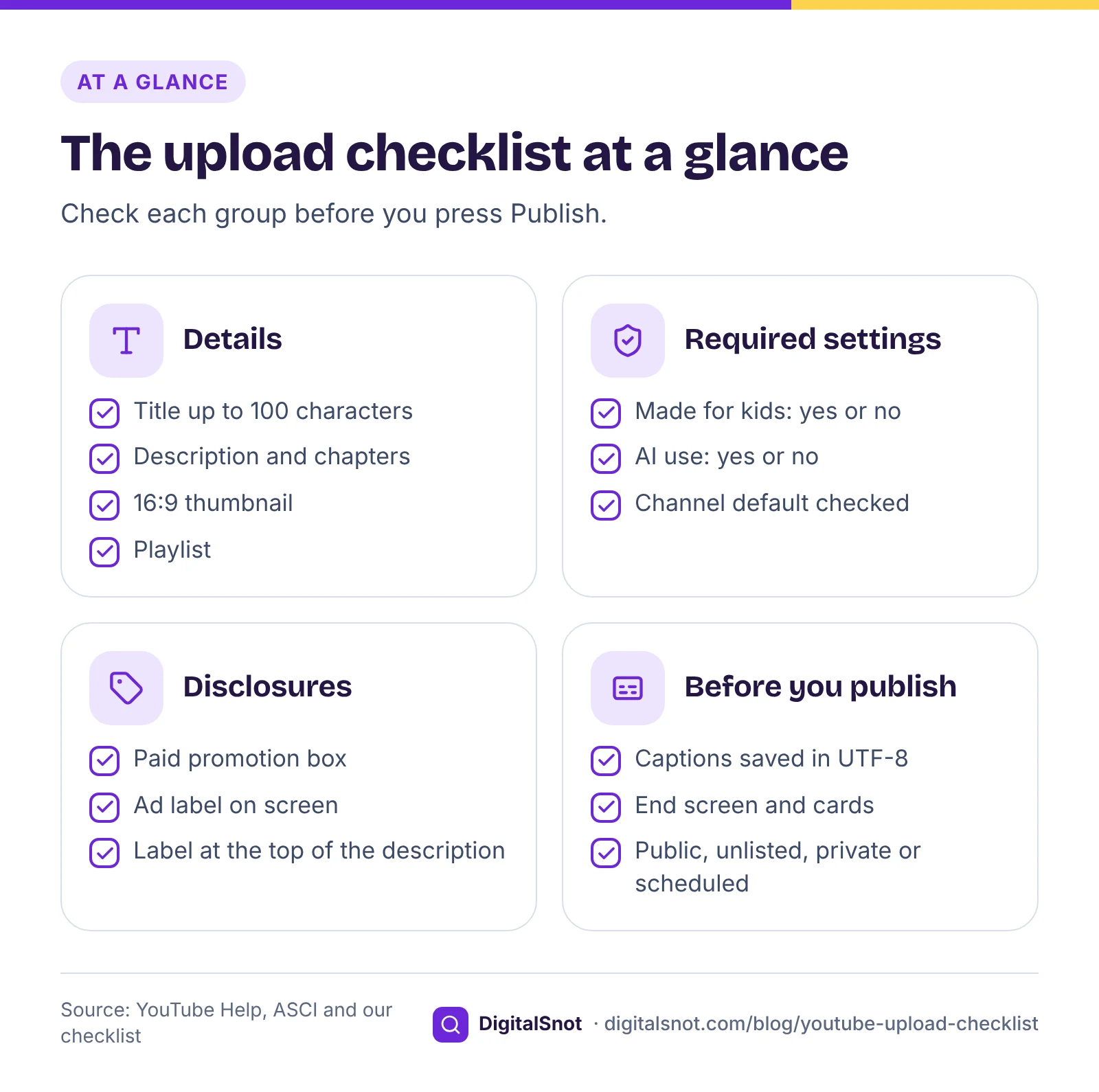
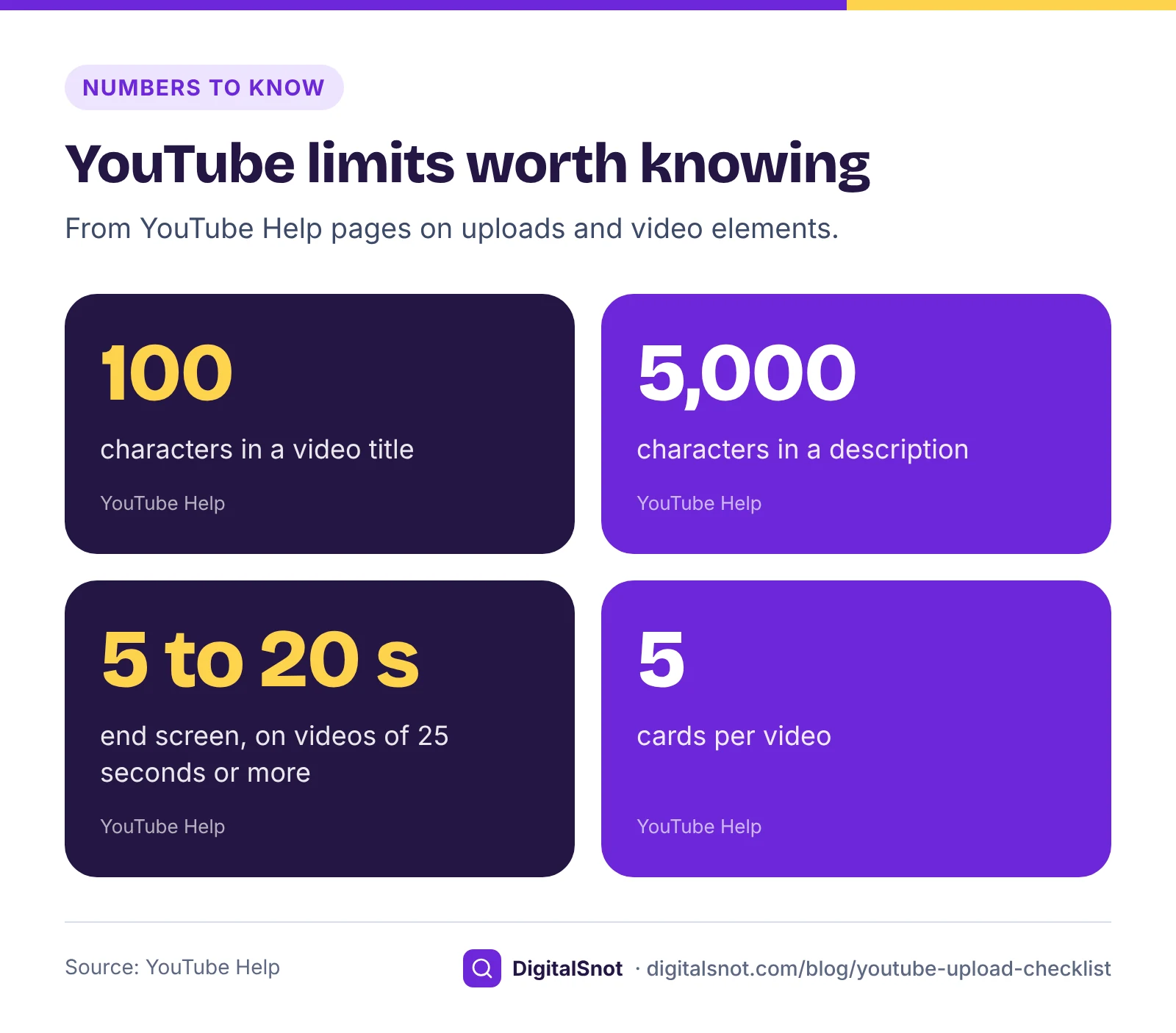
- Title. Up to 100 characters, without invalid characters such as < and >, according to YouTube's help on editing video settings. Our suggestion: the words a customer would search for, near the start.
- Description. Up to 5,000 characters, under the same page. Say what the video covers in the first lines, then add your links and contact details.
- Chapters. Timestamps in the description: the first at 00:00, at least three in ascending order, and each chapter at least 10 seconds long. Our post on YouTube chapters covers the rules and how to write the titles.
- Thumbnail. YouTube's help on custom thumbnails recommends 3840 × 2160 pixels, at least 640 wide, in a 16:9 shape, as JPG or PNG, up to 50 MB from a computer or 2 MB in the mobile app. Our post on thumbnail sizes and readable text goes into the design.
- Playlist. Add the video to a playlist of related videos as you upload, so a viewer who finishes one has the next one ready. That is our suggestion, not a rule, but it costs nothing.
The settings YouTube requires: audience and AI use
Made for kids
Every video needs an answer to whether it is made for kids. YouTube's help on setting your channel or video's audience asks creators to set it to comply with the Children's Online Privacy Protection Act (COPPA) and other laws. You can set a default for the channel and change it for each video. Choose carefully: on content made for kids, YouTube turns off features such as comments, notifications, personalised ads, cards and end screens.
Our suggestion: decide by who the video is for, not by whether a child could watch it safely. A clinic's video for parents on choosing a child's toothbrush is aimed at the parents.
AI use
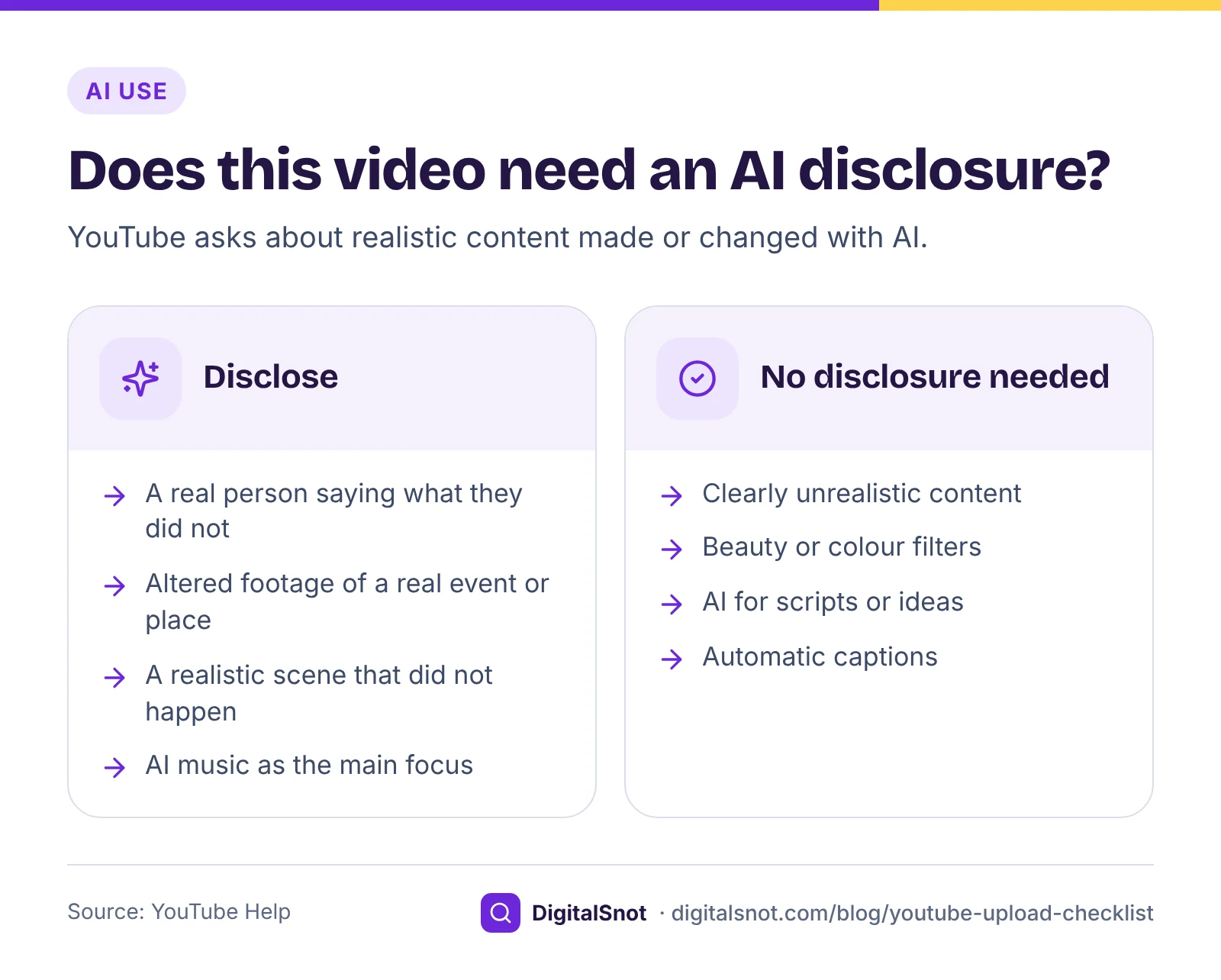
YouTube's help on disclosing use of GenAI content asks you to disclose realistic content made or changed with AI or other tools when it:
- makes a real person appear to say or do something they did not;
- alters footage of a real event or place;
- generates a realistic scene that did not happen; or
- creates music that is the main focus of the video.
Clearly unrealistic content, minor edits such as beauty filters or colour adjustments, and AI used for productivity, such as scripts, ideas or automatic captions, do not need it. You answer under "AI use" in the Attributes section as you upload. YouTube says disclosing does not by itself limit a video's audience or its eligibility to earn money. Its blog post on improving AI labels adds that when a creator does not answer and YouTube's systems detect significant photorealistic AI use, YouTube applies a label itself.
Not sure about either setting? Our YouTube Made for Kids and AI Disclosure Helper asks yes or no questions built from YouTube's own factors and examples, suggests a setting and shows where to set it. You make the final choice.
Paid promotion
If a brand gave you anything of value for the video, money or a free product, tick the paid promotion box in the video's details, under Show more. YouTube's policy on paid product placements, sponsorships and endorsements asks for it, and YouTube then shows viewers a disclosure. In India, ASCI's guidelines also ask for a clear label in the video itself, kept on screen for a set time that depends on the video's length. Our post on disclosing paid posts under ASCI rules gives the labels and the timings.
Subtitles and captions
Captions help everyone who watches with the sound off, and they give your video an accurate text version of what you say. YouTube's list of supported subtitle and closed caption files includes SubRip (.srt) and SubViewer (.sbv) in their basic form only, with no style markup and saved as plain UTF-8, and WebVTT (.vtt), which supports positioning and limits styling to bold, italic and underline.
If you rely on automatic captions, read them first. YouTube's help on automatic captioning warns that they might misrepresent the spoken content because of mispronunciations, accents, dialects or background noise. Check business names, product names and place names first (our suggestion).
Before you upload a caption file, open it in our YouTube Subtitle Checker and Converter. It checks timings, overlaps, empty cues, style markup and text encoding, converts between SRT, WebVTT and SBV, shifts every time earlier or later if the captions run out of sync, and saves a UTF-8 file. Its readability checks, up to 42 characters a line, 2 lines a cue and about 20 characters a second, are our checklist, not YouTube rules.
End screens and cards
YouTube's help on end screens lets you add one in the last 5 to 20 seconds of a video that is at least 25 seconds long, with up to 4 elements on a 16:9 video, such as another video, a playlist, a subscribe button or your channel. Its page on cards allows up to 5 cards per video. Link elements and Link cards need membership of the YouTube Partner Program, and neither end screens nor cards are available on videos made for kids.
Plan the end screen before you edit, so the last seconds of the video leave room for it. Our YouTube End Screen and Cards Planner takes the video's length and shape, whether it is made for kids, whether you are in the Partner Program, the elements and the cards, then draws a timeline, checks the plan against YouTube's rules, suggests a layout and writes a brief for your editor.
Visibility and scheduling
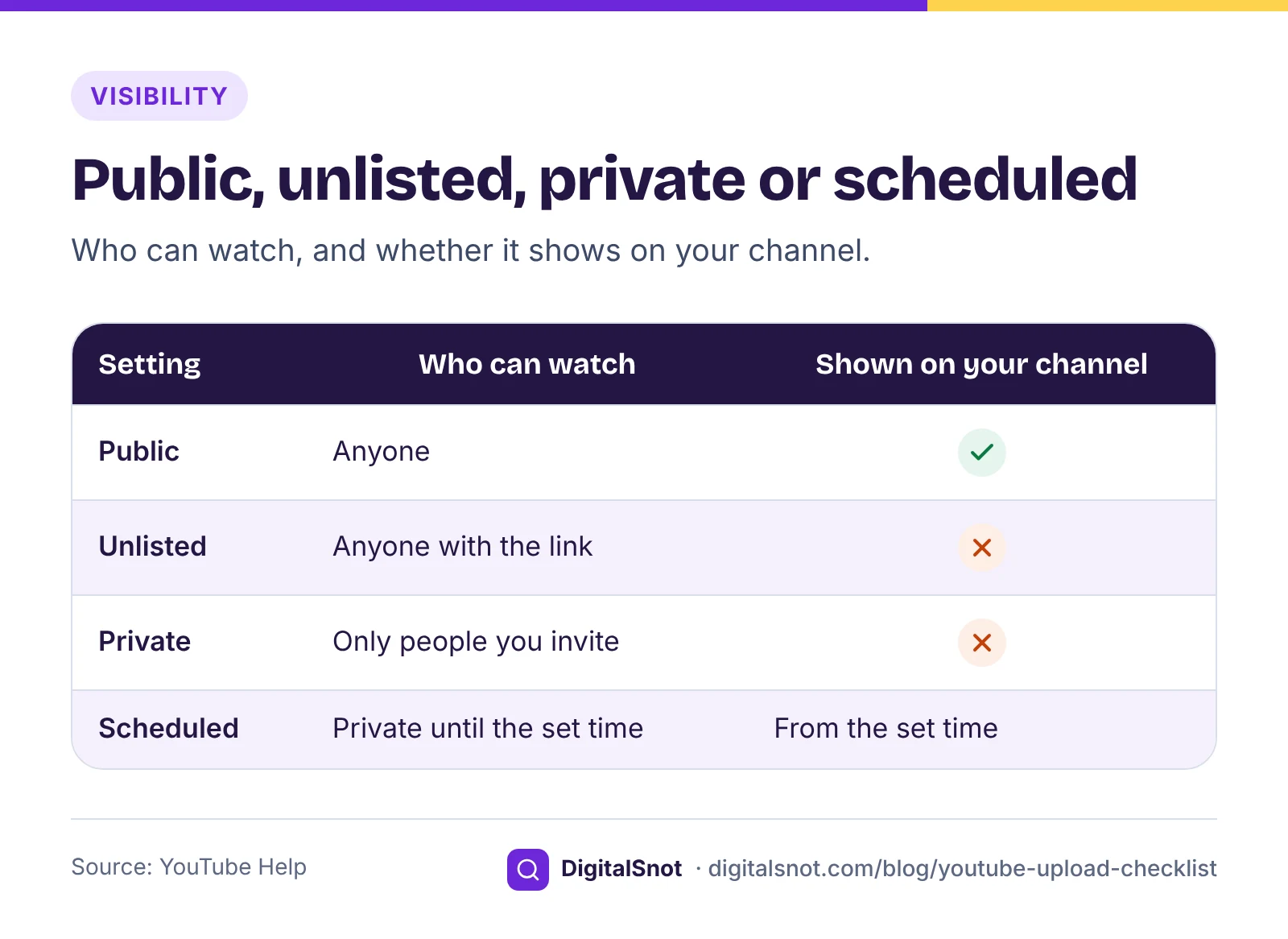
YouTube's help on video privacy settings gives three choices. Public videos can be seen by anyone. Unlisted videos can be seen and shared by anyone with the link, but they do not appear in the Videos tab of your channel. Private videos can be seen only by people you invite.
The fourth choice is a time. YouTube's page on scheduling a video keeps the video private until the date and time you set, then makes it public, and you can also set it as a Premiere. One catch: if your account has a Community Guidelines strike, a scheduled video is not published during the penalty period. Our suggestion: schedule for the days and times your viewers usually watch, from YouTube Analytics, and check the video once it goes live.
A worked example: Meera's Kitchen, Lucknow
Meera's Kitchen, a made-up cooking class in Gomti Nagar, Lucknow, uploads a 12-minute video: "Lucknowi dum biryani at home". A spice brand sent a free box of its biryani masala, which Meera uses in the video. Going through the checklist:
- Account: the video is under 15 minutes, but Meera wants a custom thumbnail, so she verifies the channel with her phone number first.
- Details: the title "Lucknowi dum biryani at home, step by step" is well under 100 characters. Seven chapters go in the description, the first at 00:00, and the video goes into her "Awadhi recipes" playlist.
- Audience: the video teaches adults to cook, so she sets it as not made for kids.
- AI use: she used an AI tool only for title ideas, which needs no disclosure, so she answers No.
- Paid promotion: the masala was free, so she ticks the box. She also shows an "Ad" label on screen for the whole section where the brand is mentioned, as ASCI asks for videos of 2 minutes or more.
- Captions: her editor's SRT file shows "à¤" where Hindi words should be. The Subtitle Checker flags the garbled characters, her editor exports the file again as UTF-8, and Meera fixes two overlapping cues the checker finds.
- End screen and cards: a 20-second end screen with her raita video, the playlist and a subscribe button, and one card at 4:10 pointing to her video on soaking rice.
- Visibility: her viewers watch most on weekend evenings, so she schedules the video for Friday at 6 pm.
None of this takes long once it is a habit. The slow part is fixing a setting after the video is already public and shared.
Mistakes to avoid
- Trusting a channel default for the audience setting without checking it for each video.
- Answering No to AI use for a realistic scene that never happened.
- Skipping paid promotion because the product was free.
- Uploading captions that were not saved as UTF-8.
- Filming to the last second, leaving no room for the end screen.
- Planning a Link card or an end screen link before joining the Partner Program.
- Making a video public when you meant to schedule it.
Your next step
Open the Upload Checklist before your next upload and tick through it. "Copy the list" gives you a text version to share with your editor, and "Start a new video" clears it for the next one. All our YouTube tools run in your browser, and none of them signs in to your channel. If you would like a second pair of eyes on your channel set-up, get in touch.
Free tools in this article
- YouTube Upload Checklist Tick through every step of a YouTube upload, from file and thumbnail to audience, captions and end screen.
- YouTube Made for Kids and AI Disclosure Helper Work out the made for kids setting, and whether a video needs YouTube's AI disclosure, from YouTube's rules.
- YouTube Subtitle Checker and Converter Check SRT, VTT and SBV captions for timing and format problems, convert them and shift their times.
- YouTube End Screen and Cards Planner Plan a video's end screen and cards, check them against YouTube's rules and brief your editor.
Frequently asked questions
What should I check before publishing a YouTube video?
The title (up to 100 characters), the description (up to 5,000, with chapters), a 16:9 thumbnail and a playlist; then the made for kids setting, the AI use question and paid promotion; then captions, the end screen and cards, and whether it goes public now, stays unlisted or private, or is scheduled.
Do I have to set made for kids on every YouTube video?
Yes. YouTube asks every creator to set whether their channel or video is made for kids, to comply with COPPA and other laws. You can set a channel default and change it per video. Content made for kids loses features such as comments, notifications, cards and end screens.
When do I need to disclose AI on YouTube?
When realistic content made or changed with AI makes a real person appear to say or do something they did not, alters footage of a real event or place, shows a realistic scene that did not happen, or uses AI music as the main focus.
Do I tick paid promotion for a free product?
Yes. YouTube's policy covers content made in return for something of value, and a free product counts. Tick the box in the video's details, and in India also show a clear ad label in the video under ASCI's guidelines.
Which caption file format should I upload?
YouTube supports basic SRT and SBV files with no style markup, saved as plain UTF-8, which suit most people. Use WebVTT if you need positioning or bold, italic and underline. Check the file for timing and encoding problems before you upload it.
How does scheduling a YouTube video work?
The video stays private until the date and time you set, then becomes public, and you can also set it as a Premiere. If your account has a Community Guidelines strike, a scheduled video is not published during the penalty period.
Sources
Every figure and claim in this article comes from the sources below. We checked each one when writing and link to the original so you can read it yourself. Credit belongs to the authors and publishers listed. How we write and check our articles.
-
1
Upload videos longer than 15 minutes
YouTube Help · Up to 15 minutes by default, longer videos need a verified account; maximum 256 GB or 12 hours, whichever is less
-
2
Get access to intermediate and advanced features
YouTube Help · Custom thumbnails and videos longer than 15 minutes are intermediate features unlocked by phone verification
-
3
Edit video settings
YouTube Help · Titles up to 100 characters and descriptions up to 5,000, without invalid characters
-
4
Add custom thumbnails on YouTube
YouTube Help · 3840 × 2160 recommended, at least 640 pixels wide, 16:9, JPG or PNG, 50 MB from a computer and 2 MB in the mobile app
-
5
Set your channel or video's audience
YouTube Help · Made for kids setting for COPPA, channel default and per-video setting, and the features turned off on content made for kids
-
6
Disclosing use of GenAI content
YouTube Help · When realistic AI or altered content needs a disclosure, what does not, the AI use setting, and no effect on reach or earning from disclosing alone
-
7
Improving AI labels for viewers and creators
YouTube Blog · YouTube labels content itself when a creator does not answer and its systems detect significant photorealistic AI use
-
8
Paid product placements, sponsorships and endorsements
YouTube Help · Tick the paid promotion setting for content made in return for something of value, including free products
-
9
Supported subtitle and closed caption files
YouTube Help · Basic SRT and SBV only, no style markup, plain UTF-8; WebVTT with positioning and bold, italic and underline
-
10
Use automatic captioning
YouTube Help · Automatic captions might misrepresent speech because of mispronunciations, accents, dialects or background noise
-
11
Add end screens to videos
YouTube Help · Last 5 to 20 seconds of a video at least 25 seconds long, up to 4 elements on 16:9, not on videos made for kids
-
12
Add info cards to videos
YouTube Help · Up to 5 cards per video; Link cards need Partner Program membership; not shown on videos made for kids
-
13
Change video privacy settings
YouTube Help · Public, unlisted and private videos, and who can see each
-
14
Schedule video publish time
YouTube Help · Scheduled videos stay private until the set time, can be Premieres, and are not published during a strike penalty period
Want a second pair of eyes?
Tell us about your site. We reply within one business day.
Talk to us Try our free tools