YouTube made for kids and AI disclosure: settings creators get wrong
How to decide whether a video is made for kids, what it switches off, when YouTube asks you to disclose AI, what needs no label, and how YouTube adds labels itself.
On this page (10 sections)
- 1Why YouTube asks about kids
- 2What makes a video made for kids
- 3What you lose, and how to set it
- 4The four cases that need an AI disclosure
- 5Labels YouTube adds, and what happens if you stay silent
- 6A worked example: Little Steps Play School
- 7A checklist before every upload
- 8Mistakes to avoid
- 9Your next step
- 10Sources
Every YouTube upload asks two questions that are easy to click through: is this video made for kids, and did you use AI to make realistic content? Both answers have consequences. The YouTube made for kids answer can switch off comments and end screens or bring legal trouble; the AI answer decides whether viewers see an AI label, and who puts it there.
Our YouTube upload checklist covers both settings briefly. This post goes deeper: how YouTube decides what is made for kids, what you lose, the four cases where it asks for an AI disclosure, what needs none, and how YouTube labels videos itself. The example is a made-up preschool, Little Steps Play School in Koramangala, Bengaluru.
Why YouTube asks about kids
YouTube's help on setting your channel or video's audience asks every creator to say whether their channel or videos are made for kids, to comply with the Children's Online Privacy Protection Act (COPPA), a US law, and other laws. It asks this of every creator, so Indian channels answer it too.
Its page on determining if your content is made for kids is direct about the stakes. If you set your audience wrongly, there may be consequences on YouTube, as well as legal consequences under COPPA or other local laws. YouTube may override your choice in cases of error or abuse, and it warns that its automated systems may miss content that authorities would consider made for kids, so do not rely on them to correct you. If YouTube changes a video's setting, it shows "Set to Made for Kids" and you cannot change it yourself; you can appeal from the Content page in YouTube Studio.
YouTube cannot give legal advice, and neither can we. If your channel is built around children, ask a lawyer.
What makes a video made for kids
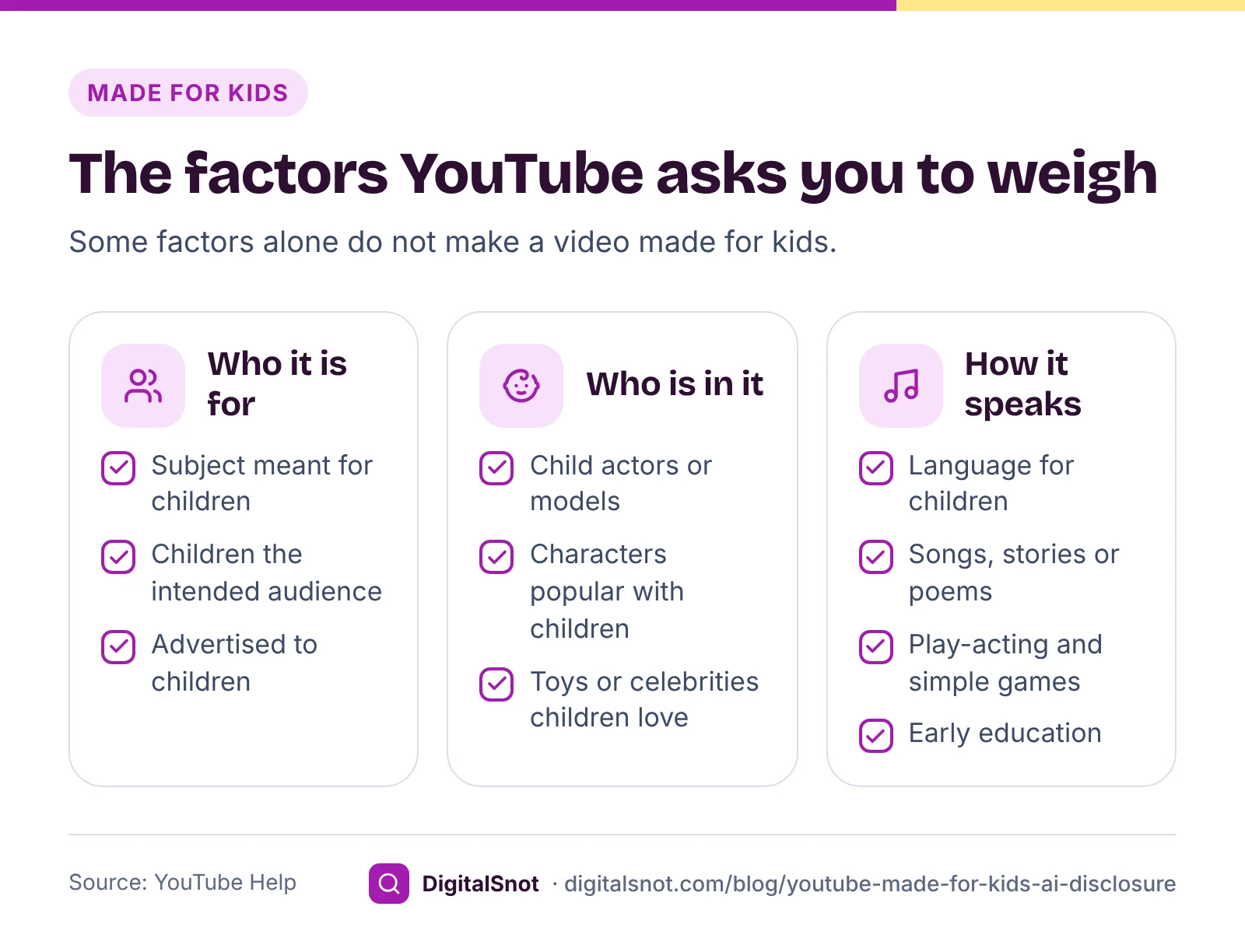
YouTube lists factors to weigh for each video:
- The subject matter, and whether children are the intended or actual audience.
- Child actors or models.
- Characters, celebrities or toys popular with children.
- Language meant for children to understand.
- Activities that appeal to children, such as play-acting, simple songs or games, and early education.
- Songs, stories or poems for children.
- Whether the video is advertised to children.
Two points stop most mistakes. First, YouTube says having some of these factors does not automatically make a video made for kids. Second, being family-friendly is not enough on its own: a video that is safe for everyone, or that some children happen to watch, is not made for kids for that reason alone. Ask who the video is aimed at. YouTube's made for kids FAQ answers many of the edge cases.
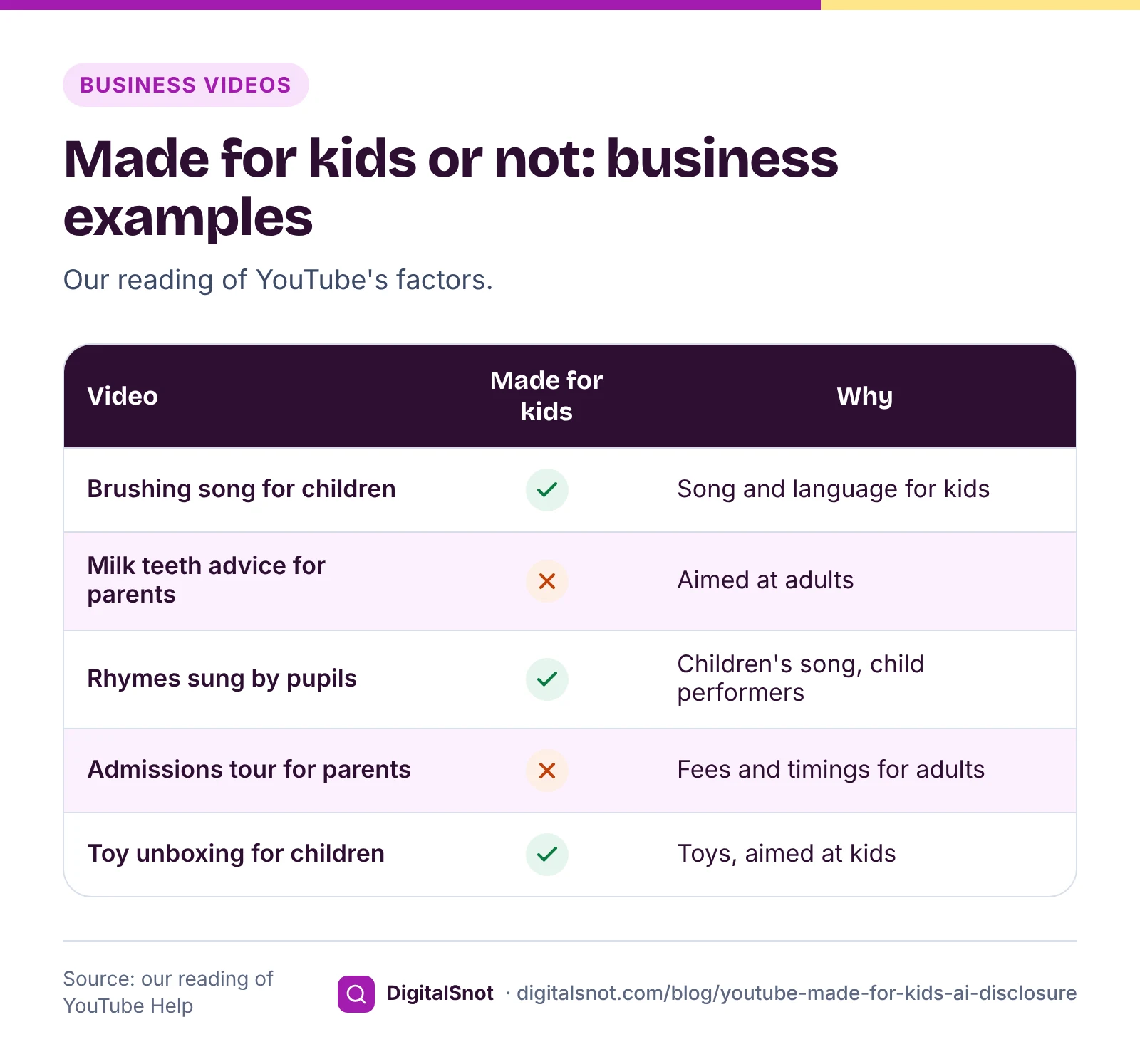
For a business, the answer is usually clear once you ask who the video speaks to. A dentist's brushing song with cartoon teeth, sung for children, is made for kids. The same dentist explaining to parents when milk teeth fall out is not.
What you lose, and how to set it
YouTube's page on features on made for kids content lists what turns off, including:
- Comments, notifications and live chat.
- Cards and end screens, and autoplay on home.
- Personalised ads, which may lower revenue for some creators.
- Playback in the Miniplayer, and saving to a playlist or Watch Later.
- The channel branding watermark, channel memberships, the donate button, merchandise, Super Chat and Super Stickers.
A whole channel set as made for kids also has no channel memberships, notification bell or Posts.
You can set the channel in YouTube Studio under Settings, Channel, Advanced settings, Audience, or set each video under Audience in its details; the video's own setting overrides the channel default. Our suggestion for a business channel that is mostly for adults: keep the channel default as not made for kids, and set each children's video one by one. If you plan to make many videos for children, consider a separate channel for them, so your main channel keeps its comments and end screens.
Not sure about a video? Our YouTube Made for Kids and AI Disclosure Helper asks yes or no questions built from YouTube's own factors, suggests a setting with the reasons, and shows where to set it. You make the final choice, and you stay responsible for it.
The four cases that need an AI disclosure
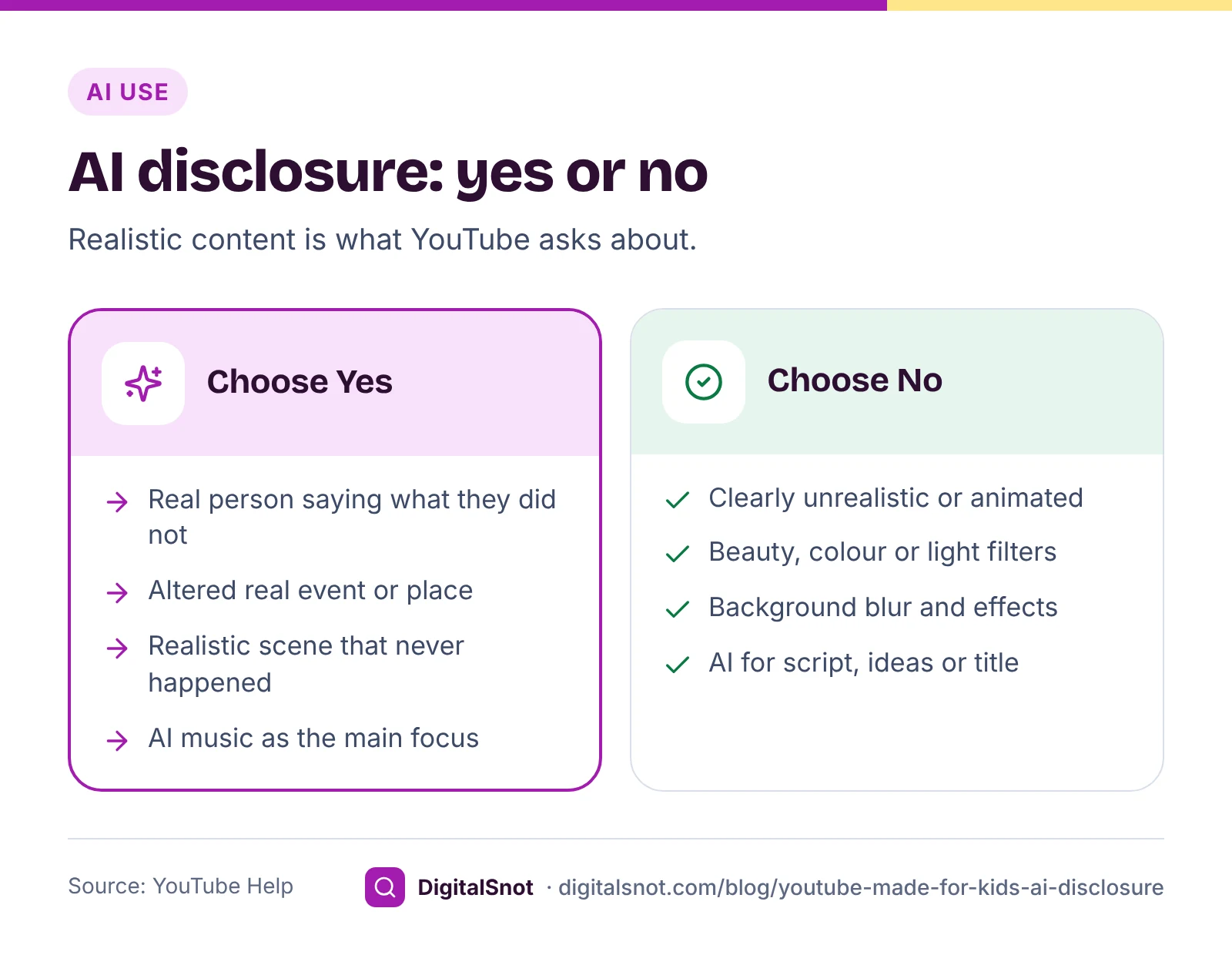
YouTube's help on disclosing use of GenAI content asks you to disclose realistic content made or meaningfully changed with AI or other tools when it:
- Makes a real person appear to say or do something they did not do.
- Alters footage of a real event or place.
- Generates a realistic scene that did not actually happen.
- Creates music that is the main focus of the video.
You answer under "AI use" in the Attributes section as you upload; older help pages call it "altered content". YouTube says disclosing on its own does not limit a video's audience or its eligibility to earn money.
The same page lists what does not need a disclosure:
- Clearly unrealistic content, such as someone riding a unicorn through a fantasy world, or animation in a fully animated video.
- Minor edits, such as beauty filters, colour or lighting filters, and special effects like background blur or a vintage look.
- Production help, such as using AI to write an outline or script, find ideas, or make a title, thumbnail or infographic.
Voices need care. An AI copy of a real person's voice saying words they did not say fits the first case. A generic AI voice that copies no one is not among the examples on the YouTube pages we checked; our suggestion is to disclose it if viewers could take it for a real person speaking.
Labels YouTube adds, and what happens if you stay silent
When you answer Yes, YouTube adds a label. Its blog post on improving AI labels (May 2026) says the label for photorealistic or meaningfully altered content shows below the player on long-form videos and over the video on Shorts, while for unrealistic, animated or slightly altered content it sits in the expanded description. YouTube's page on "How this content was made" disclosures explains what viewers see.
YouTube can also label a video without you:
- Content made with YouTube's own AI tools, content carrying C2PA information about how it was made, and content its systems detect can be labelled.
- From May 2026, if you leave the question unanswered and YouTube's systems detect significant photorealistic AI use, YouTube applies a label itself. If you think a label was added by mistake, you can update the disclosure in YouTube Studio.
- Creators who consistently choose not to disclose may face a label added by YouTube, or penalties including removal of content or suspension from the YouTube Partner Program.
A disclosure is not a licence to fake someone, either. YouTube's impersonation rules still apply to a labelled video. And AI affects earning in another way: YouTube's monetisation policies treat mass-produced, repetitive content as inauthentic, so a channel of template AI videos with no original input can fail review whatever its labels say. Our YouTube Monetisation Policy Checklist includes YouTube's guidance on AI videos, text-to-speech and reused content, and our post on Partner Program eligibility covers the thresholds.
A worked example: Little Steps Play School
Little Steps Play School, a made-up preschool in Koramangala, Bengaluru, posts videos for parents and, since last year, rhymes for children. Its review of six uploads:
- Admissions tour for parents. Not made for kids: it speaks to adults about fees and timings, even though children appear.
- Kannada rhymes sung by the children, for children. Made for kids: a children's song, child performers, language for children.
- Cartoon rhyme made with an AI animation tool. Made for kids, but no AI disclosure: animated content that is clearly unrealistic.
- A photorealistic AI video of the new campus, not yet built. AI use: Yes, as a realistic scene that has not happened. The video also says on screen that it shows the plan.
- The founder's welcome, narrated in Hindi by an AI copy of her voice. AI use: Yes, because a real person appears to say words she did not record.
- Script and title ideas from an AI chatbot. No disclosure: production help.
The channel default stays not made for kids, and the rhymes are set one by one. The school is now moving the rhymes to a separate channel so parent videos keep their comments.
A checklist before every upload
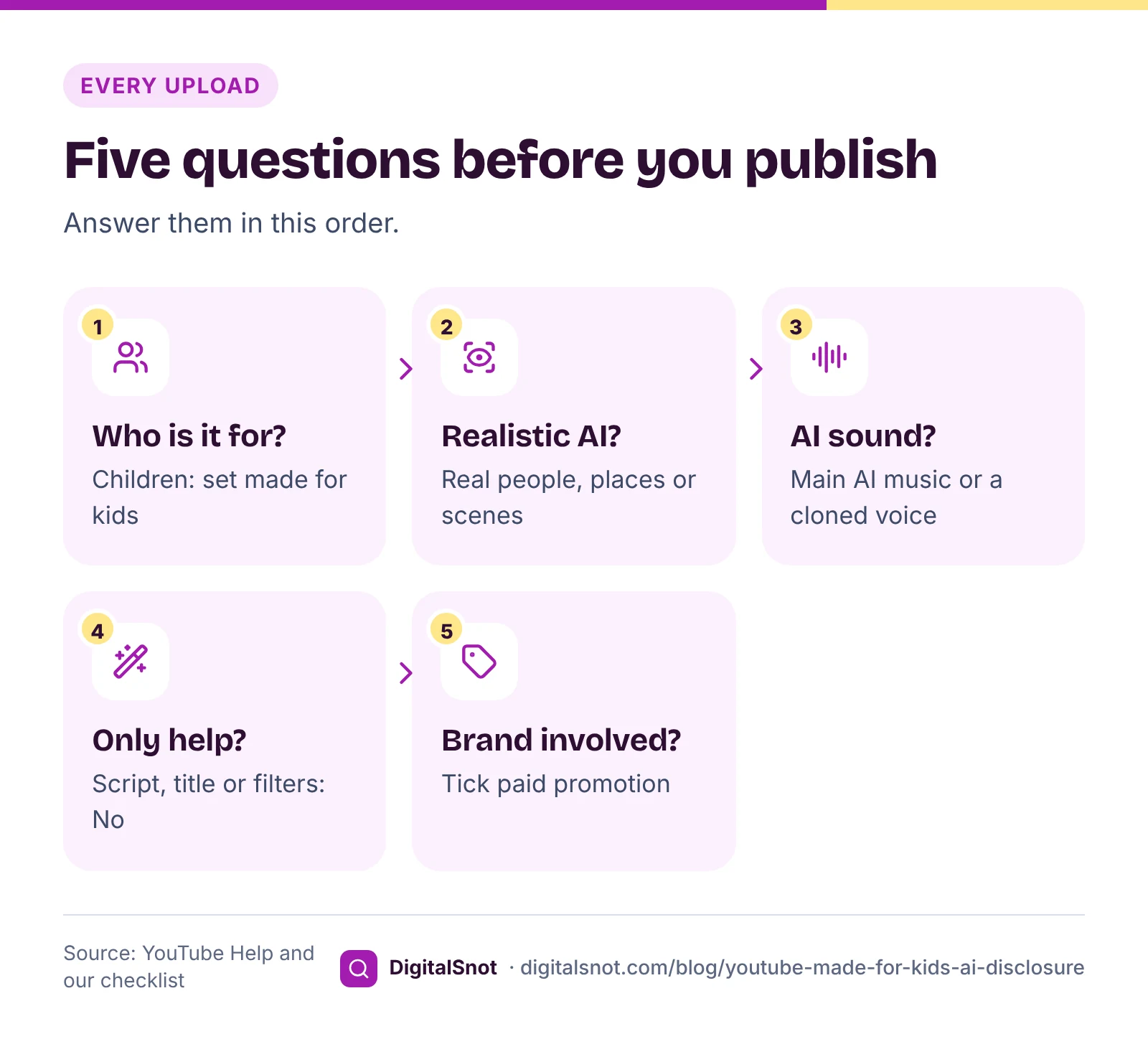
Go through these in order, every time:
- Who is this video aimed at? If children, set made for kids, and accept what turns off.
- Does it show a real person, event or place changed by AI, or a realistic scene that never happened? Choose Yes for AI use.
- Is AI music the main focus, or a cloned voice speaking? Choose Yes.
- Was AI used only for the script, ideas, title, thumbnail, captions or filters? Choose No.
- Did a brand give you anything? Tick paid promotion too; see our post on disclosing paid posts under ASCI rules.
Our YouTube Upload Checklist keeps these steps with the rest of an upload, from the file and thumbnail to captions and the end screen, and remembers your ticks in your browser.
Mistakes to avoid
- Marking a whole business channel as made for kids because a few videos are for children.
- Calling a video made for kids only because it is clean and family-friendly.
- Choosing No for AI use on a realistic render of something that does not exist yet.
- Adding a disclosure for a script written with AI, which YouTube does not ask for.
- Leaving the AI question unanswered and letting YouTube's systems decide the label.
Your next step
Open YouTube Studio, check your channel's default audience, then filter your videos and review any that are aimed at children. For new uploads, answer both questions with the helper until the decisions feel routine. When your videos are live, our post on reading YouTube Studio analytics shows what to check each month. All our YouTube tools are on the YouTube tools page, and you can contact us for help with a business channel.
Free tools in this article
- YouTube Made for Kids and AI Disclosure Helper Work out the made for kids setting, and whether a video needs YouTube's AI disclosure, from YouTube's rules.
- YouTube Monetisation Policy Checklist Tick through YouTube's monetisation policies, and see what they say about the content you make.
- YouTube Upload Checklist Tick through every step of a YouTube upload, from file and thumbnail to audience, captions and end screen.
Frequently asked questions
Is a family-friendly video made for kids on YouTube?
Not by itself. YouTube says a video is not made for kids just because it is safe for everyone, and that having some of its factors does not automatically make it so. Ask whether the video is aimed at children.
What happens if I set made for kids wrongly?
YouTube says there may be consequences on YouTube and legal consequences under COPPA or other local laws. It may override your setting in cases of error or abuse, and the video then shows "Set to Made for Kids"; you can appeal from YouTube Studio.
What turns off on videos made for kids?
Comments, notifications, live chat, cards, end screens, autoplay on home, personalised ads, the Miniplayer, saving to a playlist or Watch Later, the branding watermark, memberships, the donate button, merchandise, Super Chat and Super Stickers.
When do I need to disclose AI on YouTube?
When realistic content made or changed with AI makes a real person appear to say or do something they did not, alters footage of a real event or place, shows a realistic scene that did not happen, or uses AI music as the main focus.
Do I need an AI label if I used ChatGPT for my script?
No. YouTube does not ask for a disclosure when AI is used for production help, such as an outline, script, ideas, title or thumbnail, or for automatic captions, beauty filters and colour adjustments.
Can YouTube add an AI label to my video by itself?
Yes. YouTube labels content made with its own AI tools, content with C2PA information and content its systems detect, and from May 2026 it labels unanswered videos where it detects significant photorealistic AI use. Some labels cannot be removed.
Sources
Every figure and claim in this article comes from the sources below. We checked each one when writing and link to the original so you can read it yourself. Credit belongs to the authors and publishers listed. How we write and check our articles.
-
1
Set your channel or video's audience
YouTube Help · Every creator sets the audience to comply with COPPA and other laws; channel default and per-video setting; channel features lost.
-
2
Determining if your content is "made for kids"
YouTube Help · The factors, family-friendly content not enough on its own, consequences under COPPA, override for error or abuse, appeals.
-
3
Frequently asked questions about "made for kids"
YouTube Help · Edge cases and answers about the made for kids setting.
-
4
Features on made for kids content
YouTube Help · Comments, notifications, cards, end screens, personalised ads, Miniplayer, playlists and other features turned off.
-
5
Disclosing use of GenAI content
YouTube Help · The four cases that need disclosure, what does not, the AI use setting, no effect on reach or earning from disclosing alone, penalties for not disclosing.
-
6
Improving AI labels for viewers and creators
YouTube Blog · Where labels show, and automatic labels when a creator does not answer and significant photorealistic AI is detected.
-
7
Understanding "How this content was made" disclosures on YouTube
YouTube Help · What viewers see in AI and content provenance labels.
-
8
YouTube channel monetisation policies
YouTube Help · Inauthentic content: mass-produced and repetitive content is not eligible for monetisation.
Want a second pair of eyes?
Tell us about your site. We reply within one business day.
Talk to us Try our free tools