YouTube chapters: how to add them and why viewers use them
YouTube's three rules for chapters, automatic chapters and when to switch them off, titles viewers can scan, and how chapters can feed Google's key moments.
On this page (10 sections)
- 1What chapters do for viewers
- 2YouTube's rules for chapters
- 3Automatic chapters, and when to switch them off
- 4Writing chapter titles people scan
- 5Make chapters from your transcript
- 6A worked example: Patel Tiles, Ahmedabad
- 7Chapters and Google key moments
- 8Mistakes to avoid
- 9Your next step
- 10Sources
YouTube chapters turn a long video into short, labelled parts that viewers can jump between. For a business video, that means a customer who only wants your prices, your timings or one step of a process can find it in a second, instead of dragging the progress bar around and giving up. This post shows you how to add chapters that YouTube will actually show, when to leave automatic chapters on, how to write chapter titles people scan, and what chapters can and cannot do for your video in Google Search. A worked example from a made-up tile shop in Ahmedabad shows each step.
What chapters do for viewers
YouTube's help page on video chapters describes them as sections of a video, each with its own preview, that add information and context to each part and let viewers easily rewatch different parts. Its page on chapters and seeking features shows where viewers meet them: as markers on the progress bar, with the chapter title shown as you move between sections, as a chapter title in the player, just above the progress bar, that viewers can select, and as a list at the bottom of the description.
The same page describes a graph above the progress bar that shows which parts of a video are replayed most. Look at it on your own videos. A part that people replay often is a part they came for, and it deserves its own chapter with a clear title (our suggestion).
For a business, chapters do three jobs:
- They answer the viewer faster. Someone comparing tiles can skip straight to cleaning without sitting through everything before it.
- They show what the video covers. A list of clear chapter titles reads like a contents list for the whole video.
- They give Google labelled times to work with, which matters for key moments, covered below.
YouTube's rules for chapters
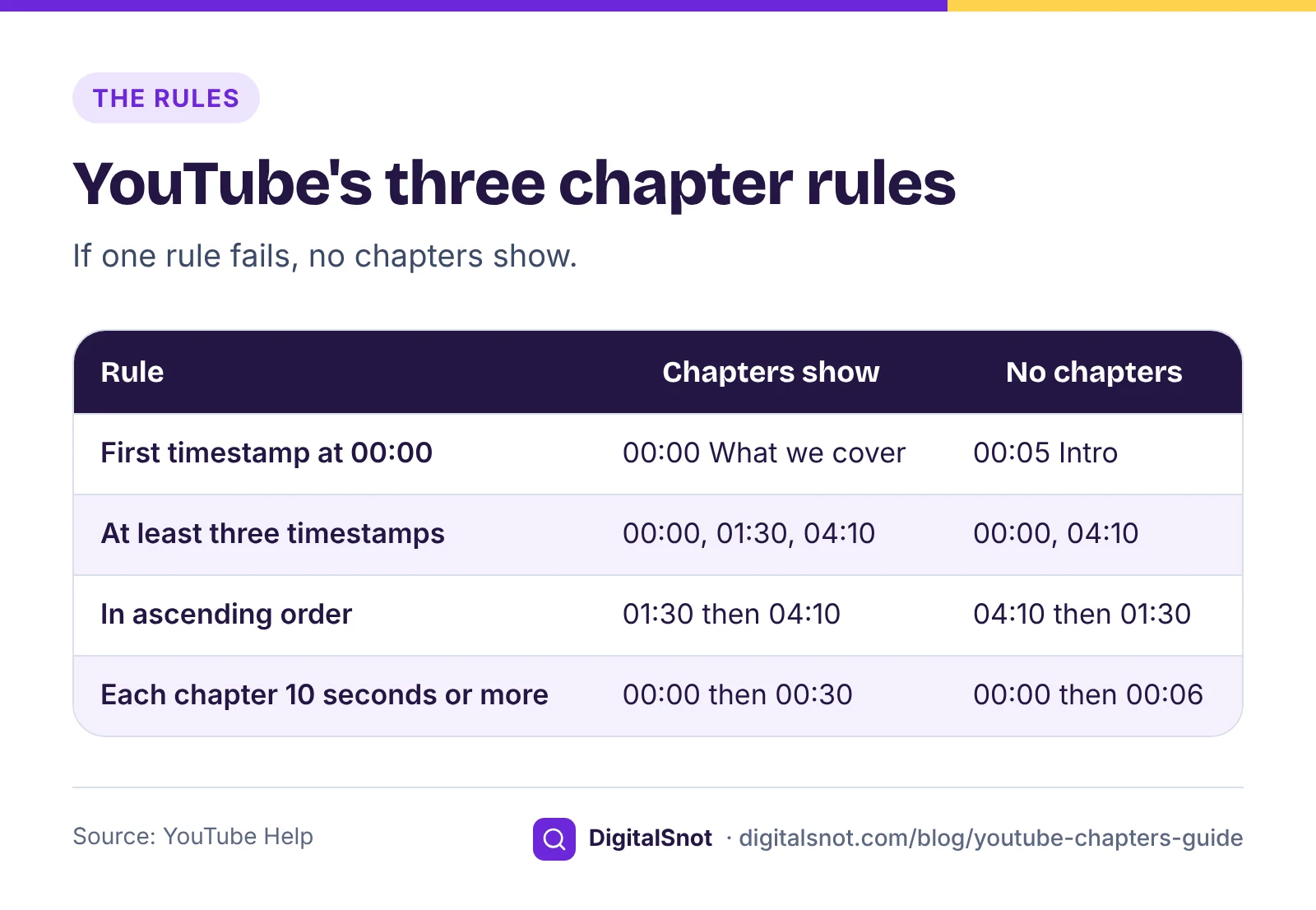
You add chapters by typing timestamps and titles into the video's description. YouTube's chapters page sets three rules, and if any one is not met, no chapters show:
- The first timestamp must be 00:00.
- There must be at least three timestamps, in ascending order.
- Every chapter must be at least 10 seconds long.
Our suggestion for the layout: one chapter per line, with the time first and the title after it, such as "02:05 Tiles that are less slippery when wet". For a video of an hour or more, write the hours too, such as 1:02:30.
The chapters live inside the description, so the description's own limits apply. YouTube's help on editing video settings allows up to 5,000 characters, without invalid characters such as < and >, so keep angled brackets out of chapter titles too. You can add or change chapters at any time: open the video in YouTube Studio, edit the description and save.
Automatic chapters, and when to switch them off
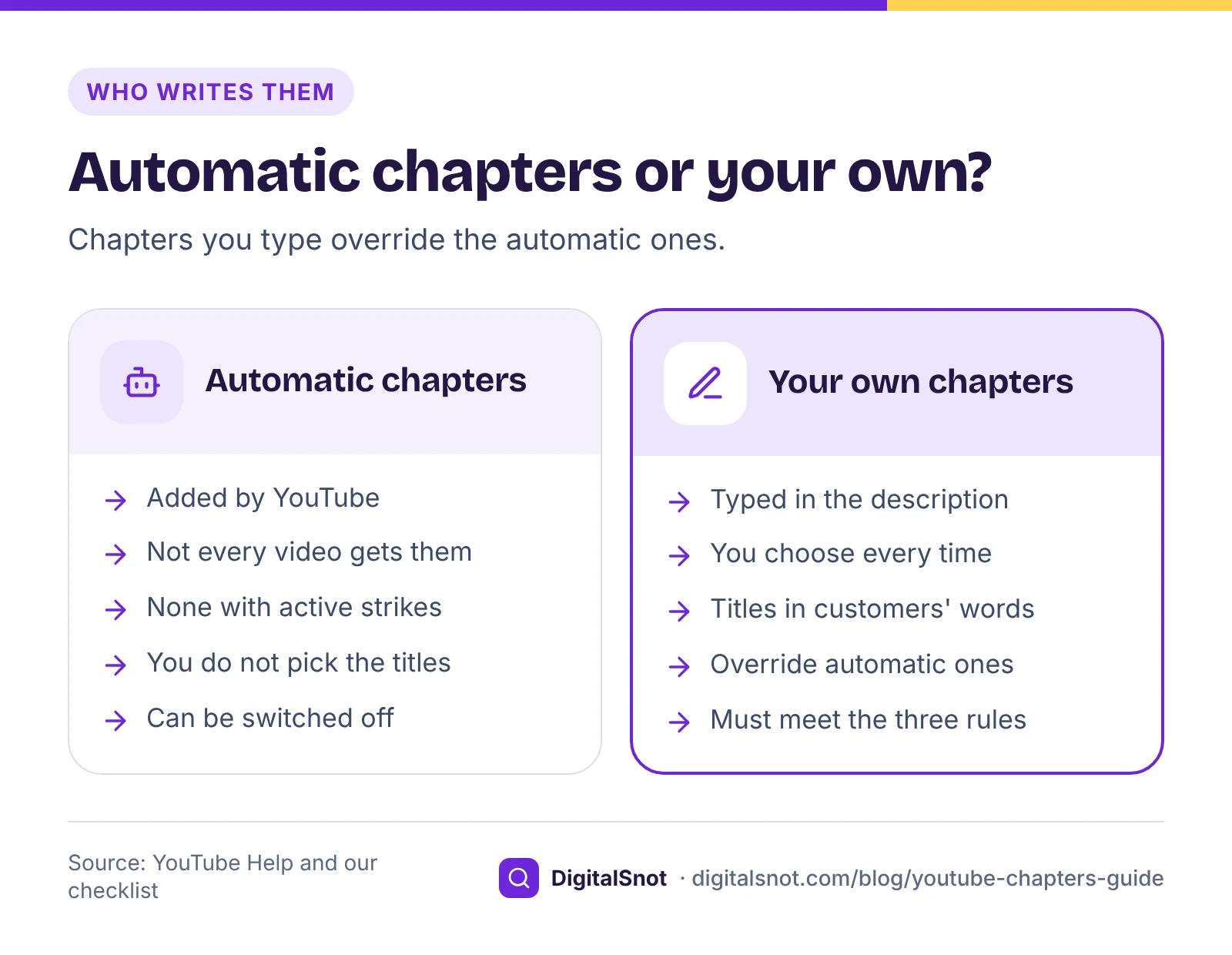
If you add nothing, YouTube may add chapters itself. Its chapters page says not every video is eligible and not every eligible video gets them, and channels with active strikes, or content that may be inappropriate for some viewers, do not get the feature. The option to allow automatic chapters sits in the video's details in YouTube Studio, under Show more. You can switch it off for one video, or for every upload in your upload defaults.
Chapters you type yourself override the automatic ones. Our suggestion for a business channel: write your own on every video longer than a few minutes. Automatic chapters are better than none, but you do not choose where they start or what they are called, and a chapter title is often the first thing a customer reads about that part of your video.
Writing chapter titles people scan
YouTube's chapter rules are about the times, not the words, so the titles are up to you. Our suggestions:
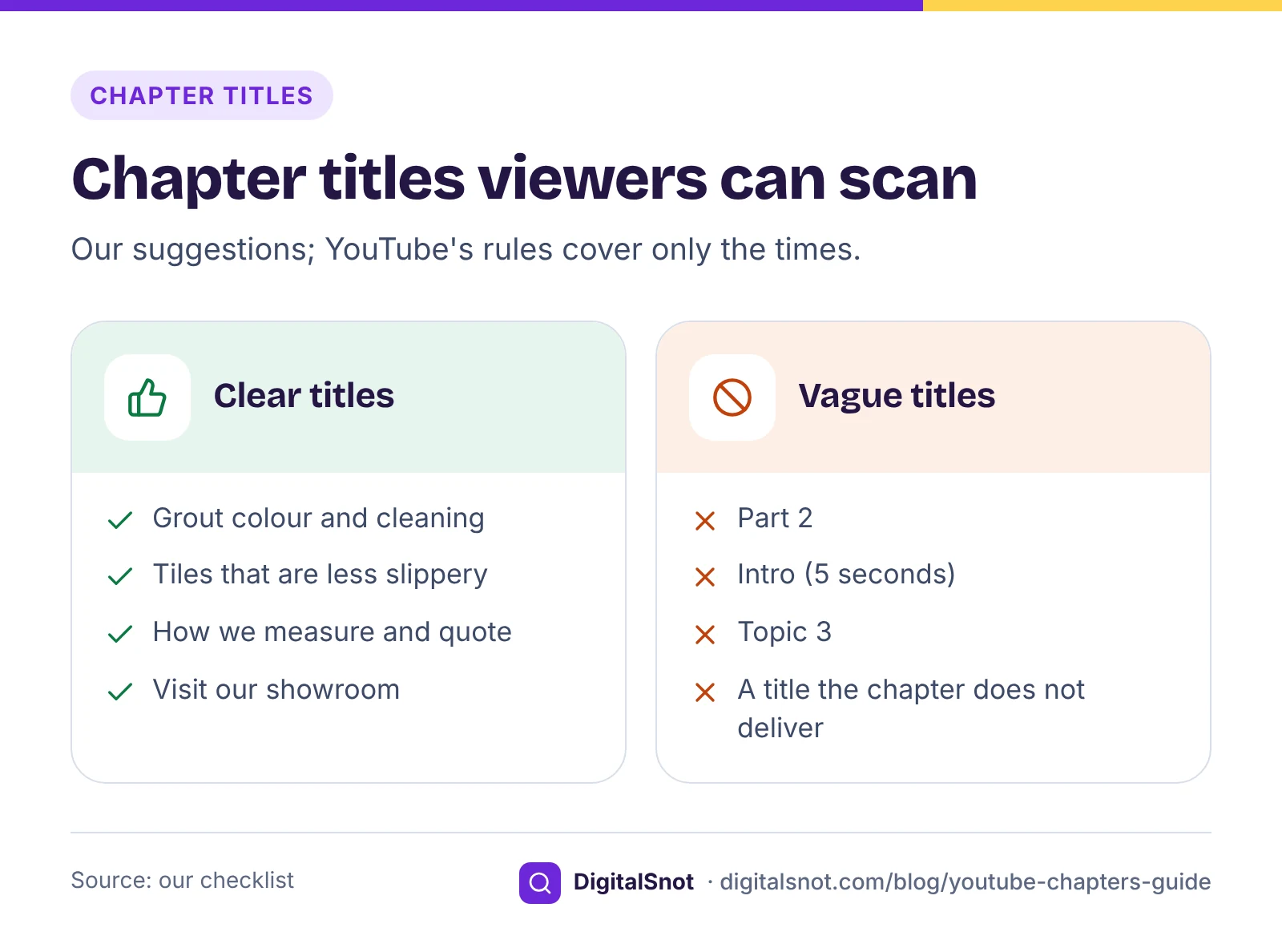
- Name the step or the question. "Grout colour and cleaning" tells the viewer what they get; "Part 4" tells them nothing.
- Use your customers' words. If people ask on WhatsApp "which tiles are not slippery", use those words rather than a trade term.
- Keep each title short: a few words that still read well on a phone screen.
- Match the video's language. If you speak Hinglish in the video, Hinglish titles read naturally to the same viewers.
- Promise only what the chapter delivers. YouTube's spam and deceptive practices policies cover misleading metadata, such as a title or description that tricks viewers into believing the content is something it is not.
Two chapters most videos need: a first chapter at 00:00 that says what the video covers, and, if the video ends that way, a last one that tells viewers where to find you. Skip a five-second "Intro" chapter: it breaks the 10-second rule, and then no chapters show at all.
Make chapters from your transcript
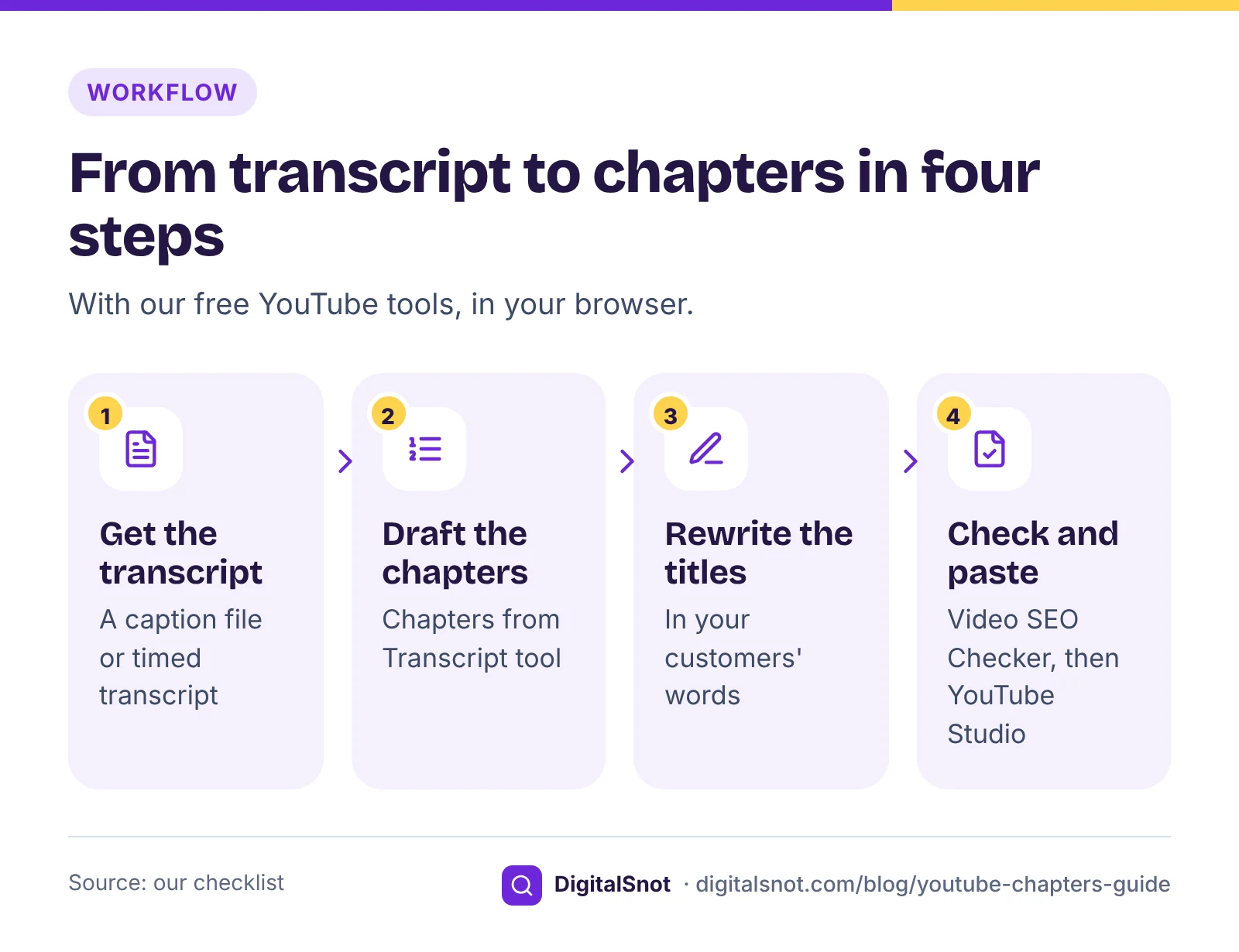
Finding the times by scrubbing through a video is slow. If you have a transcript with timestamps, or a caption file from your editing app or YouTube Studio, let a tool do the first pass:
- Draft the chapters. Paste the transcript, or open the SRT, VTT or SBV file, in our YouTube Chapters from Transcript. Add the video's length and choose roughly how long chapters should be: about 30 to 60 seconds, 1 to 2 minutes, or 2 to 4 minutes. It starts a new chapter where the words change topic and suggests a title from each chapter's most distinctive words. It works with word counts, not AI, leaves out common English and Hinglish words such as "the", "hai" and "matlab", and checks your list against YouTube's three rules as you edit.
- Rewrite the titles. The suggested titles are a starting point. Rewrite them in your customers' words, and check each time against the video.
- Build the description. Paste the chapters into our YouTube Description Generator. It lays out your summary and key points first, then the chapters, your website with tracking tags, a WhatsApp link, your phone and area, and counts the characters against the 5,000 limit. That order follows YouTube's tips for video descriptions, which say to use the first few lines to describe the video.
- Check the whole description. Our YouTube Video SEO Checker reads the title, description, tags and hashtags against YouTube's limits, and with the video's length it checks that the chapters will show, including the last one.
All three tools run in your browser and none of them signs in to YouTube, so you paste the result into YouTube Studio yourself.
A worked example: Patel Tiles, Ahmedabad
Patel Tiles, a made-up tile shop in Navrangpura, Ahmedabad, films an 8 minute 40 second video on choosing floor tiles for a kitchen. The editor's first chapter list looks like this:
- 00:05 Intro
- 00:11 Types
- 02:05 Part 2
- 05:15 Cleaning
The Chapters tool's checks flag two problems straight away: the first timestamp is not 00:00, and the "Intro" chapter is only 6 seconds long. The titles break no rule, but they tell a viewer very little. After running the transcript through the tool and rewriting the titles, the shop posts this list:
- 00:00 What this video covers
- 00:30 Vitrified, ceramic or natural stone
- 02:05 Tiles that are less slippery when wet
- 03:40 Tile sizes for a small kitchen
- 05:15 Grout colour and cleaning
- 06:50 How we measure and quote
- 08:00 Visit our Navrangpura showroom
Seven chapters, the first at 00:00, all in order, and the shortest is the last at 40 seconds. Every title is a question customers have asked in the shop. The owner pastes the list into the Description Generator under a two-line summary, adds the showroom's WhatsApp link, runs the Video SEO Checker with the length 8:40, and saves the description in YouTube Studio.
Chapters and Google key moments
Key moments are the labelled parts of a video that Google can show in a search result, each linking to that point in the video. Google's documentation on video structured data says that if your video is hosted on YouTube, Google Search may automatically enable key moments based on the video's description on YouTube. It adds that you can tell Google more explicitly about the important points in your video, and that Google will prefer that information. On YouTube, that means timestamps in the description, which is exactly what chapters are, and the page has its own best practices for marking timestamps on YouTube.
Two points to keep in mind:
- Nothing is promised. The word is "may": clear chapters give Google labelled times to work with, but Google decides whether to show key moments.
- Videos on your own site work differently. For a video hosted on your own pages, Google documents Clip and SeekToAction markup instead, both for videos at least 30 seconds long, and the nosnippet meta tag opts a page out of key moments.
Our guide to YouTube SEO for AI answers goes further into descriptions, transcripts and video markup.
Mistakes to avoid
- Starting the first chapter at 00:05 or 00:10 instead of 00:00.
- Listing only two chapters on a short video.
- Chapters shorter than 10 seconds, often an "Intro" or a "Subscribe" reminder.
- Times out of order after an edit moved a section.
- Titles such as "Part 1" or "Topic 2" that say nothing about the content.
- Trimming the video later and forgetting to update the chapter times.
- Expecting chapters to guarantee key moments in Google.
Your next step
Pick your most-watched long video and add chapters to it this week: export its captions, draft the chapters in the Chapters tool, rewrite the titles, and check the description before you save. If you are still planning which videos to make, our post on your first 10 YouTube videos as a local business suggests topics that suit chapters. All our YouTube tools are free, and if you would like help with a channel, get in touch.
Free tools in this article
- YouTube Chapters from Transcript Turn a timestamped transcript or caption file into chapters, checked against YouTube's rules.
- YouTube Description Generator Build a video description with chapters, a tracked website link, WhatsApp, phone and hashtags.
- YouTube Video SEO Checker Check a video's title, description, tags, hashtags and chapters against YouTube's limits and rules.
Frequently asked questions
How do I add chapters to a YouTube video?
Type the timestamps and titles into the video's description in YouTube Studio, one per line, and save. YouTube shows chapters when the first timestamp is 00:00, there are at least three in ascending order, and every chapter is at least 10 seconds long.
Why are my YouTube chapters not showing?
Usually one rule is not met: the first timestamp is not 00:00, there are fewer than three, they are out of order, or a chapter is shorter than 10 seconds. Paste the description and the video's length into our Video SEO Checker to see which one.
What are automatic chapters, and can I turn them off?
They are chapters YouTube may add when you have not written any. Not every video gets them, and channels with active strikes do not. Chapters you type override them, and you can switch automatic chapters off for one video or for all uploads in YouTube Studio.
How long should a chapter title be?
YouTube's chapter rules cover the times, not the titles. Our suggestion is a few words that name the step or question in your customers' words, short enough to read on a phone. Keep angled brackets out, because descriptions cannot contain them.
Do chapters help my video appear in Google?
They can help with key moments. Google says that for videos hosted on YouTube, Google Search may automatically enable key moments based on the YouTube description. Chapters give it labelled times, but Google decides whether to show them, and chapters do not promise a ranking.
Can I add chapters to a video I published years ago?
Yes. Open the video in YouTube Studio, add the timestamps to its description and save. Check each time against the video first, especially if it was trimmed after upload.
Sources
Every figure and claim in this article comes from the sources below. We checked each one when writing and link to the original so you can read it yourself. Credit belongs to the authors and publishers listed. How we write and check our articles.
-
1
Video Chapters
YouTube Help · Chapters with previews; first timestamp 00:00, at least three in ascending order, 10 seconds minimum; automatic chapters, eligibility, strikes, opting out, and your own chapters overriding them
-
2
Use chapters, mentioned people and places, & seeking features
YouTube Help · Chapter markers on the progress bar, the chapter list in the description, and the graph of the most replayed parts
-
3
Edit video settings
YouTube Help · Descriptions up to 5,000 characters without invalid characters such as < and >
-
4
Spam, deceptive practices & scams policies
YouTube Help · Misleading metadata: tricking viewers into believing the content is something it is not
-
5
Tips for video descriptions
YouTube Help · Use the first few lines to describe the video
-
6
Video (VideoObject, Clip, BroadcastEvent) structured data
Google Search Central · Key moments for YouTube videos from the YouTube description; Clip and SeekToAction for videos on your own site, at least 30 seconds; nosnippet opt-out
Want a second pair of eyes?
Tell us about your site. We reply within one business day.
Talk to us Try our free tools