Social media engagement rate: how to work it out and what it tells you
Work out engagement rate by reach, impressions or followers, see what Instagram, Facebook, LinkedIn and X report, and use it to compare your own posts month by month.

On this page (10 sections)
"What is our engagement rate?" sounds like a simple question, but three people can give three different answers for the same post, all of them correct. How you calculate social media engagement rate depends on what you divide by.
This post explains the three common formulas, what Instagram, Facebook, LinkedIn and X actually show in their own analytics, and how to use the rate to compare your own posts. A worked example with made-up numbers shows how the choice of formula changes which post looks best.
Engagement rate in one line
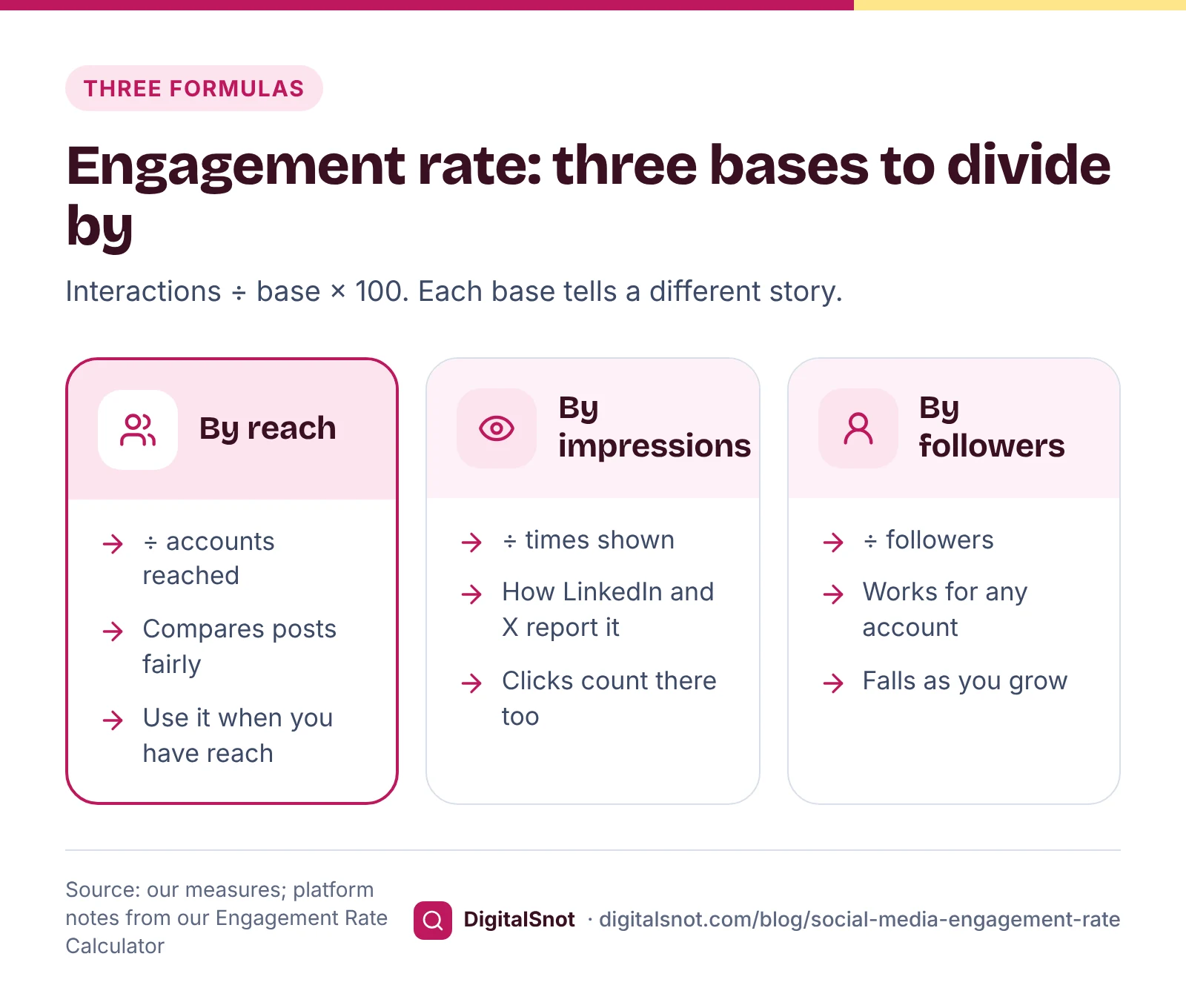
Engagement rate is the interactions a post gets, divided by a base, times 100. Interactions are usually likes or reactions, comments, shares and saves. The base is one of three things: the people who saw the post, the number of times it was shown, or your followers.
No platform publishes one engagement rate formula for every network, and agencies and apps use different ones. That is fine, as long as you choose one, write down which, and keep it the same every time you compare. The formulas below are measures you work out yourself, not official platform metrics.
Three ways to work it out
- By reach: interactions ÷ accounts reached × 100. Reach counts the people who saw the post, so this compares posts fairly, including posts shown to people who do not follow you. Use it whenever you have reach.
- By impressions or views: interactions ÷ times the post was shown × 100. One person can see a post more than once, so impressions are usually higher than reach and this rate comes out lower. In Meta's ad reports, for example, frequency is impressions divided by reach.
- By followers: interactions per post ÷ followers × 100. You can work this out for any account, even a competitor's, from public numbers. But only some followers see each post, so the rate tends to fall as an account grows, even when the posts are just as good.
Our Engagement Rate Calculator shows all three side by side. Choose the platform, enter the likes, comments, shares and saves with reach, views or followers, and it marks the formula that matches that platform's own analytics.
What each platform shows you
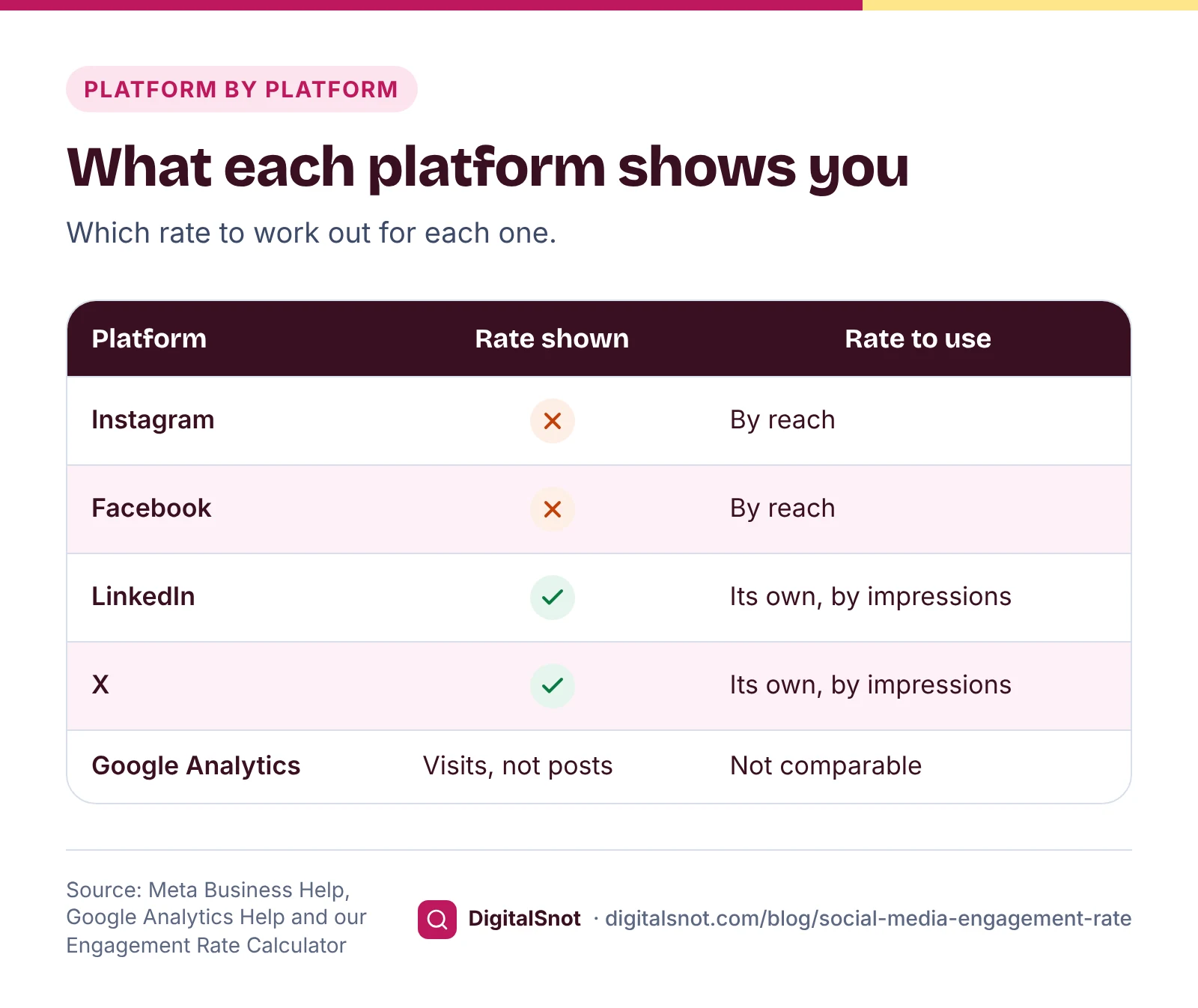
Instagram. Insights is available for professional accounts, according to Instagram Help. Meta Business Help explains that in Instagram Insights, reach counts the unique accounts that saw your content, and interactions include likes, comments, saves, shares and replies. Insights does not show an engagement rate, so you work it out from those two numbers.
Facebook. Facebook does not show an engagement rate for Page posts either. Work out the rate by reach, as for Instagram, from each post's reach and its reactions, comments and shares.
LinkedIn. LinkedIn's Page analytics show an engagement rate of their own: clicks, reactions, comments, reposts and follows from a post, divided by its impressions. Clicks count, so a post with a link can score well with few comments.
X. X also divides engagements by impressions, and counts clicks anywhere on the post as engagements.
So a LinkedIn rate and an Instagram rate are not measured the same way, and should not be compared with each other. Compare each platform with itself.
One more trap: the engagement rate in Google Analytics is something else. Google Analytics Help defines it as engaged sessions divided by all sessions, where a session counts as engaged if it lasts longer than 10 seconds, has a key event, or has two or more page or screen views. It describes visits to your website, not reactions to a post.
Worked example: Mitti and Glaze Pottery, Fort Kochi
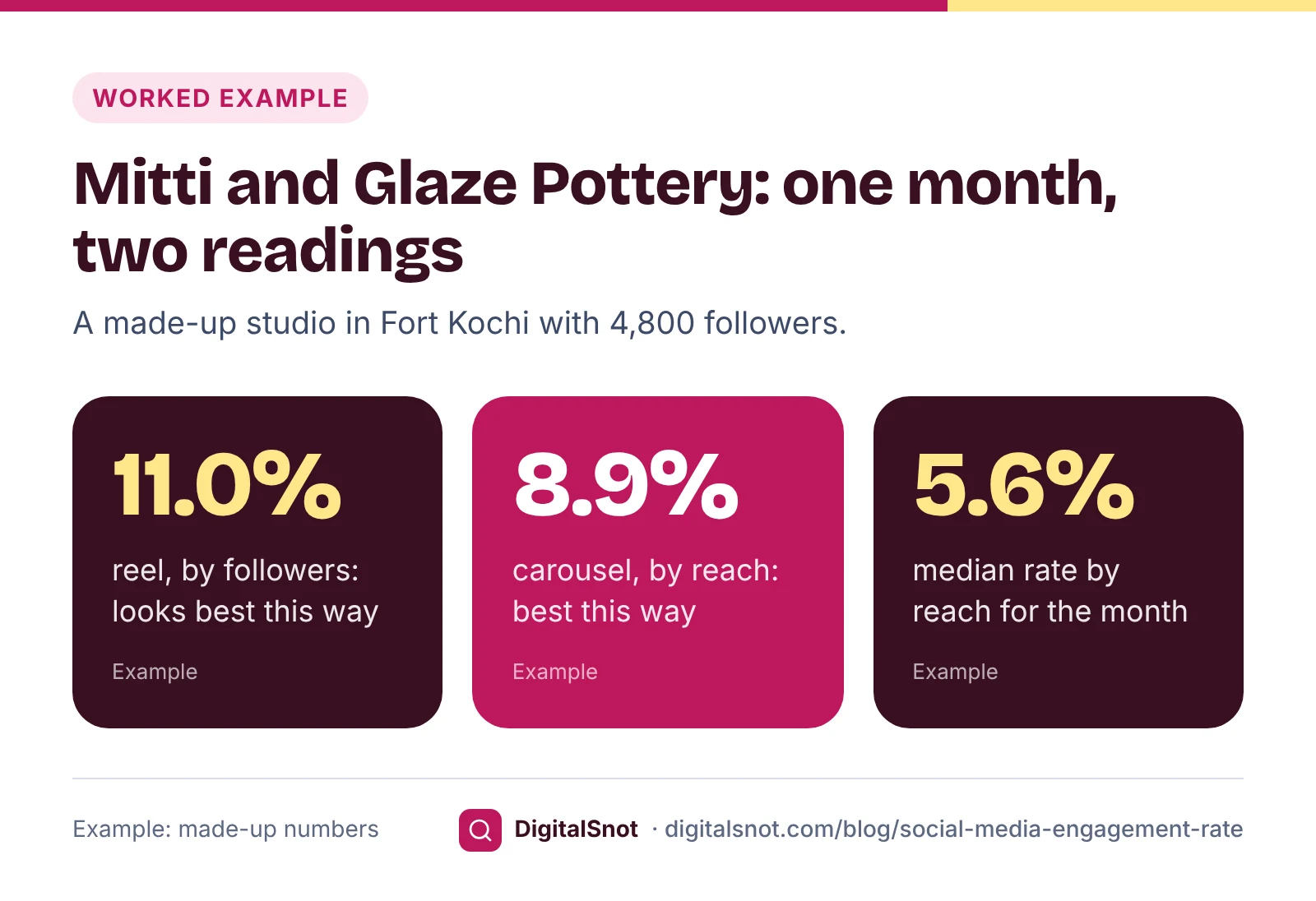
Mitti and Glaze is a made-up pottery studio with 4,800 Instagram followers. All the numbers below are examples. Here are three posts from one month:
| Post | Reach | Interactions | Rate by reach | Rate by followers |
|---|---|---|---|---|
| Reel: a studio tour | 9,400 | 530 | 5.6% | 11.0% |
| Carousel: glaze colours | 3,100 | 275 | 8.9% | 5.7% |
| Photo: Diwali offer | 2,200 | 88 | 4.0% | 1.8% |
The reel's 530 interactions are 310 likes, 42 comments, 58 shares and 120 saves, so 530 ÷ 9,400 × 100 = 5.6% by reach, and 530 ÷ 4,800 × 100 = 11.0% by followers.
By followers, the reel looks like the winner. By reach, the carousel does best: it reached fewer people, but a larger share of them interacted, and 95 of its 275 interactions were saves. Both readings are true. The reel reached the most people; the carousel held the attention of more of the people it reached. That is why the formula has to be fixed before you compare.
The studio's median rate by reach this month is 5.6%, the middle of the three. Next month's posts are compared with that, not with a number from a blog.
Why the median, and not one rate for the whole month? Adding up the reach of three posts counts anyone who saw two of them twice, so a monthly rate by reach is only rough. The median of the per-post rates avoids that, and one viral post cannot drag it up on its own (our suggestion). If you want a monthly rate by followers instead, divide the interactions per post by followers: 893 interactions over three posts is about 298 a post, or 6.2% of 4,800 followers. Whichever you choose, use the same one next month.
Compare your own posts, not industry averages
Platforms do not publish a benchmark for a good engagement rate, and averages quoted online use different formulas, accounts and time periods. We do not publish benchmarks either. The useful comparison is with yourself:
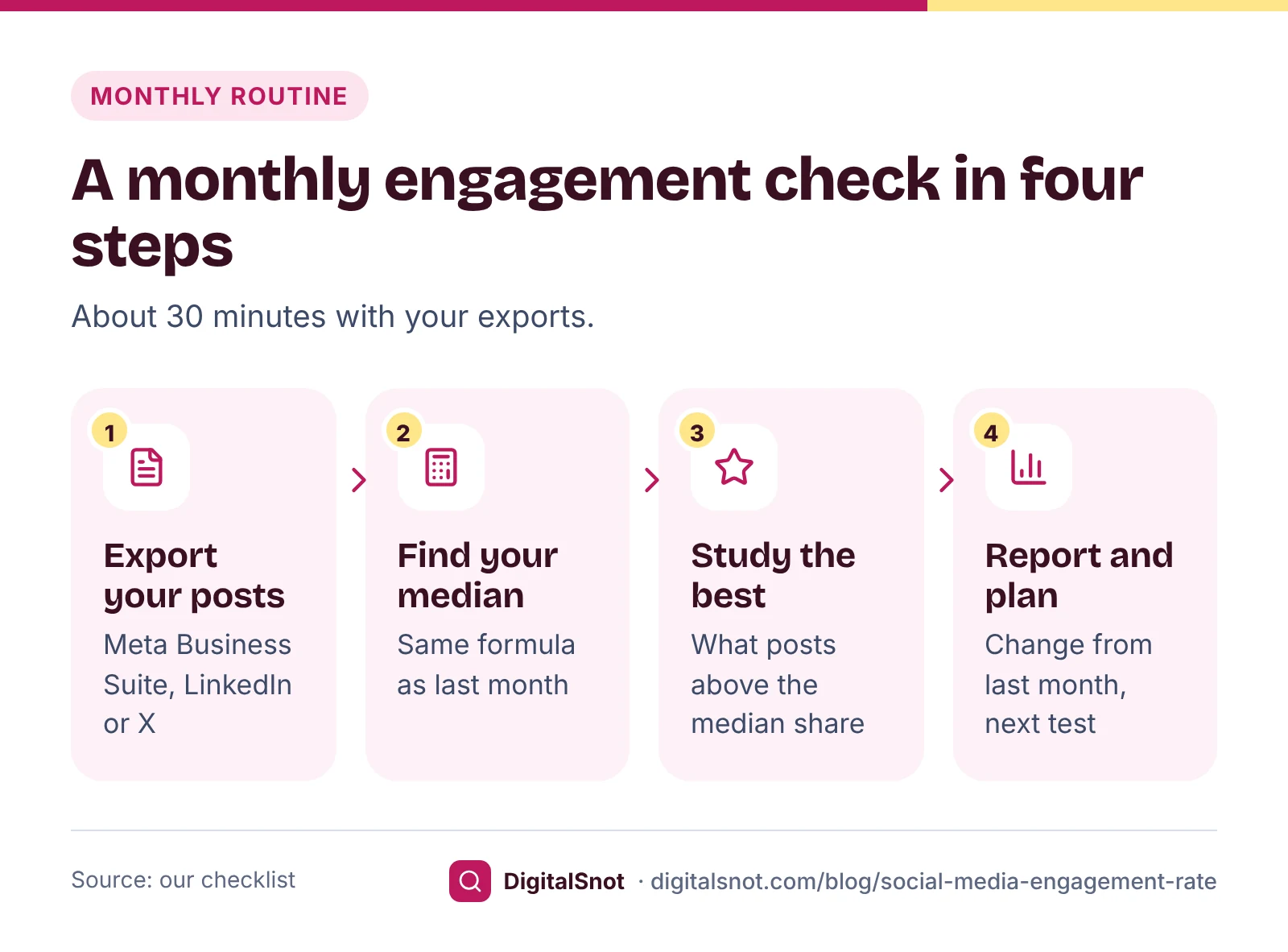
- Find your median. Export a few months of post data from Meta Business Suite, LinkedIn or X and open it in the calculator's "Many posts" mode. It shows your median rate, your best and weakest posts, and which post types and days did best.
- Study the posts well above the median. Look at what they share: the format, the topic, the first line, the time. Our suggestion: give saves and shares more weight than likes, because they show people wanted to keep or pass on the post.
- Test one change at a time. Change the format or the posting day for a few weeks, then compare with the same formula.
- Check the timing. Once you have a few months of posts, our Best Time to Post Analyzer turns the same export into a day-by-hour heatmap of your median rate, and marks slots with fewer than three posts as too thin to trust (our measure).
What engagement rate does not tell you
A high rate is a good sign that a post interested the people who saw it. It is not a sale. For a local business, count what matters in your own records: WhatsApp chats, calls, visits and orders that mention a post.
If you link to your website, tag the link so you can see the visits. Google Analytics Help says to set utm_source, utm_medium and utm_campaign on campaign links, and its default channel group uses them to sort visits into Organic Social and Paid Social. Our Social UTM Link Builder makes those links for each platform.
Keep two more limits in mind. A post you boosted gets paid reach as well, so compare boosted posts with each other. And a rate from a post seen by 150 people can swing a long way with three extra comments, so wait for more posts before you draw conclusions (our suggestion).
Put it in a monthly report
Once a month, write the numbers down in one place. Our Social Media Report Builder takes your exports or typed totals for each platform and gives you a printable report with follower growth, engagement rate, the top three posts and the change from last month. It uses the rate by reach for Instagram and Facebook and by impressions or views for LinkedIn, X and YouTube, prints the formula on each platform card, and compares the account with itself rather than with benchmarks. It also warns that reach added up across posts counts the same person more than once.
Mistakes to avoid
- Switching formulas between months. A jump from 3% to 9% may only mean you changed the base.
- Comparing LinkedIn with Instagram. They measure engagement differently.
- Chasing a published average. It was worked out on other accounts with another formula.
- Judging by likes alone. Saves, shares and comments tell you more.
- Forgetting the business result. Track chats, calls and orders next to the rate.
Next step
Put last month's posts into the calculator, note your median rate by reach, and use it as the line to beat. If you are still building a posting routine, our 30-day Instagram plan for a local shop gives you a month of posts to measure, and our post on a LinkedIn profile for business owners covers the profile people check after a post. All our social media tools are free, and none of them sign in to your accounts. If you would like help reading your numbers, talk to us.
Free tools in this article
- Engagement Rate Calculator Engagement rate by reach, impressions or followers, and your best posts from an export.
- Best Time to Post Analyzer A day-by-hour heatmap of your own posts' engagement, with the best slots and how many posts each is based on.
- Social UTM Link Builder Tag links for each platform so Google Analytics shows them as Organic or Paid Social, one by one or in bulk.
- Social Media Report Builder A printable monthly report with growth, engagement rate and top posts per platform, and a summary to send.
Frequently asked questions
How do you calculate engagement rate?
Add up likes or reactions, comments, shares and saves, divide by reach, impressions or followers, and multiply by 100. A post with 530 interactions and 9,400 accounts reached has a 5.6% engagement rate by reach. Say which base you used and keep it the same.
What is a good engagement rate on Instagram?
There is no official figure: Instagram does not show an engagement rate or publish a benchmark, and published averages use different formulas and accounts. Compare each post with your own median and each month with the last, using the same formula.
Should I use reach or followers to calculate engagement rate?
Use reach when you have it, because it counts the people who actually saw the post. Followers are easier to get, for example for a competitor, but only some followers see each post, so the rate by followers tends to fall as an account grows.
How does LinkedIn calculate engagement rate?
LinkedIn's Page analytics divide clicks, reactions, comments, reposts and follows from a post by its impressions. Because clicks count, a LinkedIn rate is not comparable with a rate by reach on Instagram.
Is engagement rate in Google Analytics the same thing?
No. Google Analytics defines engagement rate as engaged sessions divided by all sessions, where an engaged session lasts longer than 10 seconds, has a key event or has two or more page or screen views. It measures website visits, not reactions to a post.
Why is my engagement rate falling as my followers grow?
If you use the rate by followers, it often falls as an account grows, because only some followers see each post. Switch to the rate by reach, which counts only the people who saw each post, and compare with your own median.
Sources
Every figure and claim in this article comes from the sources below. We checked each one when writing and link to the original so you can read it yourself. Credit belongs to the authors and publishers listed. How we write and check our articles.
-
1
About Instagram Insights
Meta Business Help Centre · Reach counts unique accounts; interactions include likes, comments, saves, shares and replies.
-
2
View insights on Instagram
Instagram Help Centre · Insights are available for professional accounts.
-
3
Frequency
Meta Business Help Centre · Frequency is impressions divided by reach, so impressions can be higher than reach.
-
4
[GA4] Engagement rate and bounce rate
Google Analytics Help · GA4 engagement rate is engaged sessions divided by sessions; what counts as an engaged session.
-
5
URL builders: Collect campaign data with custom URLs
Google Analytics Help · Set utm_source, utm_medium and utm_campaign on campaign links.
-
6
Default channel group
Google Analytics Help · Rules that sort visits into Organic Social and Paid Social.