Who owns your Google Ads account: you or your agency?
Check who holds Admin access, billing, GST invoices and tracking in your Google Ads account, and move them to your business in the right order.

On this page (10 sections)
- 1What owning the account really means
- 2Access levels in plain words
- 3Manager accounts: linking, ownership and unlinking
- 4Billing in your business's name, and GST invoices
- 5A worked example: a kurti shop in Jaipur
- 6Use change history to see what was done
- 7When an agency leaves
- 8Mistakes to avoid
- 9Your next step
- 10Sources
Who owns your Google Ads account, you or your agency? Many businesses find out only when they want to change agency, check an invoice or see what happened to their budget. By then, fixing it can take weeks. The safer time to check is now, while everything is working.
This post explains what owning an account means in Google Ads, which access levels to give whom, how manager accounts and billing work, what to move before an agency leaves, and how change history shows what was done.
What owning the account really means
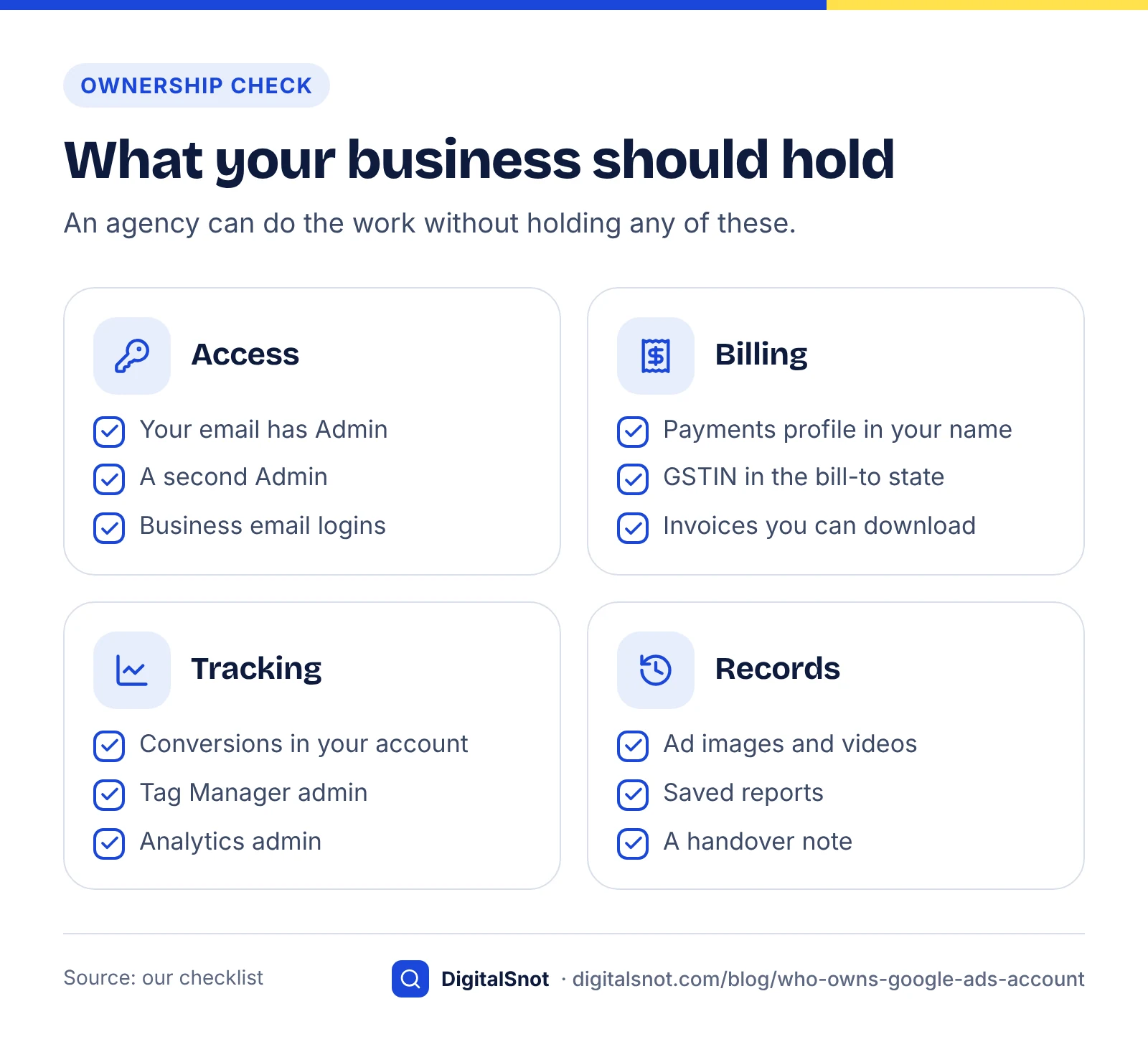
There is no single "owner" button in Google Ads. Control is spread across four things, and you want your business to hold all four:
- Admin access for at least one person from your business.
- Billing on a payments profile in your business's name, so Google's invoices and your GSTIN are yours.
- Conversion tracking set up in your own account, with tags you control.
- Linked products, such as Google Analytics and your YouTube channel, owned by your business.
An agency can run everything day to day without holding any of these. This is about keeping the keys with the business, whoever does the work.
The Account Ownership and Access Checklist asks 20 Yes, No or Not sure questions about access, the agency's manager account, billing, GST invoices, tags and linked accounts. It lists the riskiest gaps first with the menu paths in Google Ads, a handover checklist and a polite message you can send your agency. The score is our checklist, and the tool never signs in to your account.
Access levels in plain words
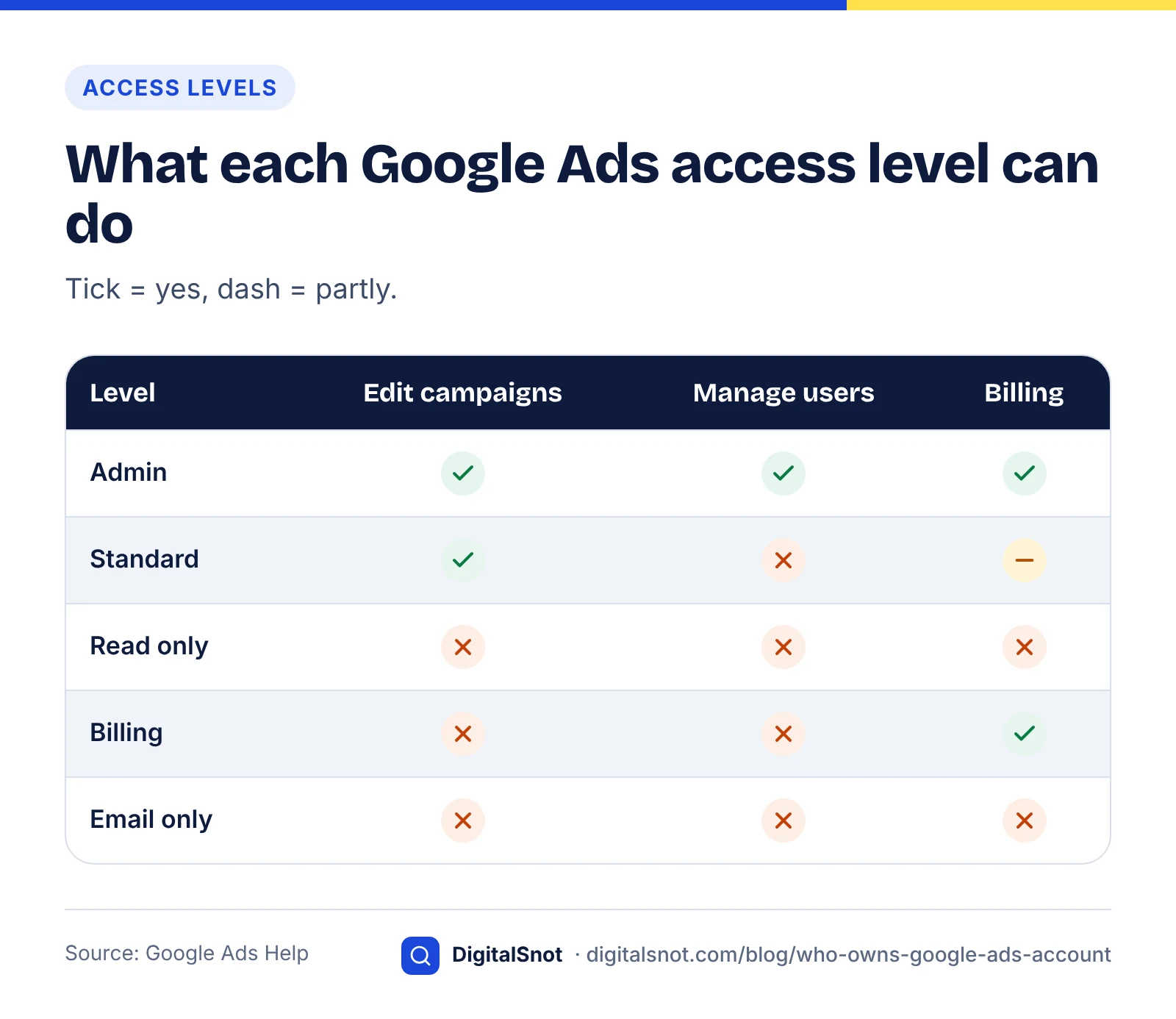
Google's page about access levels lists five levels:
- Admin: everything, including adding and removing users, changing access levels and linking accounts.
- Standard: can edit campaigns, but not the admin tasks such as managing users.
- Read only: can see campaigns and reports, but change nothing.
- Billing: can see and edit billing, but not campaigns.
- Email only: receives emails and reports.
You can see who has which level under Admin, then Access and security, on the Users tab. Our suggestion: keep Admin with two people from your business, using business email addresses, so one person leaving does not lock you out. An agency that runs your campaigns can usually work with Standard access. Agree this with your agency rather than changing it without warning.
Manager accounts: linking, ownership and unlinking
Agencies manage client accounts from a manager account, sometimes called an MCC. Google's page about manager accounts explains how they work, and the Managers tab under Admin, then Access and security, shows which manager accounts are linked to yours.
How the link was made matters. Google's page on ownership of client accounts says a manager account that creates an account is automatically its owner. When an existing account is linked to a manager account, the manager is not the owner unless the client account turns that on.
Even if the agency's manager account owns your account, you are not stuck. Google's page on unlinking accounts says you need administrative access to the manager account or the client account to remove the link, and a newly created account cannot be unlinked until at least one user with administrative access has been invited. So the first step is always the same: get Admin access for your business.
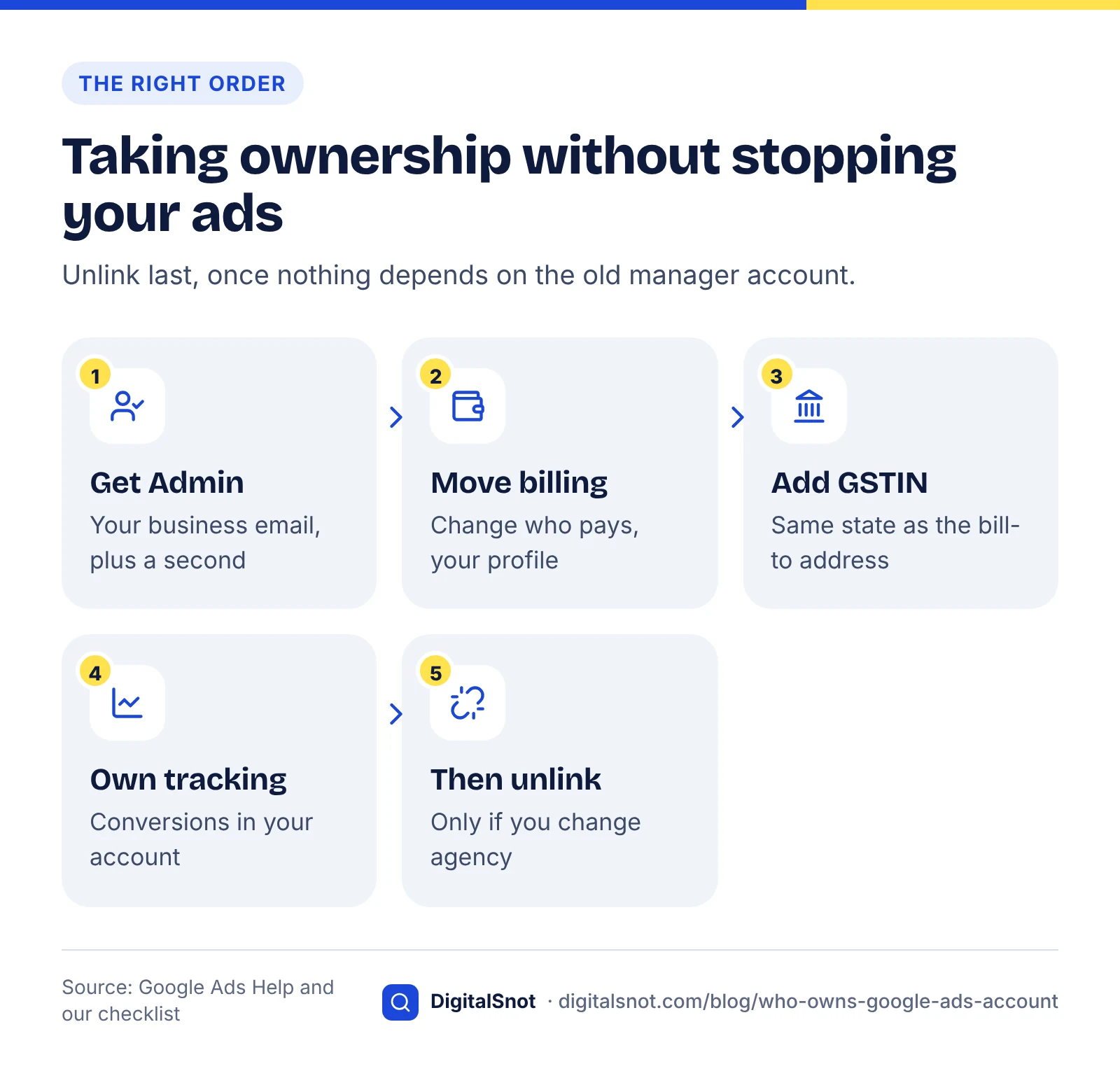
Unlinking also has knock-on effects. If the manager account pays for your account through monthly invoicing, your ads stop when it is unlinked, so set up your own billing first. If your conversions are tracked in the manager account rather than your own, move them before you unlink, or bidding loses its signal.
Billing in your business's name, and GST invoices
Billing belongs to the payments profile, not to whoever runs the campaigns. If the agency's payments profile pays for your account, Google's invoices are in the agency's name.
To move billing, Google Ads uses a billing transfer called "Change who pays". Google's page on changing the payments profile explains that you need Admin or Billing access, that promotional credit does not move to the new profile, and that you will have to complete advertiser verification again. For accounts on monthly invoicing, Google has a separate page on making a billing transfer.
For GST, Google's page on taxes in your country lists 18% GST on Google Ads in India: CGST and SGST at 9% each for a bill-to address in Haryana, and IGST at 18% elsewhere. Google's payments help on GST on purchases says the GSTIN you add in the India tax info section must be from the same state as your bill-to address. If it is not, the invoice is treated as issued to an unregistered customer, and Google cannot re-issue invoices already finalised for a tax ID change. Ask your accountant how this affects input tax credit.
A worked example: a kurti shop in Jaipur
Kurti Corner in Jaipur is a made-up business. Two years ago its agency created the Google Ads account inside the agency's manager account. The agency pays Google on its own monthly invoicing and bills the shop, with GST, on its own invoices. The owner, Meena, can log in, but only with Read only access.
She works through the checklist and fixes things in this order:
- Admin access. She asks the agency to invite her business email as Admin, then adds her business partner as a second Admin.
- Billing. With the agency, she sets a date, settles the balance and moves billing to a payments profile in Kurti Corner's name with "Change who pays", then completes advertiser verification.
- GST. She adds her GSTIN, registered in Rajasthan, with a Jaipur bill-to address, so later invoices show it.
- Tracking. She checks that the conversion actions sit in her own account, not the manager account.
- Records. She downloads reports and runs an audit to record where the account stands.
Nothing here needs the agency to leave. If they do part ways later, unlinking the manager account will not stop her ads or her tracking.
Use change history to see what was done
Every change in your account leaves a trace. Google's page about change history says it lists changes to your account, campaigns and ad groups for the past two years, with the user who made each one. Google's page on undoing changes explains that most changes made in the last 30 days can be undone.
The Change History Analyzer lines your change history up with a daily performance report. It compares cost, clicks and conversions in the days before and after each important change, and marks changes made by Google, such as auto-applied recommendations. A change that came before a drop did not necessarily cause it, and the tool says so.
Before any handover, it also helps to record the account's state. Drop your campaigns, keywords, search terms and ads exports into the Google Ads Account Audit, and it lists spend with no conversions, budget limits and settings to fix, ranked by the money at stake. Both tools read your files in your browser and never sign in to Google Ads.
When an agency leaves
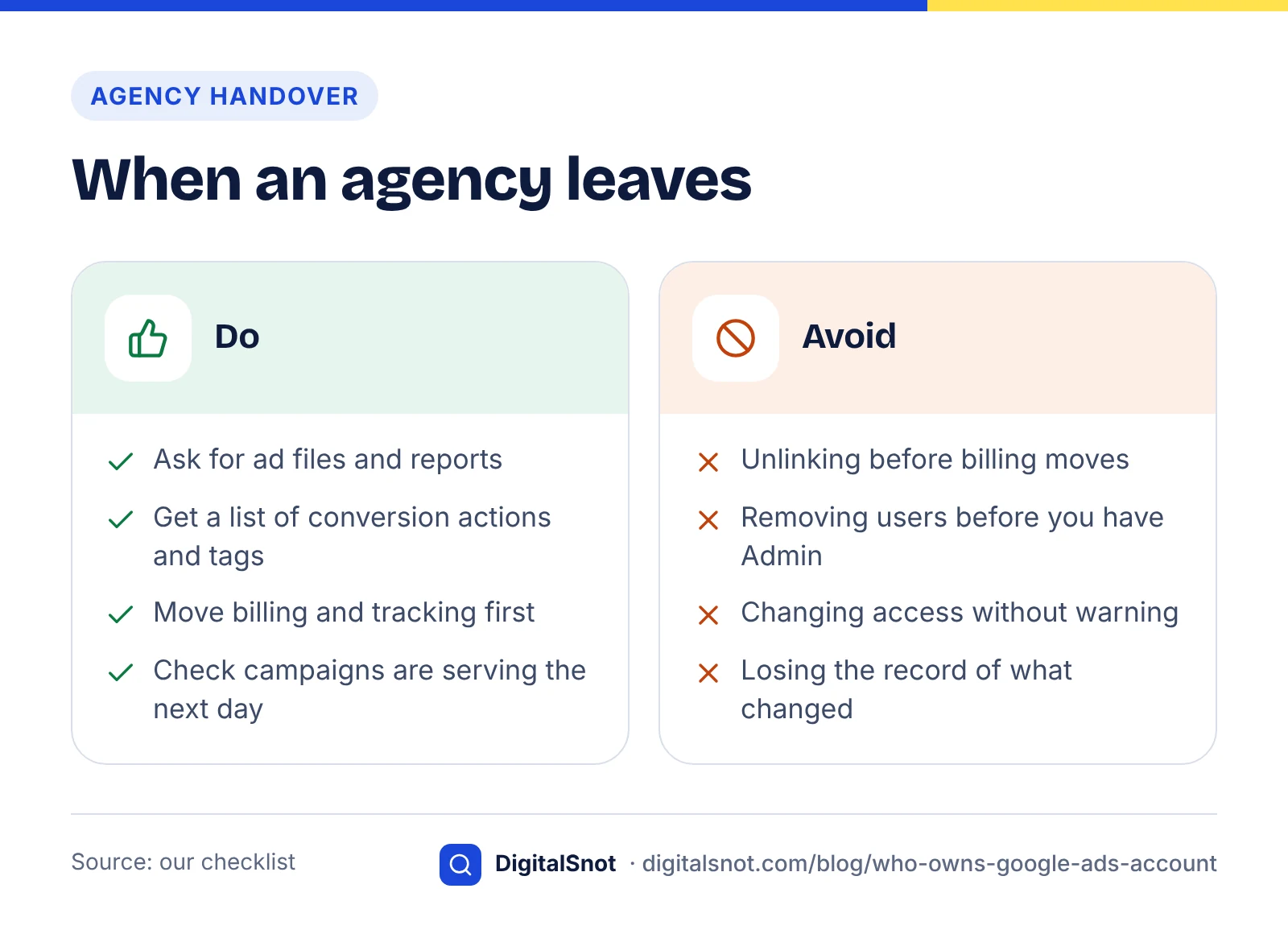
Most handovers go smoothly when the order is right. Ask for the files of your ad images and videos, a list of conversion actions and where their tags sit, and the reports for the months they managed. Move billing and tracking before you unlink anything. Then remove the old manager account and any users who no longer need access, and check that campaigns are still serving the next day.
Our posts on tracking calls and WhatsApp leads and finding wasted spend in search terms are good first checks for whoever runs the account next. If you are choosing a new agency, the questions in our post on how to choose an SEO agency work for Google Ads too.
Mistakes to avoid
- Using one person's Gmail as the only Admin. If that person leaves or loses the login, nobody in the business can manage access.
- Accepting Read only access as "ownership". Read only lets you look, but you cannot add users, link products or remove a manager account.
- Unlinking in a hurry. If billing or conversions still run through the manager account, unlinking stops your ads or cuts off the data bidding relies on.
- Forgetting the payments profile users. The payments profile has its own list of users, separate from Google Ads users, so check who can manage it too.
- Waiting for a dispute. These checks take an hour while things are going well, and far longer when they are not.
Your next step
Open Admin, then Access and security, in your Google Ads account today and check whether your business email shows Admin. Then answer the 20 questions in the Account Ownership and Access Checklist and fix the top gaps first. More free tools are on our Google Ads tools page, and you can contact us if you want help with a handover.
Free tools in this article
- Account Ownership and Access Checklist Make sure your business, not just the agency, holds admin access, billing, tags and data.
- Change History Analyzer Line up your change history with daily results and see which change came before a jump or drop.
- Google Ads Account Audit Drop your Google Ads exports and get wasted spend, budget limits and settings to fix, ranked by rupees.
By the numbers
- access levels in a Google Ads account: Admin, Standard, Read only, Billing and Email only
- 5
- Source: Google Ads Help
- of changes to your account, campaigns and ad groups listed in change history
- 2 years
- Source: Google Ads Help
Frequently asked questions
How do I check who has access to my Google Ads account?
Open Admin, then Access and security. The Users tab lists everyone with their access level: Admin, Standard, Read only, Billing or Email only. The Managers tab lists manager accounts linked to yours, such as an agency's. You need Admin access to change levels or remove anyone.
What access should my agency have?
Enough to do the work. Standard access can edit campaigns but cannot manage users, so it suits an agency that runs your ads. Our suggestion is to keep Admin with two people from your own business, using business email addresses, and to agree the arrangement with your agency.
Does my agency own my Google Ads account if it created it?
A manager account that creates an account is its owner in Google Ads. You can still unlink that manager account once your business has a user with Admin access, and your account keeps its campaigns. Move billing and conversion tracking first if they run through the agency.
What happens when I unlink my agency's manager account?
The agency loses access through its manager account. If the manager account pays for your account through monthly invoicing, your ads stop, so set up your own billing first. If conversions are tracked in the manager account, move them to your own account before you unlink.
How do I get Google Ads GST invoices in my business's name?
Invoices follow the payments profile. Move billing to a profile in your business's name with "Change who pays", then add your GSTIN in the India tax info section, from the same state as your bill-to address. Google cannot re-issue invoices already finalised, so the change applies to later invoices.
How can I see what my agency changed in Google Ads?
Open Change history from the Campaigns menu. It lists changes to the account, campaigns and ad groups for the past two years, with the user who made each one, and most changes made in the last 30 days can be undone there.
Sources
Every figure and claim in this article comes from the sources below. We checked each one when writing and link to the original so you can read it yourself. Credit belongs to the authors and publishers listed. How we write and check our articles.
-
1
About access levels in your Google Ads account
Google Ads Help · The five access levels and what each can do.
-
2
About Google Ads manager accounts
Google Ads Help · How manager accounts manage client accounts.
-
3
About ownership of client accounts
Google Ads Help · A manager account that creates an account owns it; linking does not give ownership by default.
-
4
Unlink accounts from your manager account
Google Ads Help · Administrative access needed to unlink; new accounts need an admin user first.
-
5
Change the payments profile associated with your Ads account
Google Ads Help · Change who pays: access needed, promotional credit, advertiser verification again.
-
6
Make a billing transfer (for monthly invoicing accounts)
Google Ads Help · Billing transfers for accounts on monthly invoicing.
-
7
Taxes in your country
Google Ads Help · 18% GST on Google Ads in India, as CGST and SGST or IGST.
-
8
GST (Goods and Services Tax) on purchases
Google payments centre help · GSTIN must match the bill-to state; finalised invoices are not re-issued.
-
9
About change history
Google Ads Help · Two years of changes with the user who made each one.
-
10
Undo changes in change history
Google Ads Help · Most changes made in the last 30 days can be undone.