Business emails going to spam? SPF, DKIM and DMARC in plain words
What SPF, DKIM and DMARC do, what Gmail, Yahoo and Outlook.com ask of senders, the mistakes that send business mail to spam, and how to check your domain for free.

On this page (9 sections)
- 1Why real business mail ends up in spam
- 2SPF, DKIM and DMARC in plain words
- 3What Gmail, Yahoo and Outlook.com ask of senders
- 4Five mistakes that send business mail to spam
- 5Worked example: Kurti Corner, Jaipur
- 6How to check your own domain in 15 minutes
- 7When the records are right but mail still goes to spam
- 8Your next step
- 9Sources
If customers tell you they find your business emails going to spam, quotes, invoices and replies included, the cause is often not what you wrote. It is how your domain is set up. This post explains what SPF, DKIM and DMARC do, which rules Gmail, Yahoo and Outlook.com apply to senders, five common mistakes that break them, and how to check your own domain with free tools in about 15 minutes.
Why real business mail ends up in spam
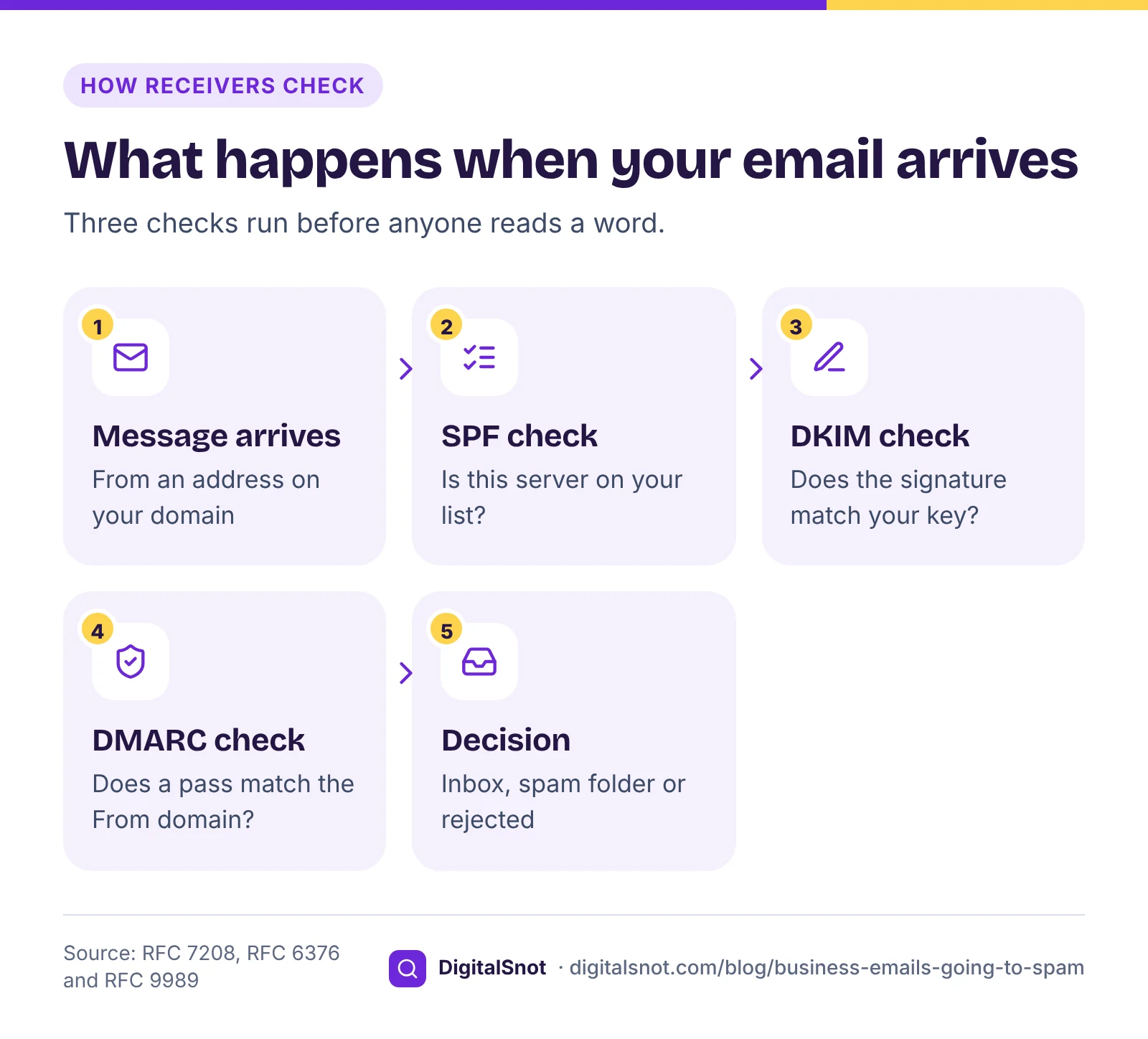
Anyone can type any address into the From line of an email. So before a mailbox provider looks at your words, it checks whether the message really comes from the domain it claims. If your domain cannot prove that, your genuine invoice looks much like a scam that copies your name.
Gmail's email sender guidelines put authentication at the top of the requirements for every sender. Your content, your sending habits and spam complaints matter too, but missing or broken authentication is the cause you can check and fix yourself today.
SPF, DKIM and DMARC in plain words
All three are records in your domain's DNS: the public settings that also point your website and email to the right servers. You add them at your DNS host, which is often your domain registrar, Cloudflare or your hosting panel.
SPF: the list of who may send for you
SPF, defined in RFC 7208, is one TXT record at the root of your domain. It names the servers and services allowed to send mail as you. For a business on Google Workspace it can be as short as "v=spf1 include:_spf.google.com ~all". The ending matters: "~all" asks receivers to treat any other server with suspicion, "-all" asks them to fail it, and "+all" lets every server in the world pass, which defeats the purpose.
DKIM: a signature on every message
DKIM, defined in RFC 6376, adds a digital signature to each email. The receiving server finds your public key in DNS, under a name made of a selector and "_domainkey", such as google._domainkey followed by your domain. If the signature matches, the message came from you and was not changed on the way. Gmail's guidelines ask for a DKIM key of at least 1024 bits.
DMARC: the instruction when a check fails
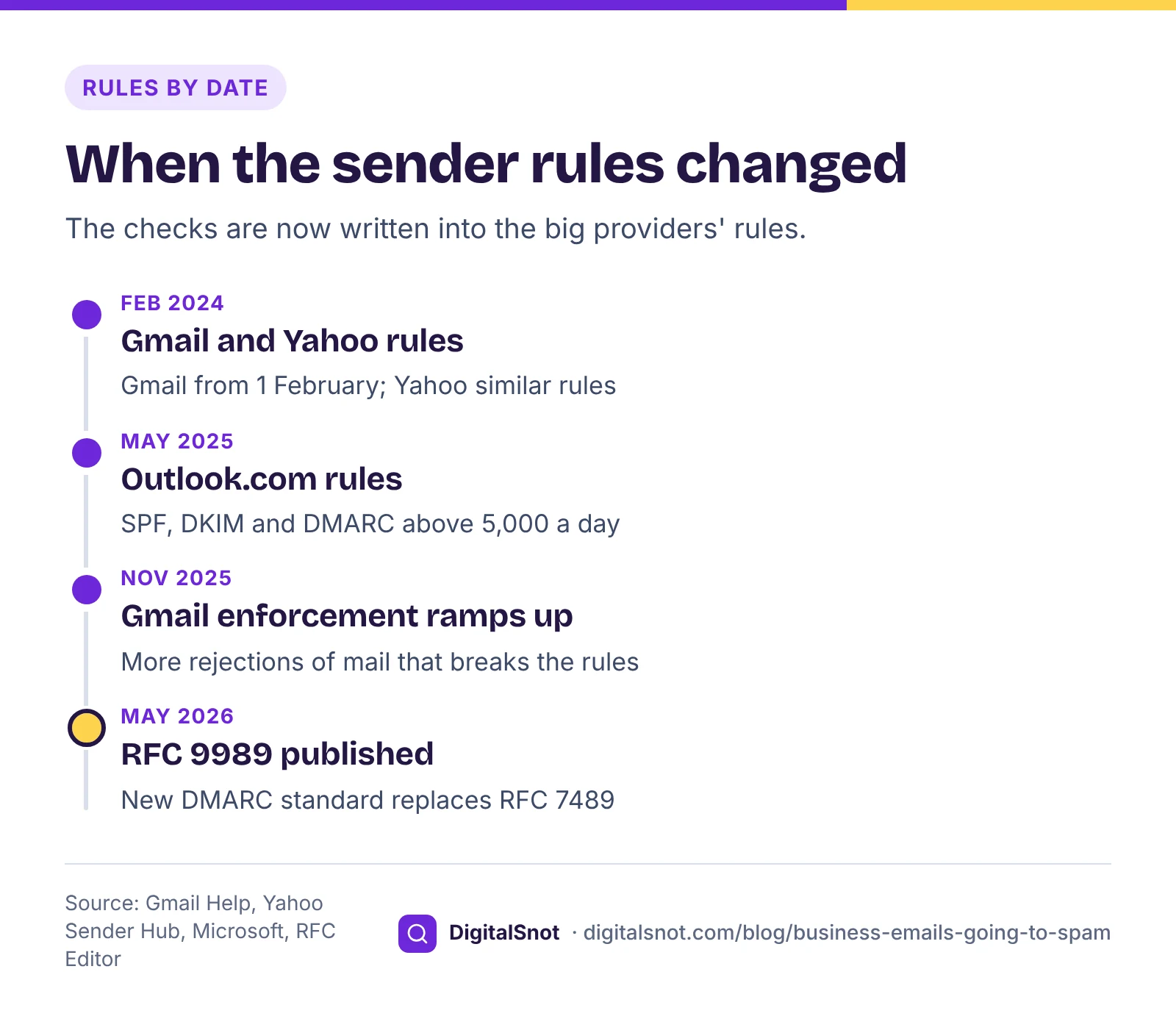
DMARC is a TXT record at _dmarc on your domain. It tells receivers what to do with mail that fails: p=none means take no action and only report, p=quarantine means treat it as suspicious, and p=reject means refuse it. A rua address asks receivers to send you reports, so you can see every service sending as you. To pass DMARC, a message must pass SPF or DKIM for a domain that matches the From address, which is called alignment. The current standard is RFC 9989, published in May 2026, which replaced RFC 7489. Existing records still start with "v=DMARC1".
What Gmail, Yahoo and Outlook.com ask of senders
The big mailbox providers now write these checks into their rules. Gmail's requirements started on 1 February 2024, Yahoo announced similar rules for the same period, and Microsoft added rules for Outlook.com in May 2025.
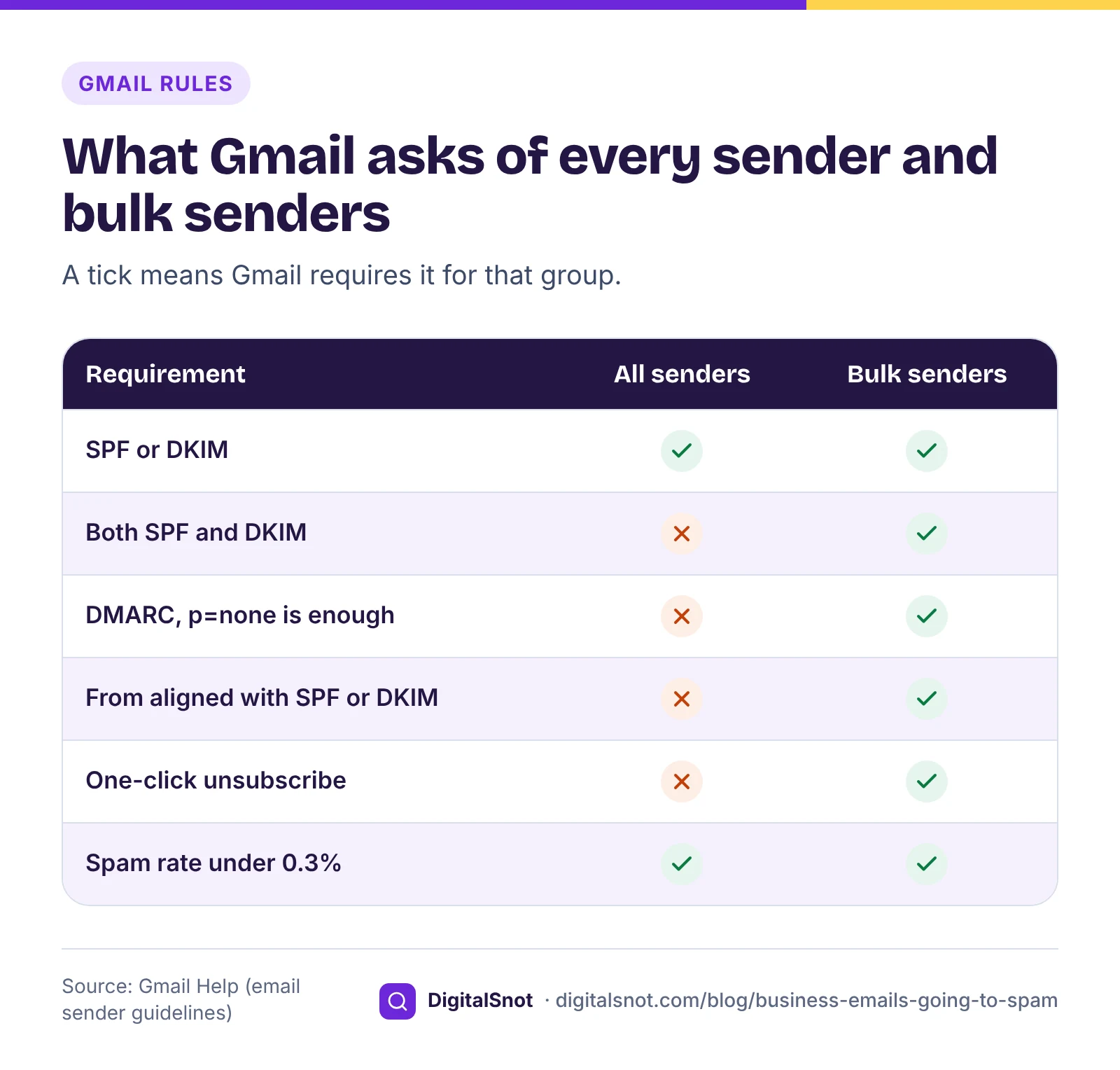
Every sender to Gmail needs SPF or DKIM, valid forward and reverse DNS for the sending servers, a TLS connection, and a spam rate below 0.3% as reported in Gmail's Postmaster Tools. The same guidelines ask you to aim for a spam rate below 0.10% and never to reach 0.30%.
Bulk senders, which Gmail defines as sending close to 5,000 or more messages to personal Gmail accounts in 24 hours, also need SPF and DKIM together, a DMARC record (p=none is enough), a From domain aligned with SPF or DKIM, and one-click unsubscribe in marketing messages, with unsubscribes handled within two days. Gmail's sender guidelines FAQ says a sender that crosses the line once stays a bulk sender, and that Google began ramping up enforcement on mail that breaks the rules in November 2025.
Yahoo's sender best practices ask bulk senders for much the same: SPF and DKIM, a DMARC policy of at least p=none that passes, alignment, a one-click unsubscribe header honoured within two days, a visible unsubscribe link in the body, and a spam rate below 0.3%.
Microsoft's rules for Outlook.com cover domains that send more than 5,000 messages a day to its consumer addresses: SPF and DKIM must pass, and a DMARC record of at least p=none must align with one of them. Microsoft's update to that announcement says failing mail is rejected, with the error "550 5.7.515".
Most small businesses send far less than that. But a festival offer to a large list can cross the line on a single day, and the rules for all senders apply to everyone. Setting up all three records is the safe choice.
Five mistakes that send business mail to spam
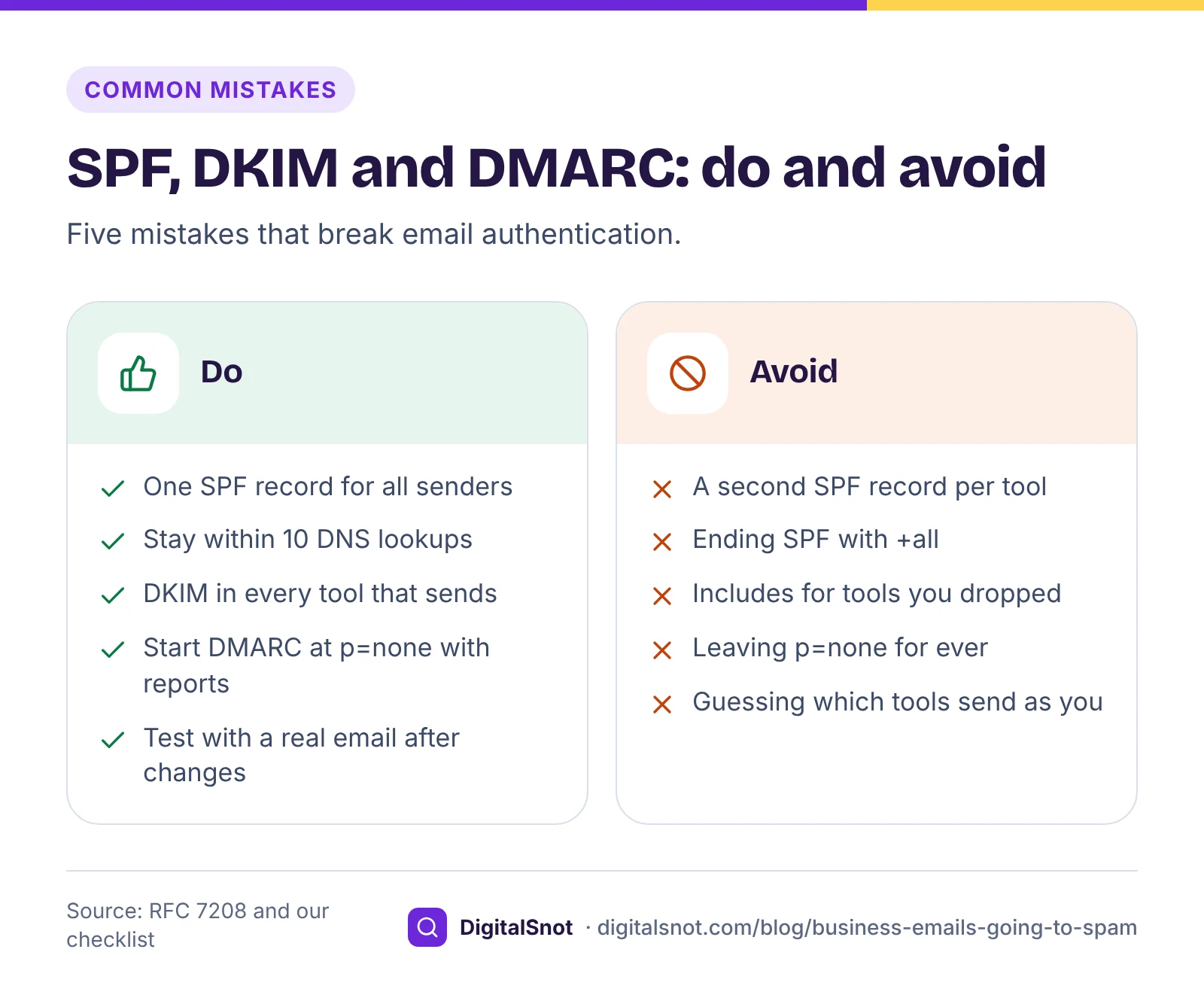
- Two SPF records. Each new tool's setup guide says "add this SPF record", so a second one appears. RFC 7208 says that when a domain has more than one SPF record, the check ends in "permerror", so SPF fails for every message. Merge them into one record.
- More than 10 DNS lookups. Each include, a, mx, ptr, exists and redirect in SPF counts, including the ones inside each include. RFC 7208 sets the limit at 10, and over it SPF fails. Remove includes for services you no longer use, or move bulk mail to a subdomain with its own record.
- No DKIM for the tools that send for you. Your mailbox may sign mail, but your newsletter tool, CRM, shop platform or billing software sends from its own servers. Unless you set up DKIM for your domain in each one, its mail may fail DMARC alignment.
- "+all", or no "all" at all. "+all" lets any server pass SPF as you, and a missing ending gives receivers no clear answer. End with "~all", or "-all" once every sender is listed.
- DMARC at p=none for ever. p=none meets the bulk sender rules, but it asks receivers to do nothing with mail that fails, so others can still send as you. Read the reports, and move to p=quarantine and later p=reject when all your real mail passes.
Worked example: Kurti Corner, Jaipur
Kurti Corner is a made-up shop that sells online from kurticorner.example. Staff use Google Workspace, a newsletter tool sends offers, and billing software emails invoices. Customers say the invoices land in spam.
A look at its DNS finds three problems:
- Two TXT records start with "v=spf1": one for Google Workspace and one for the newsletter tool. The billing software is in neither.
- DKIM is on for Google Workspace, but not in the billing software, which signs with its own domain.
- There is no DMARC record.
The fix is a short list of changes, plus a few weeks of reading reports:
- Publish one SPF record that holds every sender: "v=spf1 include:_spf.google.com include:[newsletter tool's SPF domain] include:[billing software's SPF domain] ~all", with each include copied from that service's setup guide. Delete the old records, and check the lookup count stays at 10 or fewer.
- Turn on DKIM for kurticorner.example in the newsletter tool and the billing software, and publish the record each one gives.
- Add a DMARC record at _dmarc: "v=DMARC1; p=none; rua=mailto:dmarc@kurticorner.example", after creating that mailbox.
- Send a test invoice to a Gmail address, open the message menu, choose "Show original" and check that SPF, DKIM and DMARC all say PASS.
- When the DMARC reports show all three services passing, change p=none to p=quarantine.
How to check your own domain in 15 minutes
You do not need to read raw DNS to find these problems. Use these free checks in order.
- Enter your domain, or any email address on it, in our Email Deliverability Checker, and add your DKIM selector if you know it. It reads your MX, SPF (counting lookups through every include against the limit of 10), DKIM keys at your selector or common ones, and DMARC. It shows each record against the Gmail, Yahoo and Outlook.com rules and gives you records to copy. It reads public DNS only, so it cannot see your spam rate, reverse DNS or unsubscribe headers.
- Open the DNS Record Checker to see every TXT record on the domain in plain words. It is the quickest way to spot an old SPF record, and it shows each record's time to live, so you know how long a change may take to reach everyone.
- Check the date in the Domain Expiry Checker. If the domain expires, your email stops along with your website, so keep auto-renew on with your registrar.
- If you send newsletters, sign up for Gmail's Postmaster Tools to see your spam rate and whether your domain meets the sender rules.
Find your DKIM selector in an email you sent: show its headers and look for the "s=" value in the DKIM-Signature line. Google Workspace uses "google" by default.
When the records are right but mail still goes to spam
Authentication proves who you are. It does not make people want your mail. Once the records pass, look at what you send and to whom.
- Complaints. Every "Report spam" click counts against you. Email only people who asked to hear from you, and make leaving easy.
- Subject lines and sender names. Gmail's guidelines say they should match the real sender and content, and ask senders not to start a subject with "Re:" or "Fwd:" unless the email is a reply or a forward. Test yours in the Email Subject Line Checker, which flags these issues. Gmail publishes no list of spam words, so the tool has none either.
- Mixed mail streams. If offers draw complaints, they can drag down the invoices sent from the same domain. A subdomain for newsletters keeps the two apart.
Your next step
Run the Email Deliverability Checker on the domain you send from today, fix anything marked high first, and send yourself a test email to confirm. Most fixes are a few changes at your DNS host. If your records involve several tools and you would like a second pair of eyes, get in touch with the result.
Free tools in this article
- Email Deliverability Checker Check SPF, DKIM, DMARC and MX against the Gmail, Yahoo and Outlook.com sender rules.
- DNS Record Checker See where your domain points: A, CNAME, MX, TXT, NS, CAA and SOA records, explained in plain words.
- Domain Expiry Checker See when your domain expires, its registrar, status codes in plain words, name servers and DNSSEC.
- Email Subject Line Checker Test up to four subject lines and preview texts side by side, with an inbox sketch and checks.
Frequently asked questions
Why do my emails go to spam when I am not sending spam?
Usually because receivers cannot confirm the mail really comes from your domain. Without SPF, DKIM and DMARC, or with broken records, your genuine mail looks like the scams that copy business names. Check your records first, then look at complaints and your subject lines.
Do I need SPF, DKIM and DMARC if I send only a few emails a day?
Gmail asks every sender for SPF or DKIM, so you need at least one. DMARC and both SPF and DKIM are required for bulk senders of about 5,000 or more messages a day to Gmail, but setting up all three is the safe choice for any business.
Can I have two SPF records, one for each email service?
No. RFC 7208 says a domain with more than one SPF record gets a "permerror", so SPF fails for every message. Merge all your services into one record that starts with "v=spf1" and ends with a single "all".
What does "too many DNS lookups" mean for SPF?
SPF allows at most 10 terms that need a DNS lookup: include, a, mx, ptr, exists and redirect, counting the ones inside each include. Over 10, SPF fails. Remove includes for services you no longer use, or move bulk mail to a subdomain with its own record.
Which DMARC policy should I start with?
Start with p=none and a rua address, so you receive reports without changing how your mail is treated. When the reports show every service that sends your real mail passing, move to p=quarantine, and later to p=reject.
Does a free email checker stop my mail going to spam?
It finds and helps fix one common cause: missing or broken authentication. Delivery also depends on spam complaints and sending habits, which DNS cannot show. Watch your spam rate in Gmail Postmaster Tools once your records are in place.
Sources
Every figure and claim in this article comes from the sources below. We checked each one when writing and link to the original so you can read it yourself. Credit belongs to the authors and publishers listed. How we write and check our articles.
-
1
Email sender guidelines
Gmail Help · Requirements for all senders and bulk senders, DKIM key length, spam rate targets of 0.10% and 0.30%
-
2
Email sender guidelines FAQ
Gmail Help · Bulk sender definition, permanent bulk status, enforcement ramp-up from November 2025
-
3
Postmaster Tools dashboards
Gmail Help · Spam rate and compliance status dashboards for senders
-
4
Sender best practices
Yahoo Sender Hub · Yahoo rules for bulk senders: SPF, DKIM, DMARC, one-click unsubscribe within two days, spam rate below 0.3%
-
5
Strengthening email ecosystem: Outlook's new requirements for high-volume senders
Microsoft Tech Community · Outlook.com rules for domains sending over 5,000 messages a day, from May 2025, and rejection with 550 5.7.515
-
6
RFC 7208: Sender Policy Framework (SPF)
RFC Editor · One SPF record per domain, the 10-lookup limit and permerror
-
7
RFC 6376: DomainKeys Identified Mail (DKIM) Signatures
RFC Editor · DKIM signatures, selectors and keys published under _domainkey
-
8
RFC 9989: Domain-based Message Authentication, Reporting, and Conformance (DMARC)
RFC Editor · Current DMARC standard, May 2026, replacing RFC 7489
